Charts in Sheets? Basics
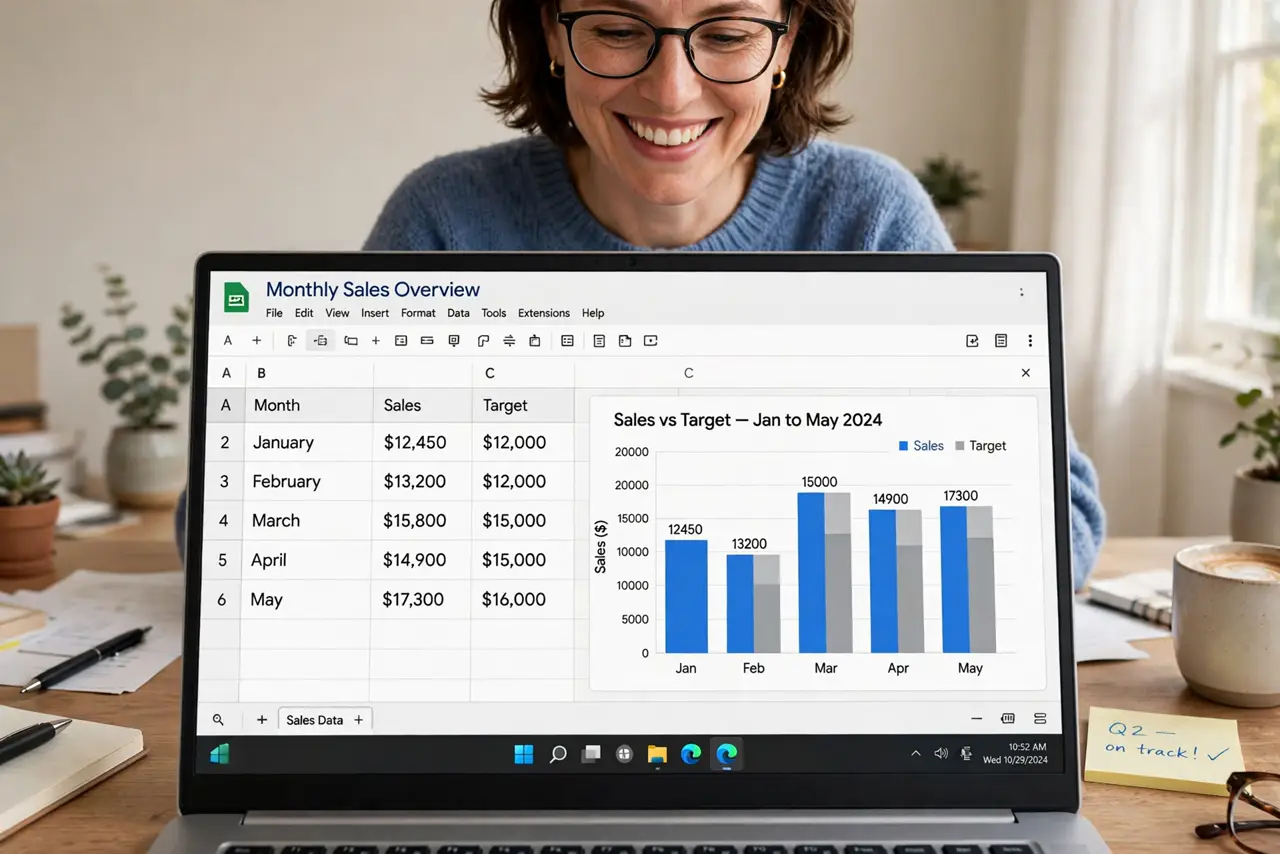
A chart turns a wall of numbers into a picture people actually understand — sales trends, budget breakdowns, project progress. Google Sheets builds one in seconds: select your data, click Insert, Chart, and pick a type. The defaults are decent, but a few tweaks separate a clear chart from a confusing one. Here is the beginner path.
TL;DR / Quick Fix
Quick fix: select your data including headers, click Insert, Chart. Sheets guesses the chart type — change it in the Chart editor sidebar if wrong. Use bars for comparisons, lines for trends over time, pie only for simple part-of-whole. Add a clear title and axis labels.
Follow these steps
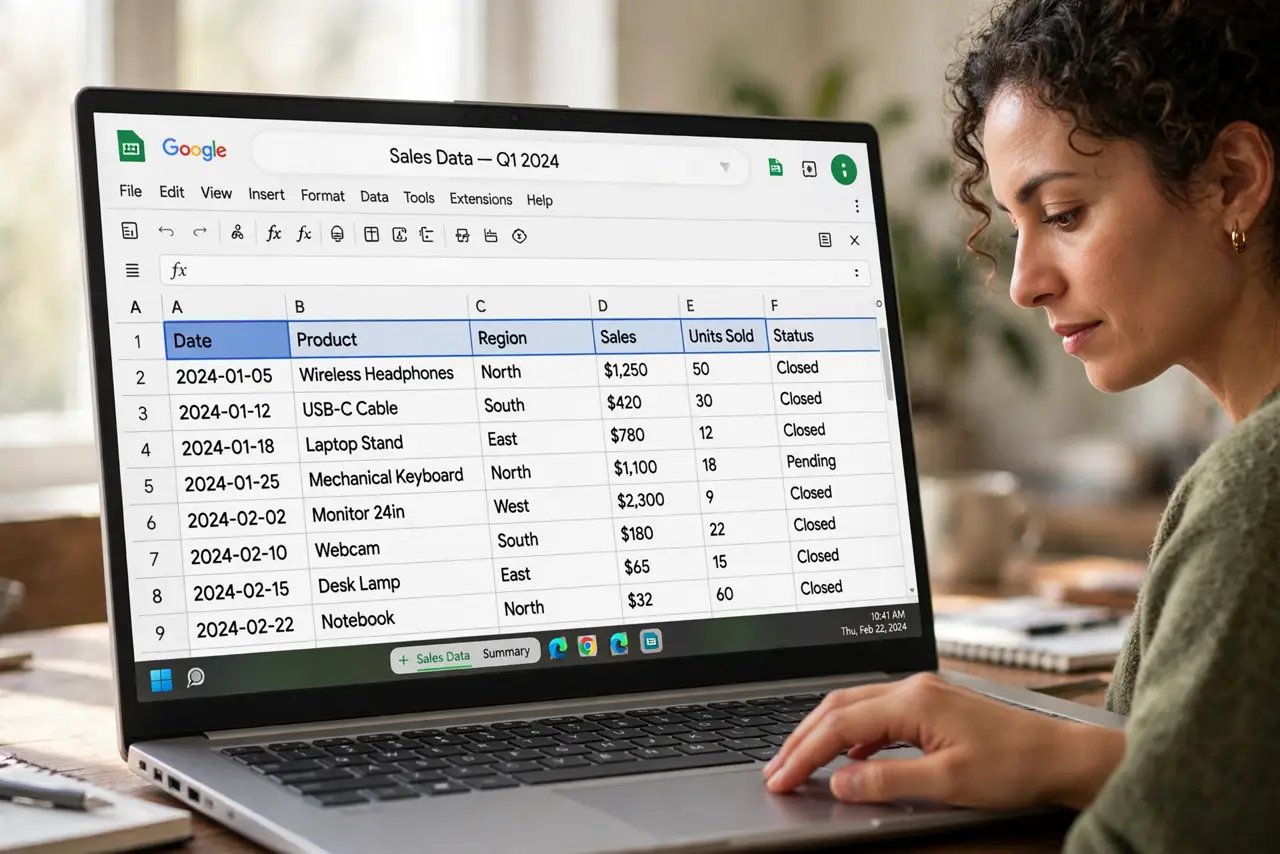
- Select data with headers. Highlight your data including the header row — months, categories, values. Headers become the labels automatically. Clean headers now save relabeling later; messy data makes charts via formulas like SUMIF harder too.
- Insert the chart. Click Insert, Chart. Sheets analyzes your data and picks a type — often a good guess. The Chart editor sidebar opens on the right with Setup and Customize tabs.
- Pick the right chart type. Comparisons across categories: bar or column. Trends over time: line. Part of a whole with few slices: pie. Two variables' relationship: scatter. Wrong type is the number one reason charts confuse.
- Add titles and labels. In Customize, give the chart a plain title that states the point — 'Sales grew 40% in Q3' beats 'Chart 1'. Label both axes so readers know the units without guessing.
- Keep it honest and simple. Start bar axes at zero so differences are not exaggerated. Drop 3D effects, gradients, and rainbow colors — one accent color plus gray communicates best.
- Move and resize deliberately. Drag the chart where it belongs and size it to fill its space without crowding. A chart squeezed into a corner gets ignored; one given room gets read.
What NOT to do
- Do not use pie charts with ten slices. Pies work for two to five slices — beyond that use bars.
- Do not start bar axes above zero. Truncated axes exaggerate tiny differences and mislead readers.
- Do not decorate charts to death. 3D effects, gradients, and clip art fight the data — simplicity wins.
- Do not chart dirty data. Blank rows, merged cells, and mixed formats produce broken or lying charts — clean first.
Frequently asked questions
Which chart type should I use?
Bars for comparisons, lines for trends over time, pie for simple part-of-whole with few slices, scatter for relationships between two numbers.
Why does my chart look wrong?
Usually the data range is off — blank rows or headers in the wrong place. Check the data range in the Chart editor's Setup tab.
Can I update a chart when data changes?
Yes — charts linked to a range update automatically when you edit the data. Just keep new data inside the chart's range.