Insights with Explore
Staring at a spreadsheet wondering what it means? Google Sheets' Explore panel answers in plain words — type a question about your data and get charts, summaries, and breakdowns automatically. It is the closest thing to a data analyst on call, and it is free. Pair with Sheets charts for presentation and your budget sheet for practice data.
TL;DR / Quick Fix
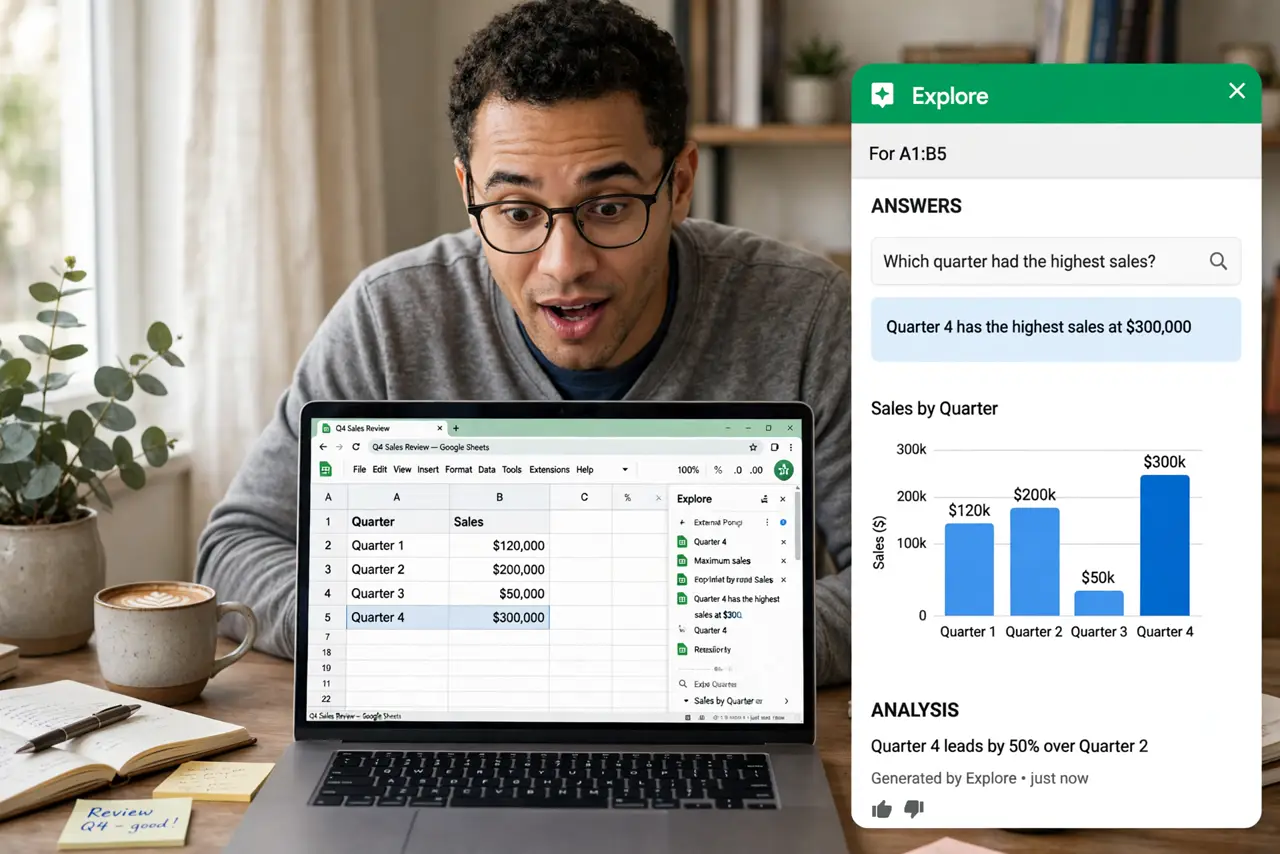
Quick fix: Google Sheets' Explore panel answers questions about your data automatically — ask it in plain words and get charts, summaries, and pivot-like breakdowns. Click Explore at the bottom right and type what you want to know. It is like a data analyst on call, free.
Follow these steps
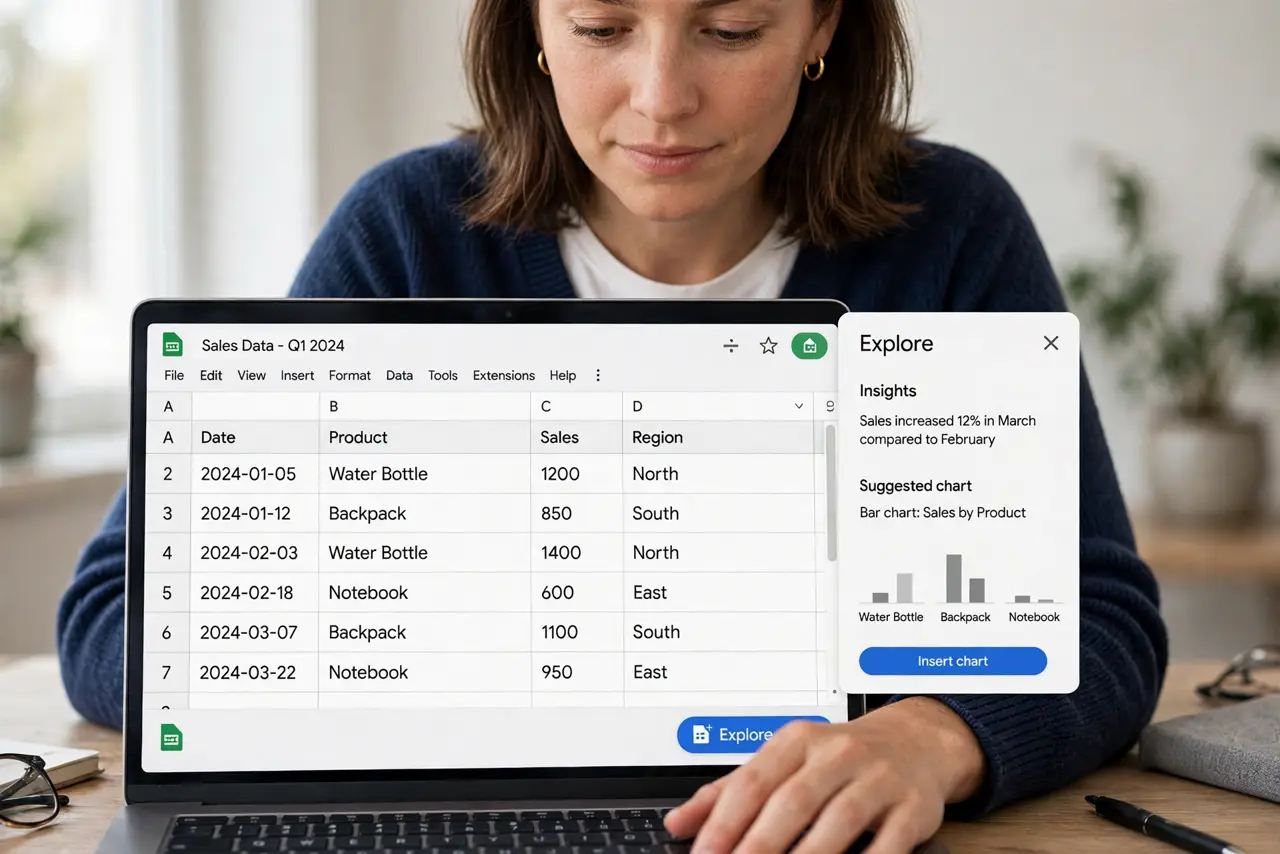
- Open the Explore panel. Click the Explore button at the bottom right of your Google Sheet. A sidebar appears, already peeking at your data.
- Ask in plain words. Type questions like total sales by month or average score per team. Natural language works — no formulas, no syntax.
- Review the suggested charts. Explore proposes charts and summaries automatically, even before you ask. One click inserts the good ones into your sheet.
- Dig with follow-ups. Refine by asking narrower questions. Each answer builds on the last — it is a conversation with your data.
- Insert what is useful. Drop the best charts and tables into the sheet for sharing. Explore is analysis; the sheet is the record.
- Verify the important ones. Spot-check a generated summary against the raw data before presenting it. AI analysis is a starting point, not gospel.
What NOT to do
- Do not present Explore output unverified. It summarizes honestly but can misread messy data — check before sharing.
- Do not expect it to fix bad data. Garbage in, plausible-looking charts out — clean the sheet first.
- Do not ignore the suggested questions. Explore's own prompts often reveal angles you had not considered.
- Do not forget it needs headers. Clear column headers in the first row dramatically improve its answers.
Frequently asked questions
Is Explore the same as pivot tables?
Similar spirit, less control. Explore guesses what you want; pivot tables do exactly what you build. Use both.
Does it work on any sheet?
It works best on tidy tables with headers. Messy sheets get messy answers.
Can I use it in Excel?
Excel has its own Ideas feature with a similar job. The concept travels; the button does not.