Link Sheets Together
Copying numbers from one spreadsheet to another every week is how errors are born — five conflicting copies and nobody knows the truth. IMPORTRANGE links sheets live: change the source, and every linked sheet updates automatically. One source of truth, zero copy-paste. Grant importrange permission once, then explore with the Explore panel.
TL;DR / Quick Fix
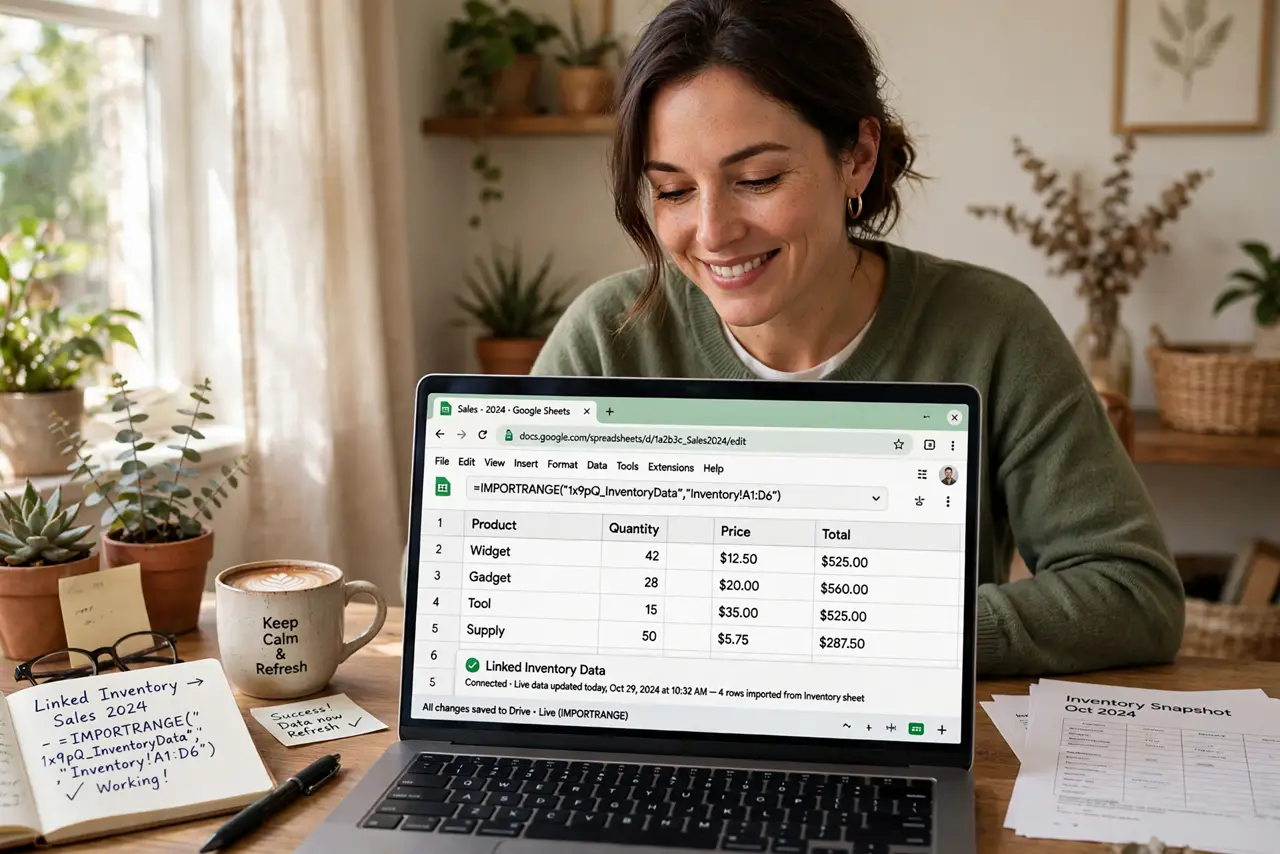
Quick fix: IMPORTRANGE pulls live data from one Google Sheet into another — no more copy-paste between files. Reference the source spreadsheet's URL and range, grant permission once, and the linked cells update automatically. One source of truth beats five conflicting copies every time.
Follow these steps
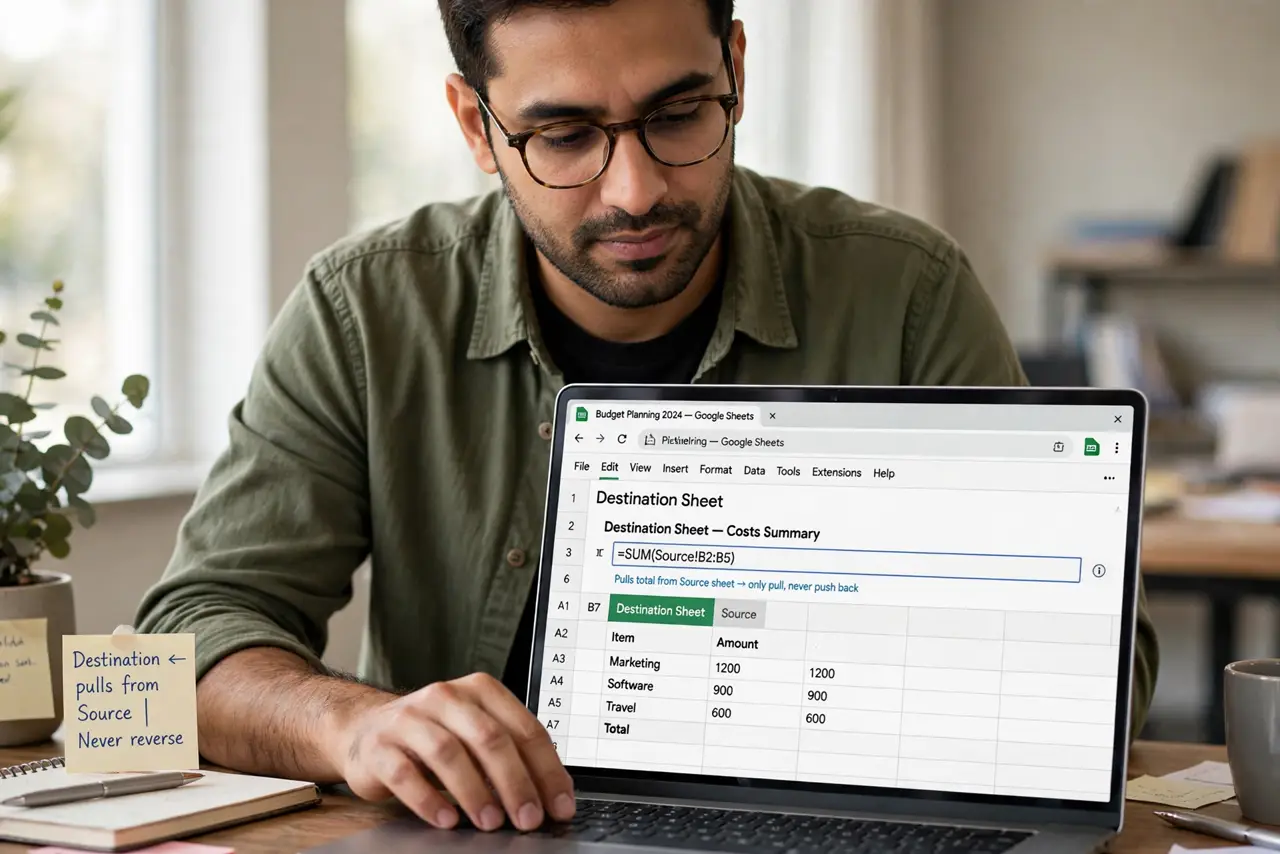
- Open the destination sheet. Decide which sheet receives the data. The formula lives here, pulling from the source — never the reverse.
- Write the IMPORTRANGE formula. Use IMPORTRANGE with the source spreadsheet's URL and the range in quotes. Start with a small range to test.
- Grant permission once. The first run asks you to allow access to the source sheet. One click, and the link is trusted from then on.
- Verify the data arrives. Check that the pulled values match the source. A wrong range string is the classic first-try mistake.
- Build on the live link. Charts, summaries, and reports in the destination now update with the source. Copy-paste day is over.
- Document the link. Leave a note in the sheet saying where the data comes from. Future-you will thank present-you when something looks odd.
What NOT to do
- Do not link without permission planning. If the source's sharing changes, your link breaks — keep the access stable.
- Do not import entire sheets. Pull only the range you need; giant imports slow everything down.
- Do not forget the source can change. Live links mean live surprises — agree with the source owner on stable layouts.
- Do not use it for one-time copies. A single paste beats a permanent link you will forget to delete.
Frequently asked questions
Why does it show a permission error?
First-time links need explicit approval. Click the prompt to allow access and it resolves immediately.
Can I link from someone else's sheet?
Yes, if they have shared it with you. Their sharing settings control what your link can see.
Does it update instantly?
Nearly — changes propagate within moments. For truly instant needs, work in the source directly.