Form Responses in Sheets?
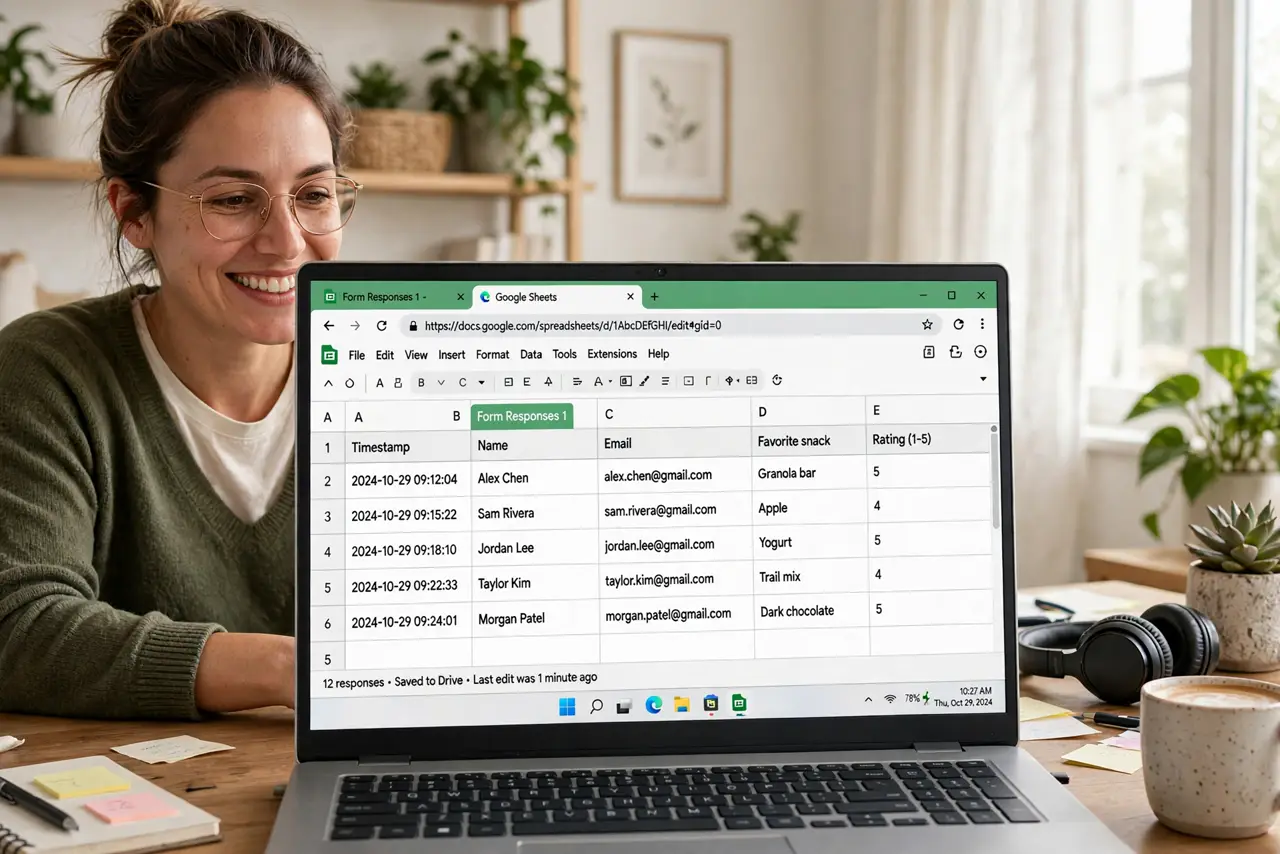
Google Forms can dump every response straight into a spreadsheet — signups, surveys, quizzes, orders — each submission becoming a new row automatically. The link takes ten seconds in the Responses tab, but the real skill is keeping the response sheet clean: never edit it directly, analyze in a second tab. Here is the safe setup.
TL;DR / Quick Fix
Quick fix: in Google Forms open the Responses tab, click the Sheets icon, and create or link a spreadsheet — new responses appear as rows automatically. Never type in the response sheet itself; analyze with formulas in a second tab. Freeze the header row.
Follow these steps
- Link the form to Sheets. Open your form, click the Responses tab, then the green Sheets icon. Choose Create a new spreadsheet or Select existing. From now on, every submission appends a row automatically — no copying, no importing.
- Never edit the response sheet directly. The first tab is sacred: Forms owns it and new responses land in row order. Typing, sorting, or deleting there corrupts the mapping. Do all analysis — SUMIFs, charts, filters — in a second tab referencing the data.
- Freeze the header row. View, Freeze, 1 row. With hundreds of responses, the header must stay visible while scrolling or you will misread columns. This takes five seconds and saves endless confusion.
- Use filter views for exploring. Data, Create a filter lets you slice responses without changing what others see. Filter views (not basic filters) are share-safe — your filtering does not disturb collaborators.
- Handle timestamps. Forms stamps each response with a timestamp — genuinely useful for 'first 50 signups' logic. Format the column as date-time if it misbehaves, and never delete the timestamp column.
- Back up before big changes. File, Make a copy before restructuring. If a form gets disconnected or a tab gets mangled, the copy is your time machine. Automate nothing until the manual flow is right.

What NOT to do
- Do not type in the response tab. Forms owns that tab — your edits get overwritten or misaligned by the next submission.
- Do not sort the response sheet. Sorting scrambles the submission order Forms expects — sort in a separate analysis tab.
- Do not delete the timestamp column. It is your audit trail for order disputes and deadline cutoffs.
- Do not share the raw response sheet widely. Share an analysis tab or a filtered view — raw data invites accidental edits.
Frequently asked questions
Where do Google Forms responses go?
To the linked spreadsheet's first tab, one row per response, automatically. Link it in the form's Responses tab with the Sheets icon.
Can I edit a response after submitting?
Only if the form owner enabled response editing. Owners can also edit the spreadsheet row, but the form keeps its own record.
Why are my responses out of order?
Someone sorted the response tab. Never sort it — new rows append at the bottom and sorting breaks the mapping. Analyze in a second tab.