Freeze Panes in Sheets?
You scroll down a long spreadsheet and the header row vanishes — now column D is a mystery number. Freeze Panes pins rows or columns in place so headers stay visible while you scroll. It takes ten seconds in Google Sheets and works the same in Excel. Here is how to freeze the right panes.
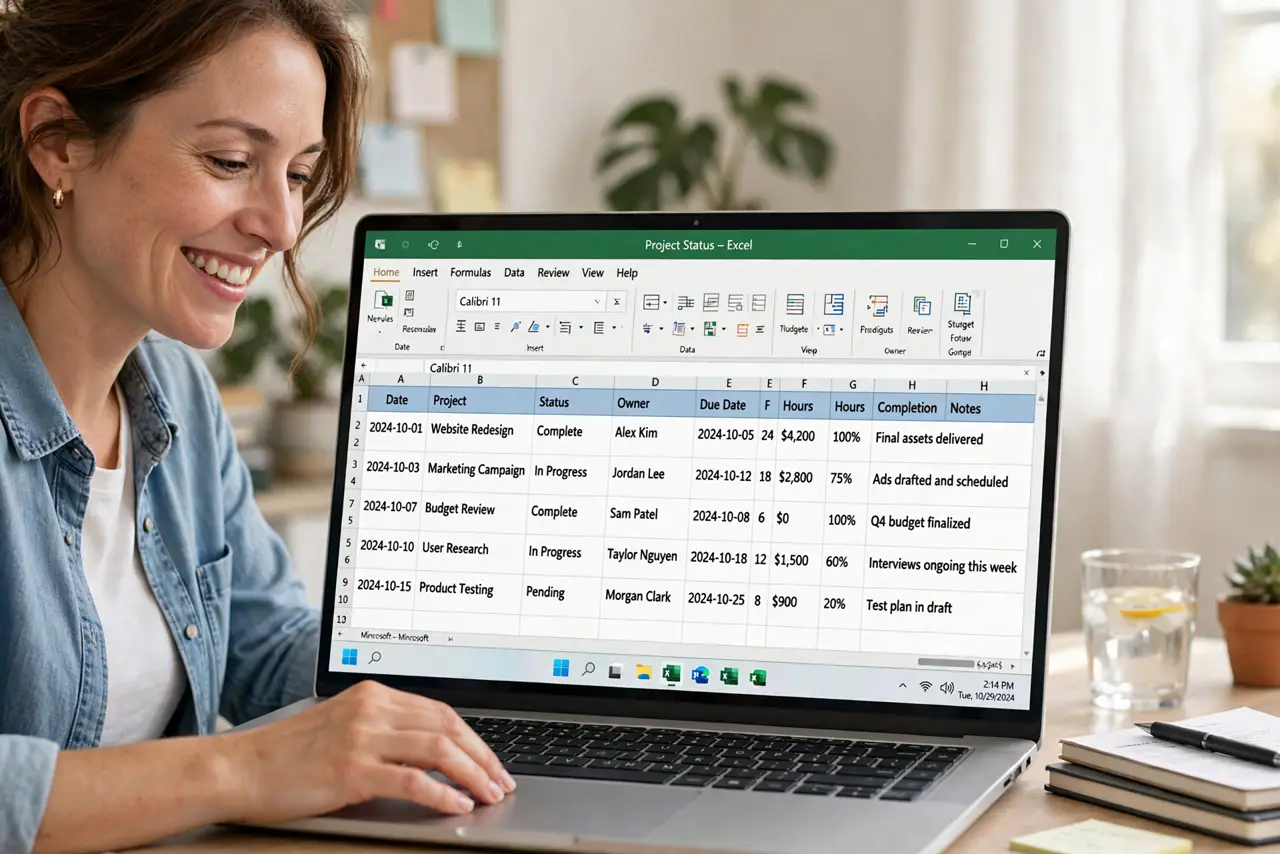
TL;DR / Quick Fix
Quick fix: in Google Sheets, View → Freeze pins rows or columns — usually 1 row for headers. Frozen headers stay visible while you scroll. To freeze around a specific cell, select it first, then View → Freeze → Up to current row or column. Unfreeze from the same menu.
Follow these steps
- Freeze the header row. View → Freeze → 1 row. The top row now stays put while data scrolls beneath it. This single action fixes the most common spreadsheet readability complaint.
- Freeze a header column too. View → Freeze → 1 column pins the leftmost column — handy when row labels live there. Row and column freezes combine freely. Wide tables with both headers frozen are dramatically easier to read.
- Freeze up to a specific cell. Select any cell, then View → Freeze → 'Up to current row' or 'Up to current column.' Everything above and left of the selection freezes. Use this when headers span two rows or labels sit deeper in.
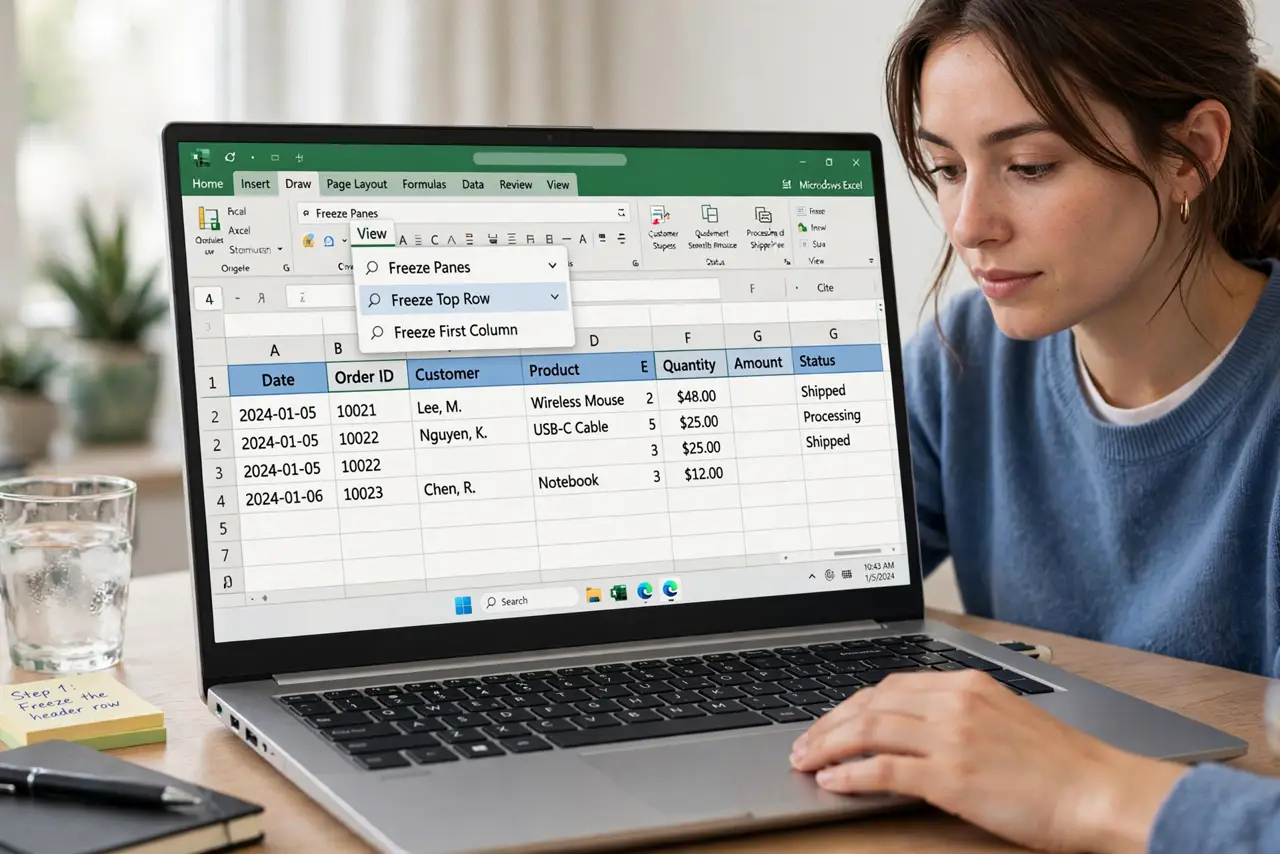
- Know it works in Excel too. Excel: View → Freeze Panes → Freeze Top Row (or Freeze Panes with a cell selected). The concept is identical; only the menu path differs. If Excel freezes the wrong row, the selection was the issue.
- Combine with filters. Frozen headers plus Data → Create a filter gives you sortable, always-labeled columns. The filter arrows live in the frozen row, staying clickable while you scroll. This combo is the professional-looking spreadsheet.
- Unfreeze when done. View → Freeze → No rows / No columns. Frozen panes persist with the file, so unfreeze before sharing if the recipient doesn't need them. A stray freeze confuses collaborators.
What NOT to do
- Do not freeze half the sheet. Freezing 10 rows to 'keep context' just shrinks your workspace — freeze headers, not data.
- Do not select the wrong cell before freezing. 'Up to current' freezes everything above and left — one cell off and the layout surprises you.
- Do not forget mobile behaves differently. The Sheets app supports frozen panes, but the controls hide in the menus — check on desktop first.
- Do not use frozen panes as a substitute for good headers. Clear, short header labels matter more than any pinning trick.
Frequently asked questions
Why did it freeze the wrong rows?
The freeze follows your selected cell, not your intention — 'Up to current row' counts from the selection. Reselect the right cell and re-freeze.
Can I freeze non-adjacent rows?
No — freezing is always from the top or left edge up to a point. To keep a middle section visible, restructure so headers sit at the top.
Do frozen panes print?
Separately — freezing affects on-screen scrolling only. For repeating headers on printouts, use the print settings for repeating rows.