Named Ranges? Basics
Named ranges let you give a cell or range a real name — 'Prices' instead of B2:B50 — and use that name in formulas. Formulas become readable: =SUM(Prices) instead of =SUM(B2:B50). When the range grows, you update the name once instead of hunting through formulas. It is a small habit that makes big sheets maintainable.
TL;DR / Quick Fix
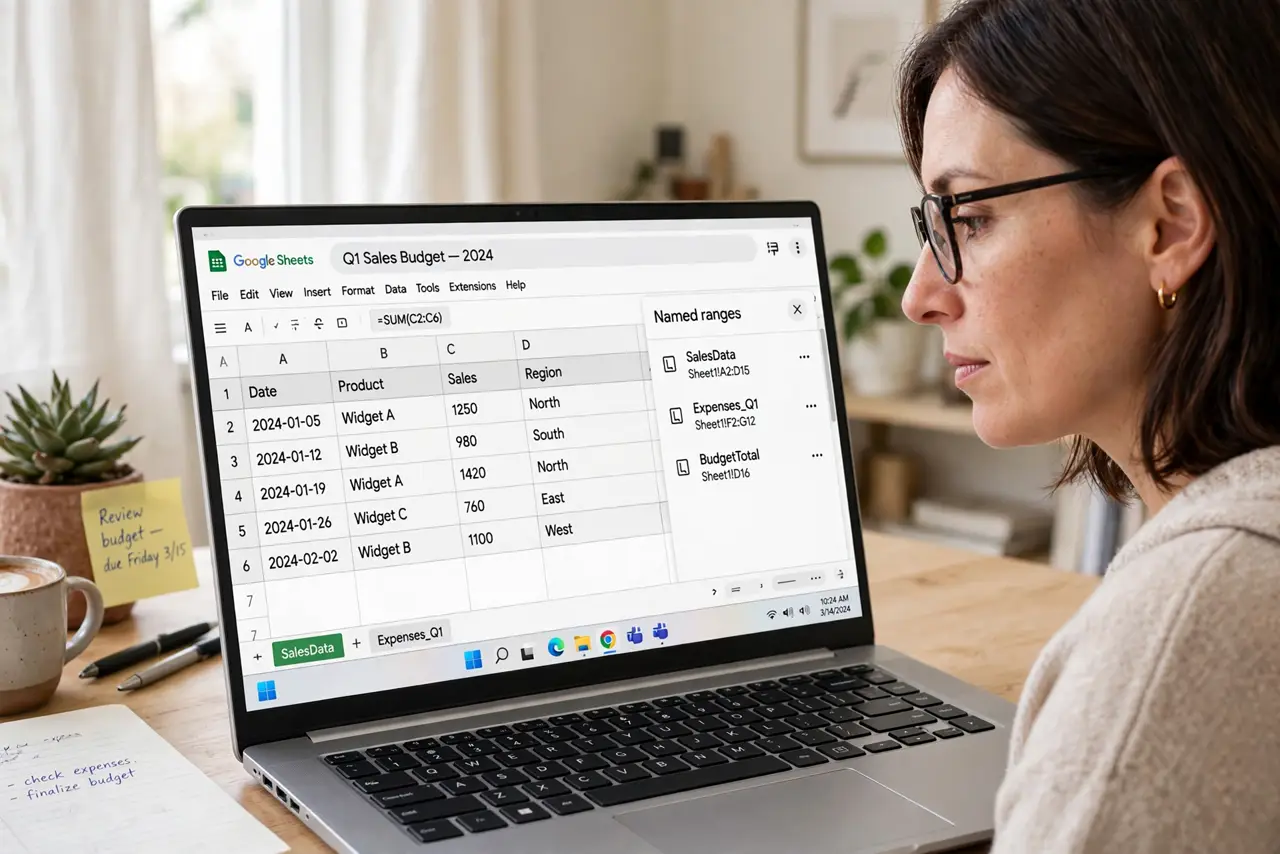
Quick fix: in Google Sheets select your range, click Data, Named ranges, and give it a clear name like Prices — no spaces. Use it in formulas: =SUM(Prices). When data grows, edit the range once in the sidebar and every formula updates.
Follow these steps
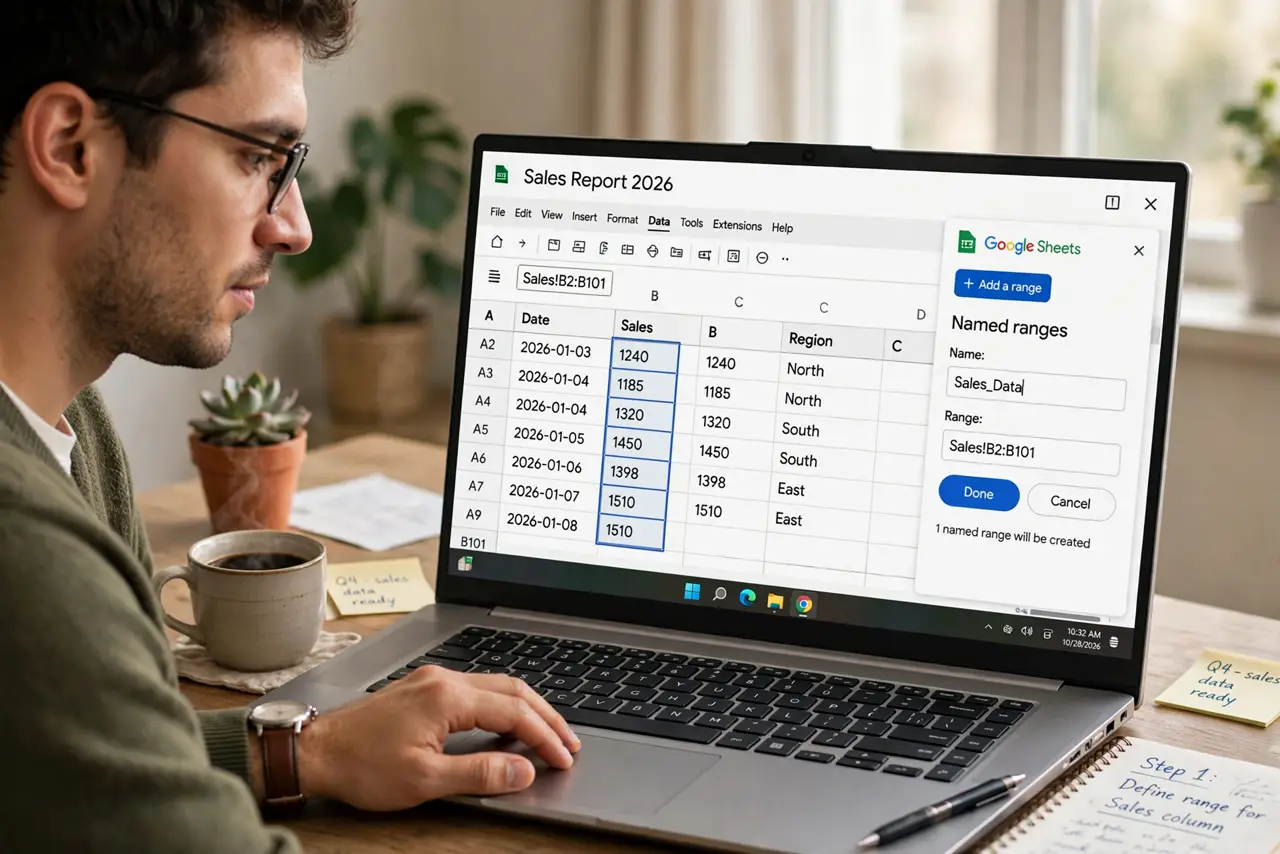
- Create your first named range. Select the cells, click Data, Named ranges. Type a clear name — Prices, TaxRate, StartDate — and click Done. No spaces allowed; use underscores if needed. The range now answers to its name.
- Use the name in formulas. Type =SUM(Prices) instead of =SUM(B2:B50). Sheets suggests the name as you type. Anyone reading the formula understands it instantly — including future you.
- Name single cells too. A tax rate in one cell becomes TaxRate: =A2*TaxRate reads like English. Change the rate once and every formula follows — the same idea as putting SUMIF conditions in cells.
- Update the range in one place. Data grew from 50 rows to 80? Open Data, Named ranges, edit the range once. Every formula using the name updates — no find-and-replace across the sheet.
- Keep names consistent. Pick a convention — Prices, Prices2026 — and stick to it. Delete stale names yearly; a sidebar full of dead names confuses more than it helps.
- Use names in data validation. Dropdown lists can reference named ranges, so one master list feeds every dropdown in the sheet. Update the list once, and all dropdowns stay in sync.
What NOT to do
- Do not use spaces in names. Spaces are illegal in range names — use underscores or CamelCase instead.
- Do not name overlapping ranges confusingly. Prices and PricesOld side by side invite formula mistakes — keep names distinct.
- Do not forget to update the range. A name pointing at last year's rows silently excludes new data — review ranges when data grows.
- Do not over-name tiny sheets. A ten-cell sheet needs no names — this habit pays off in big, shared workbooks.
Frequently asked questions
Why use a named range instead of $B$2?
Readability and maintenance: =SUM(Prices) explains itself, and updating one name beats editing ten formulas when the range changes.
Can two sheets share a named range?
Yes — names work across the whole workbook. Reference Prices from any sheet and it resolves to the same range.
What characters are allowed in names?
Letters, numbers, and underscores, starting with a letter. No spaces or most symbols — Sheets warns you if a name is invalid.