VLOOKUP? The Plain Basics
VLOOKUP is the spreadsheet function everyone has heard of and many fear: it looks up a value in one column and returns the matching value from another column — like finding a product code and getting its price. It is genuinely useful and genuinely fiddly, with rules that trip up beginners. This guide makes it click, then shows you the modern alternative.
TL;DR / Quick Fix
Quick fix: VLOOKUP searches the first column of a range for your value and returns the matching entry from a column you choose. The lookup column must be the leftmost one. For new sheets, consider XLOOKUP instead — it is simpler and has fewer restrictions.
Follow these steps
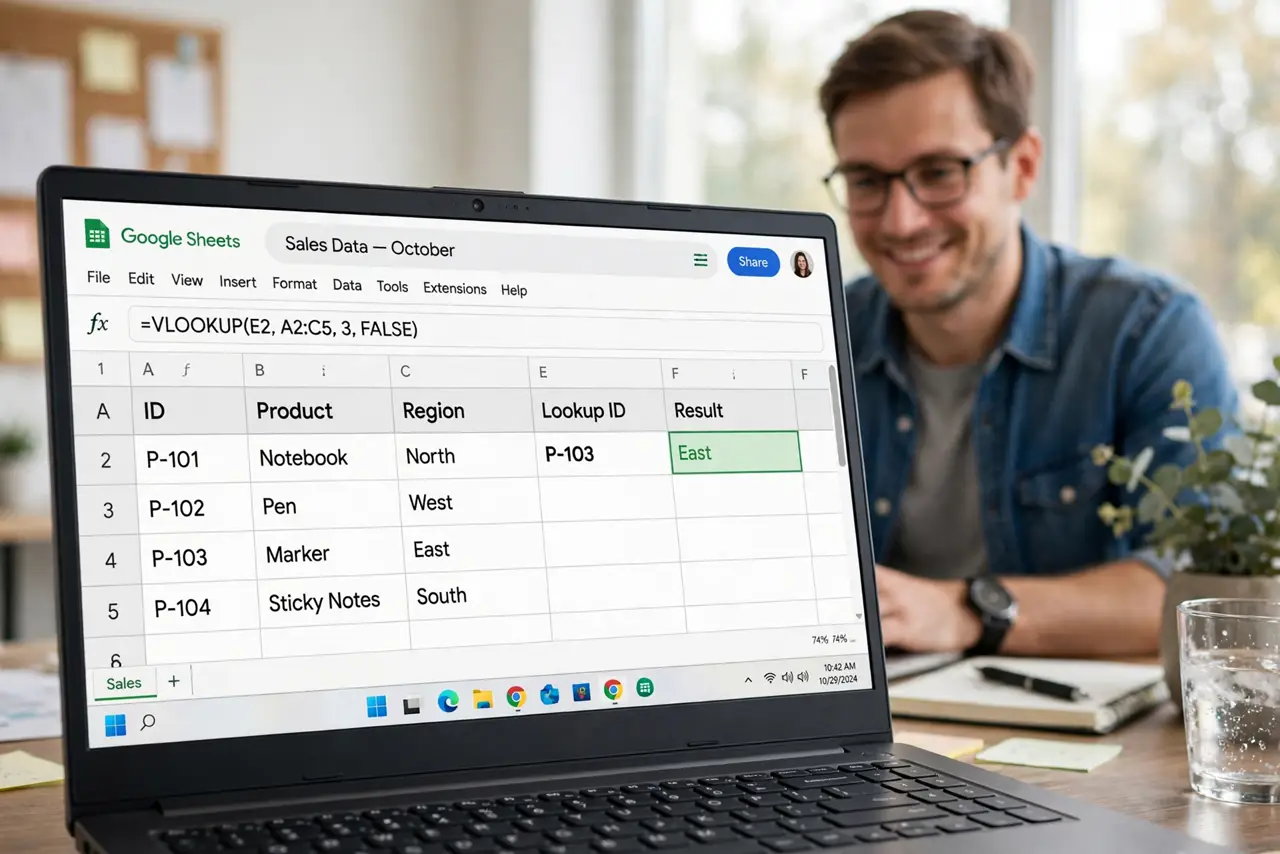
- Understand the plain-English job. You have a code in cell A2 and a table of codes and prices. VLOOKUP finds the code in the table's first column and hands back the price from the same row. Lookup goes in, answer comes out.
- Write your first one carefully. The pattern is =VLOOKUP(what to find, where to look, which column to return, FALSE). The FALSE at the end means 'exact match' — use it almost always, or you get wrong answers silently.
- Respect the leftmost-column rule. VLOOKUP only searches the first column of your range and only returns columns to its right. If your lookup values sit to the right of the answers, rearrange the table or use the XLOOKUP comparison to see the easier way.
- Lock your ranges with dollar signs. When you drag a VLOOKUP down a column, the table range shifts unless you lock it like $A$2:$C$100. A formula that works in row 2 and breaks in row 3 is almost always a missing dollar sign.
- Handle the #N/A gracefully. No match returns #N/A, which is honest but ugly in reports. Wrap the formula in IFNA to show a friendly message instead — =IFNA(VLOOKUP(...), 'Not found').
- Know when to graduate to XLOOKUP. XLOOKUP searches any column, returns from any direction, and defaults to exact match. If you are learning today, learn XLOOKUP — VLOOKUP remains only because old sheets are full of it.

What NOT to do
- Do not skip the FALSE for exact match. Without it, VLOOKUP does an approximate match that returns wrong-but-plausible answers — the worst kind of error.
- Do not look up values to the left. VLOOKUP physically cannot return a column left of the search column — restructure or switch functions.
- Do not leave ranges unlocked when filling down. One dragged formula with a shifting range corrupts a whole column silently.
- Do not nest VLOOKUPs ten deep when a helper column would do. Readability is a feature — future you will thank present you.
Frequently asked questions
Why does my VLOOKUP return the wrong value?
Almost always a missing FALSE (approximate match kicked in) or an unlocked range that shifted as you filled down. Check both before anything else.
Can VLOOKUP search from right to left?
No — that is its famous limitation. Use XLOOKUP or INDEX/MATCH when the answer sits left of the lookup column.
Is VLOOKUP obsolete?
Not quite — millions of existing sheets use it, so you need to read it. For new work, XLOOKUP is the better default.