Start a Slack Huddle
The headphones icon in Slack promises a quick voice chat, but you're not sure what a huddle actually is — a call? a meeting? who gets notified? A huddle is Slack's casual drop-in voice chat: no invite, no link, just talking with screen sharing when you need it. Here's how to start one without the awkwardness.
TL;DR / Quick Fix
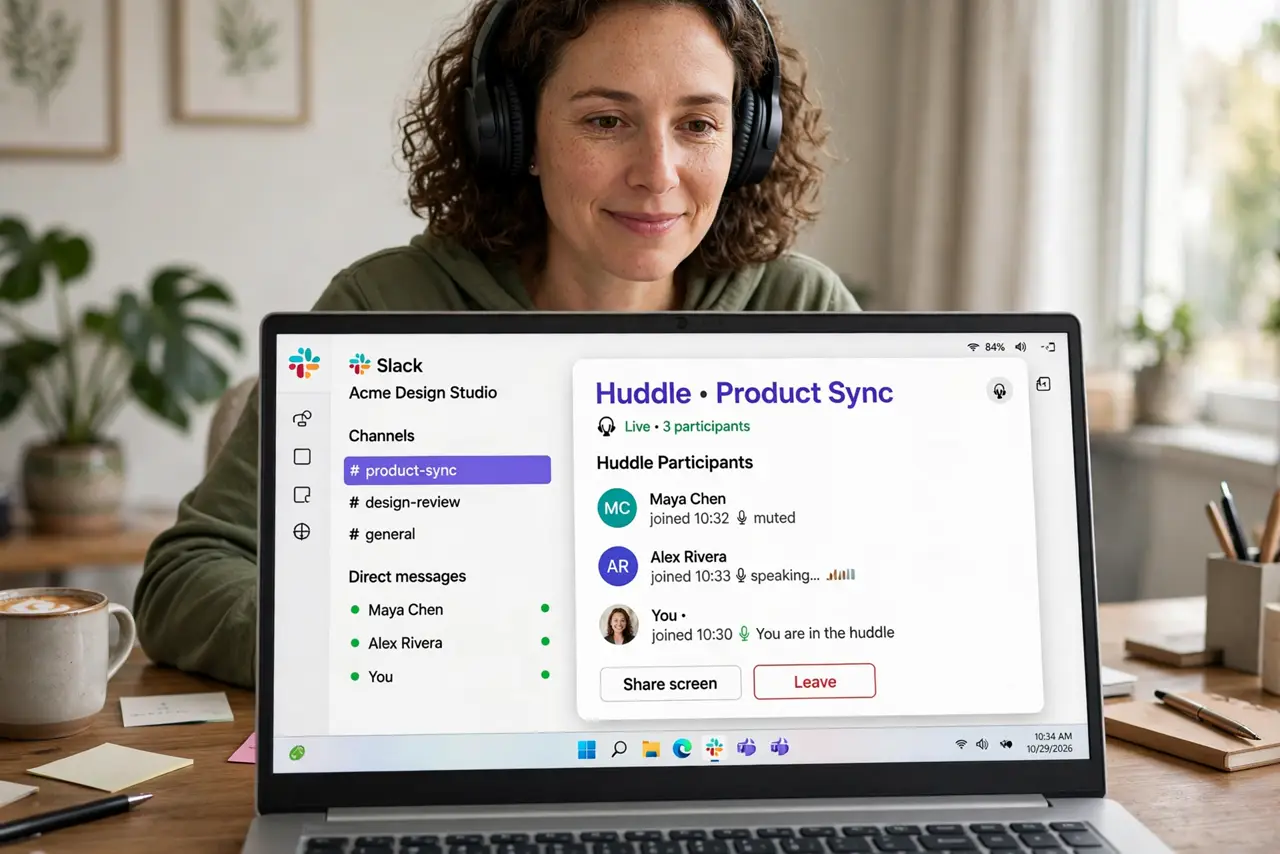
Quick fix: open any channel or DM and click the headphones icon to start a huddle, then invite others in. Turn your mic and camera on or off as needed, and share your screen from the toolbar. Click leave when done — huddles are casual voice chats, not recorded meetings.
Follow these steps
- Open the channel or DM where the huddle belongs. Huddles live inside a conversation — a channel for group chats, a DM for one-on-ones. Open that conversation first; the huddle attaches to it.
- Click the headphones icon to start. In the conversation header, click the headphones icon. You're instantly in a live voice huddle — no scheduling, no link to send. See the Slack basics if the interface looks unfamiliar.
- Invite people or let them drop in. Others in the conversation see the huddle is live and can join with one click. For people outside it, share the conversation — they'll see the join option.
- Manage your mic, camera, and screen share. The huddle toolbar controls mute, video, and screen sharing. Join muted in big channels, and share your screen from the toolbar when you need to show something.
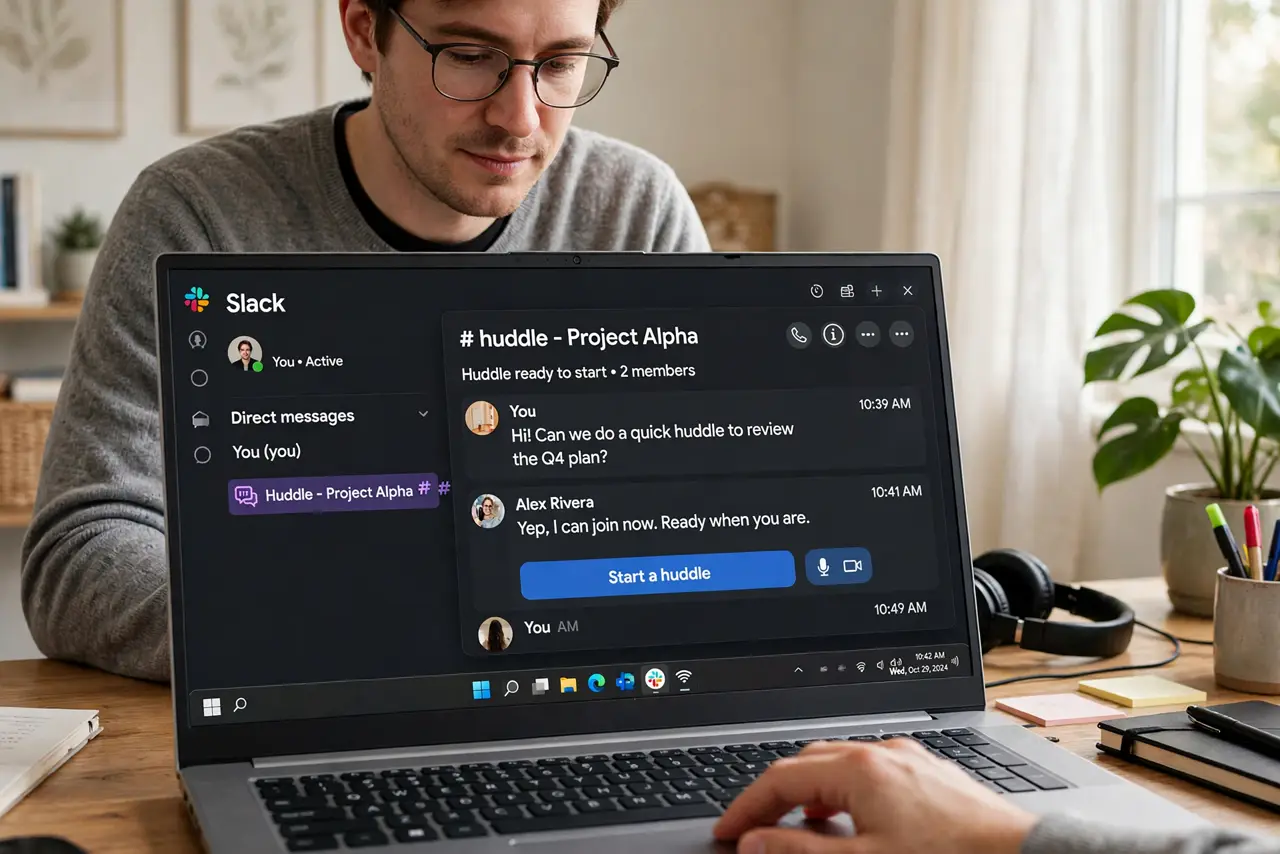
- Use the huddle thread for links and notes. Every huddle gets a thread in the conversation. Drop links, decisions, and follow-ups there — huddles aren't recorded, so the thread is your memory.
- Click Leave when you're done. Leaving ends your participation; the huddle ends when everyone leaves. The thread with its notes stays in the conversation.
What NOT to do
- Do not use a huddle for announcements that need a record. Huddles aren't recorded — post important decisions as a message instead.
- Do not join a huddle unmuted in a busy channel. Background noise in a 50-person channel huddle is how you become infamous.
- Do not start a huddle in a huge channel for a one-on-one chat. Use a DM huddle — the whole channel gets notified otherwise.
- Do not share your screen with private tabs visible. Huddle screen share shows everything — close what the group shouldn't see first.
Frequently asked questions
How many people can join a huddle?
Huddles support large groups, but they're best under a dozen for actual conversation. Big announcements belong in a scheduled meeting or a post.
Are huddles recorded?
No. Huddles are live-only, which is why the thread for notes and links matters — nothing is saved automatically.
Can I use video in a huddle?
Yes — camera is optional per person. Many teams stay voice-only for quick chats and turn video on when showing something.