Huddles? Basics
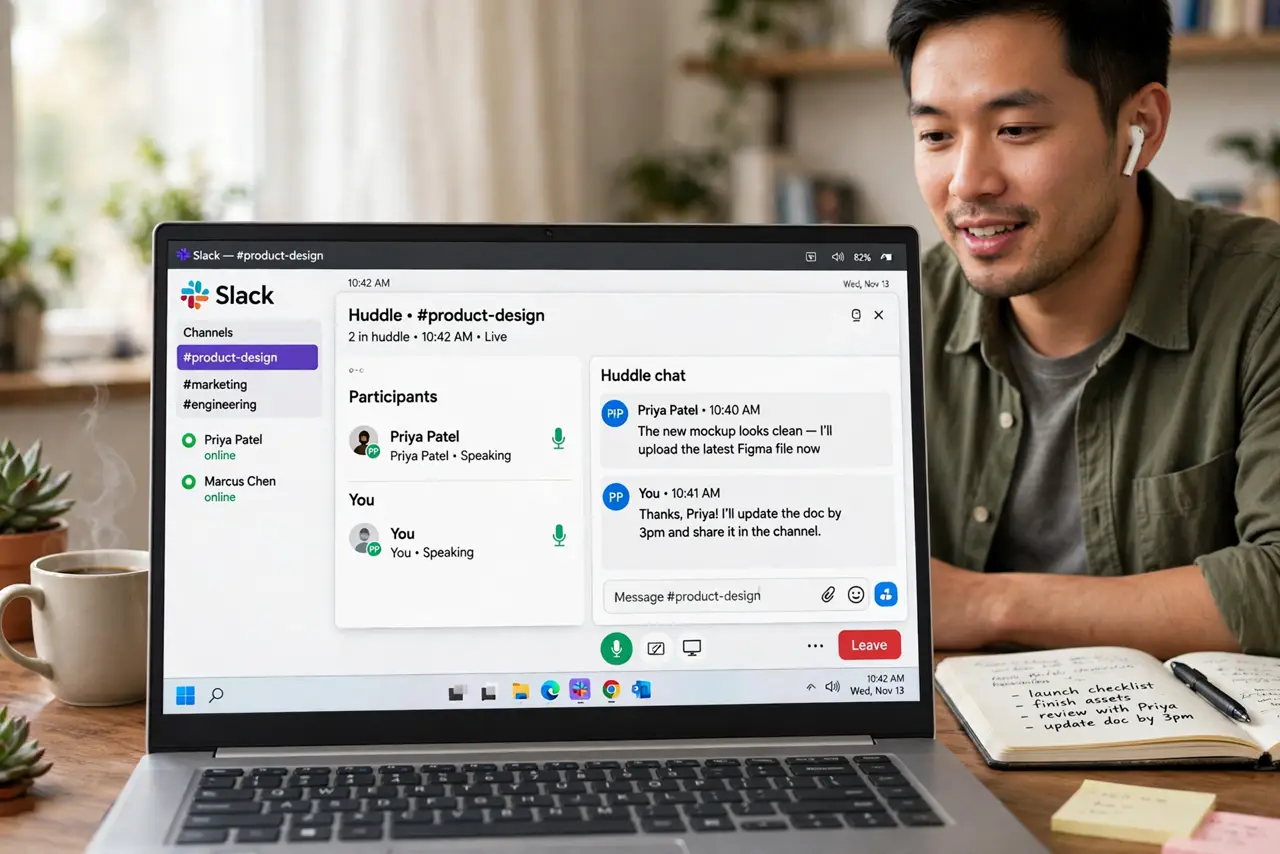
Slack Huddles are the app's answer to 'can we just talk for two minutes?' -- lightweight voice (and optional video) calls that start instantly in any channel or DM, no scheduling, no meeting link. They are meant to replace the tap-on-the-shoulder conversations remote teams lost. Here is how they work and when they beat a typed thread.
TL;DR / Quick Fix
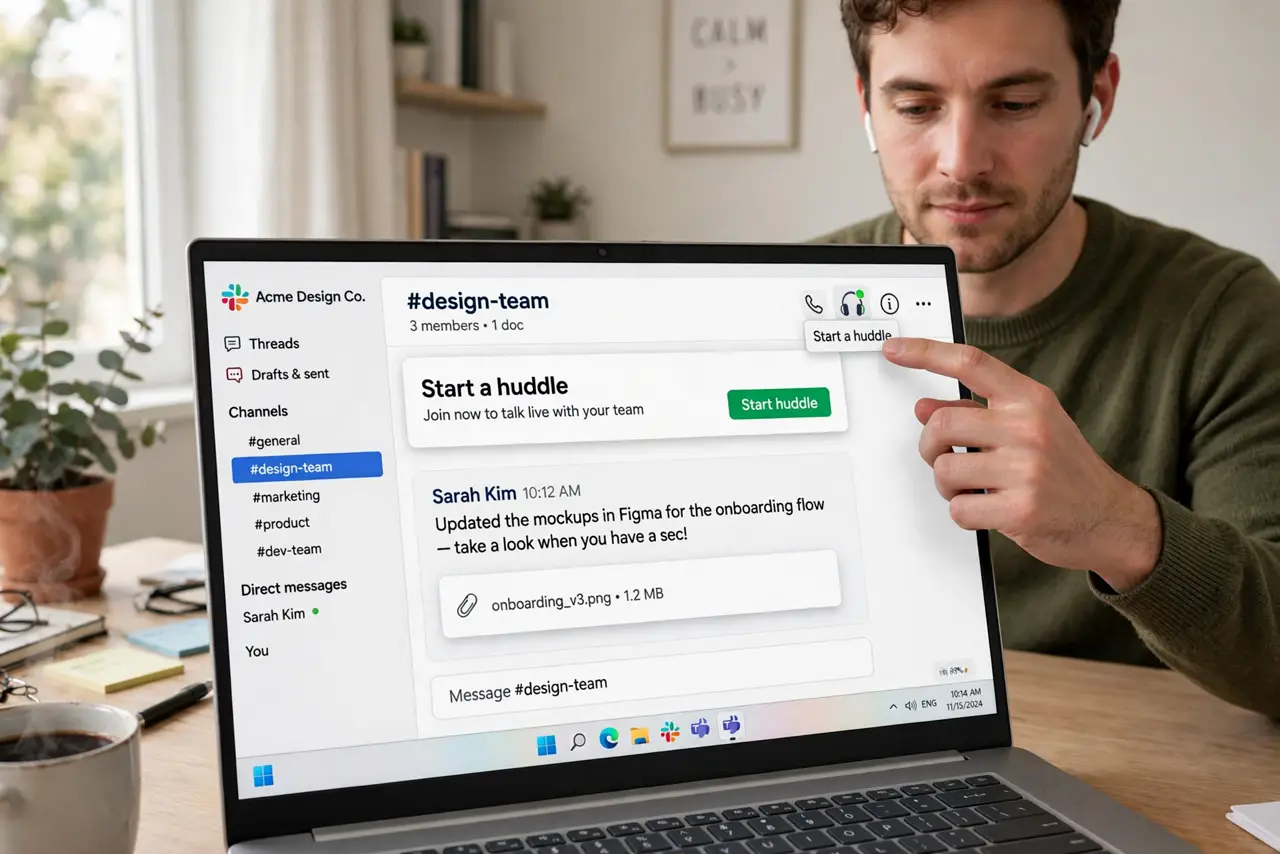
Quick fix: Huddles are instant voice calls inside Slack -- click the headphones icon in any channel or DM to start one; teammates join with a click. They suit quick questions that would take ten messages to resolve. Turn on video only when screensharing or faces actually help.
Follow these steps
- Start a huddle in one click. The headphones icon in the channel header or DM starts a huddle instantly -- no invite, no link. Anyone in the channel can join; it is a room, not a call you place.
- Know when huddles beat typing. A two-minute voice chat resolves what twenty messages cannot: tone, back-and-forth, quick decisions. If a thread passes five replies without resolution, start a huddle.
- Share your screen when it helps. Huddles support screen sharing -- perfect for 'look at this bug' moments. Video faces are optional; most huddles stay voice-only and that is fine.
- Mind huddle etiquette. Join muted if you are just listening. State the question upfront -- huddles are for quick resolution, not meandering. End when it is solved; do not let it become the meeting you avoided scheduling.
- Use threads for the follow-up. After the huddle, drop the decision in the channel thread. Voice evaporates; the written record is what the team searches next month.
- Check audio before important huddles. Pick the right mic and speakers in the huddle settings before the big discussion. Earbuds beat laptop speakers for clarity -- and for not broadcasting the call to the room.
What NOT to do
- Do not huddle for everything. If it needs an agenda and attendees, schedule a real meeting -- huddles are for the quick and casual.
- Do not start video by default. Voice-first keeps huddles light; video turns a two-minute question into a production.
- Do not forget the written record. Decisions made in voice vanish -- always post the outcome in the channel afterward.
- Do not huddle someone without warning repeatedly. One tap is friendly; constant pings are the new shoulder-tap harassment.
Frequently asked questions
Huddle vs Zoom -- which for what?
Huddles for instant, casual, under-ten-minute chats. Zoom (or scheduled calls) for formal meetings, big groups, and anything needing an agenda.
Can I share my screen in a huddle?
Yes -- screen sharing is built in and is one of the best huddle use cases: show, do not describe.
Do huddles have a time limit?
No hard limit, but the spirit is quick. Past 30 minutes, you probably needed a scheduled meeting.