Sleep Mode Wakes the Computer? Fix It
When sleep mode wakes the computer at the slightest touch, the cause is often a mouse, keyboard, or network setting that is allowed to wake it. Finding the wake source first stops you from changing settings at random.

TL;DR / Quick Fix
Quick fix: open a terminal and check the last wake reason, then open Device Manager and stop the mouse from waking the computer if that is the cause. Test sleep again with only the power button to wake it, and adjust one device at a time.
Follow these steps
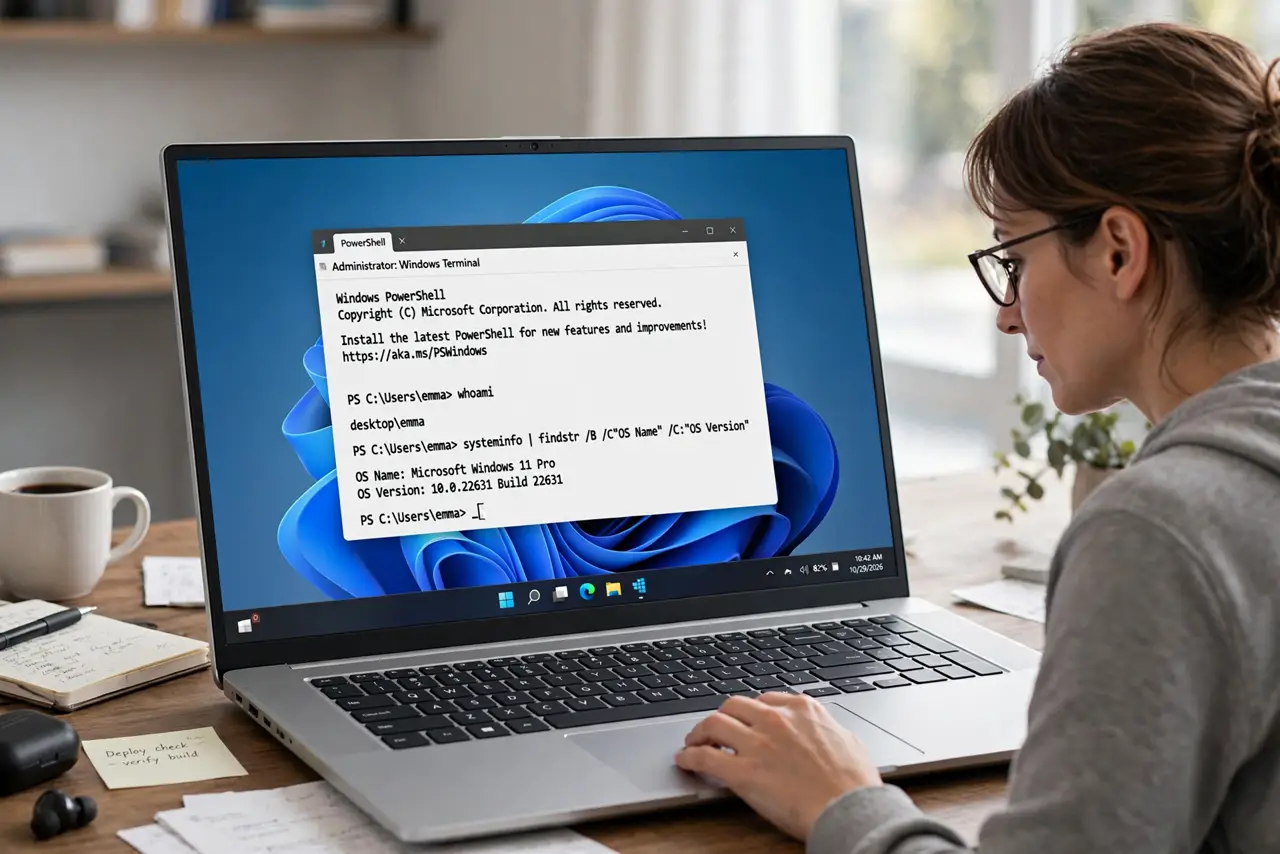
- Find what woke the computer. Open Terminal as administrator and check the last wake source. Note the device name, because that device is the one to adjust first.
- Stop the mouse from waking it. In Device Manager, find the mouse, open Properties, then Power Management, and uncheck the option that lets it wake the computer. Test sleep again.
- Do the same for the keyboard if needed. If the keyboard still wakes it, repeat the same Power Management step for the keyboard. Keep at least the power button able to wake the computer.
- Check network wake settings. In the network adapter properties, check whether wake on network activity is on. Turn it off if you do not need to wake the computer remotely.
- Test sleep with nothing attached. Unplug external mice, keyboards, and hubs, then put the computer to sleep. If it stays asleep, plug devices back one at a time to find the culprit.
- Restart and test a full sleep cycle. Restart the computer, put it to sleep, and leave it for ten minutes. If it stays asleep, the fix held. If it wakes, check the wake source again.
What NOT to do
- Do not turn off sleep completely to fix waking. Sleep saves power and work, and losing it because of one device setting is a poor trade.
- Do not disable every wake device at once. You may leave yourself no way to wake the computer except a hard restart, which risks unsaved work.
- Do not change power plan settings at random. A wrong plan can stop sleep entirely or keep the computer awake for other reasons.
- Do not ignore repeated waking. A computer that wakes all night wastes power and can run hot in a bag or closed space.
Frequently asked questions
How do I find what woke my computer?
Check the last wake source in a terminal. It names the device or timer that woke it, which tells you exactly what to adjust.
Why does moving the mouse wake it?
Windows allows the mouse to wake the computer by default. Turning that off in Device Manager stops accidental wakes from a bumped desk.
Can a scheduled task wake the computer?
Yes. Some tasks are set to wake the computer. Check the wake source, and if a task is named, change its wake setting in Task Scheduler.