Embed Video in Slides
A video that will not play has killed more presentations than bad slides ever will. Embedding video in Google Slides is simple — insert it properly, keep clips short, and always test on the presenting computer. The thirty-second test saves the thirty-minute embarrassment. Research first with Docs Explore, chart with Sheets charts.
TL;DR / Quick Fix
Quick fix: in Google Slides, use Insert then Video to embed YouTube clips or upload your own — the video plays right inside the presentation. Keep clips short and always test playback on the presenting computer. A video that will not play is worse than no video at all.
Follow these steps
- Choose your video source. YouTube links embed easily; uploaded files play even offline. For critical presentations, uploaded files are the safer bet.
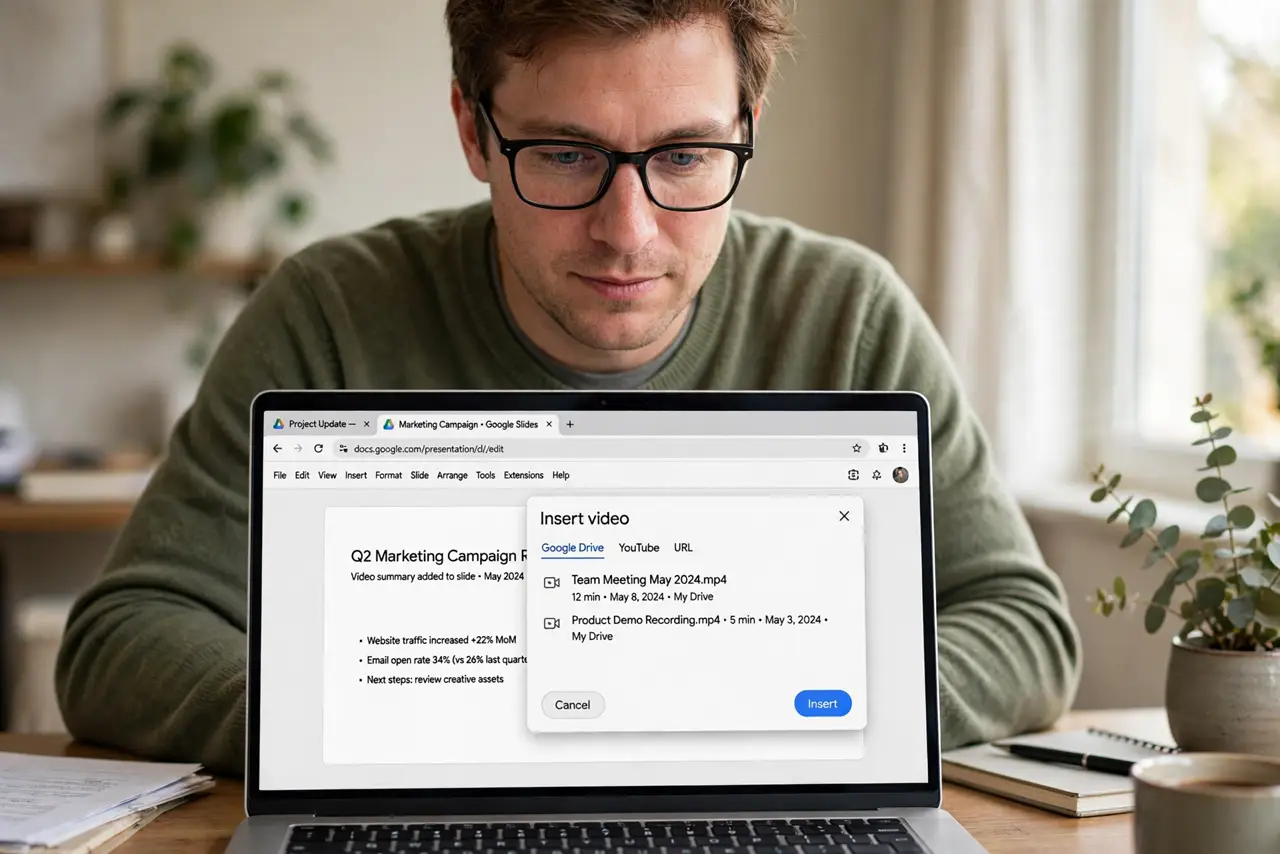
- Insert the video. Use Insert, then Video, and pick your source. The video lands on the slide as a playable thumbnail.
- Trim to the essential part. Use the video options to set start and end times. Nobody needs the full ten minutes — show the ninety seconds that matter.
- Size and position it. Make it big enough to see from the back row, but leave room for your title. Video dominates the slide — let it.
- Test on the presenting computer. Play the video on the actual machine and network you will present from. This is the step everyone skips and everyone regrets skipping.
- Have a backup plan. Keep the video file and a link handy separately. If embedding fails live, you can still play it directly.

What NOT to do
- Do not embed without testing. The presenting computer's network and permissions differ from yours — test there.
- Do not use long clips. A two-minute video in a presentation feels like twenty — trim ruthlessly.
- Do not rely on venue Wi-Fi. YouTube embeds need the internet; uploaded files do not. Choose accordingly.
- Do not autoplay without reason. Click-to-play gives you control; autoplay surprises everyone including you.
Frequently asked questions
Why will my video not play?
Usually network blocks on YouTube embeds, or a missing file for uploads. Test on the presenting machine to find out which.
Can I embed from other sites?
Slides natively supports YouTube and uploads. Other sources need downloading first, where licensing allows.
Does the video work offline?
Uploaded videos, yes. YouTube embeds need a connection — download-or-embed is the reliability choice.