Smart Bulbs Go Offline After a Router Change
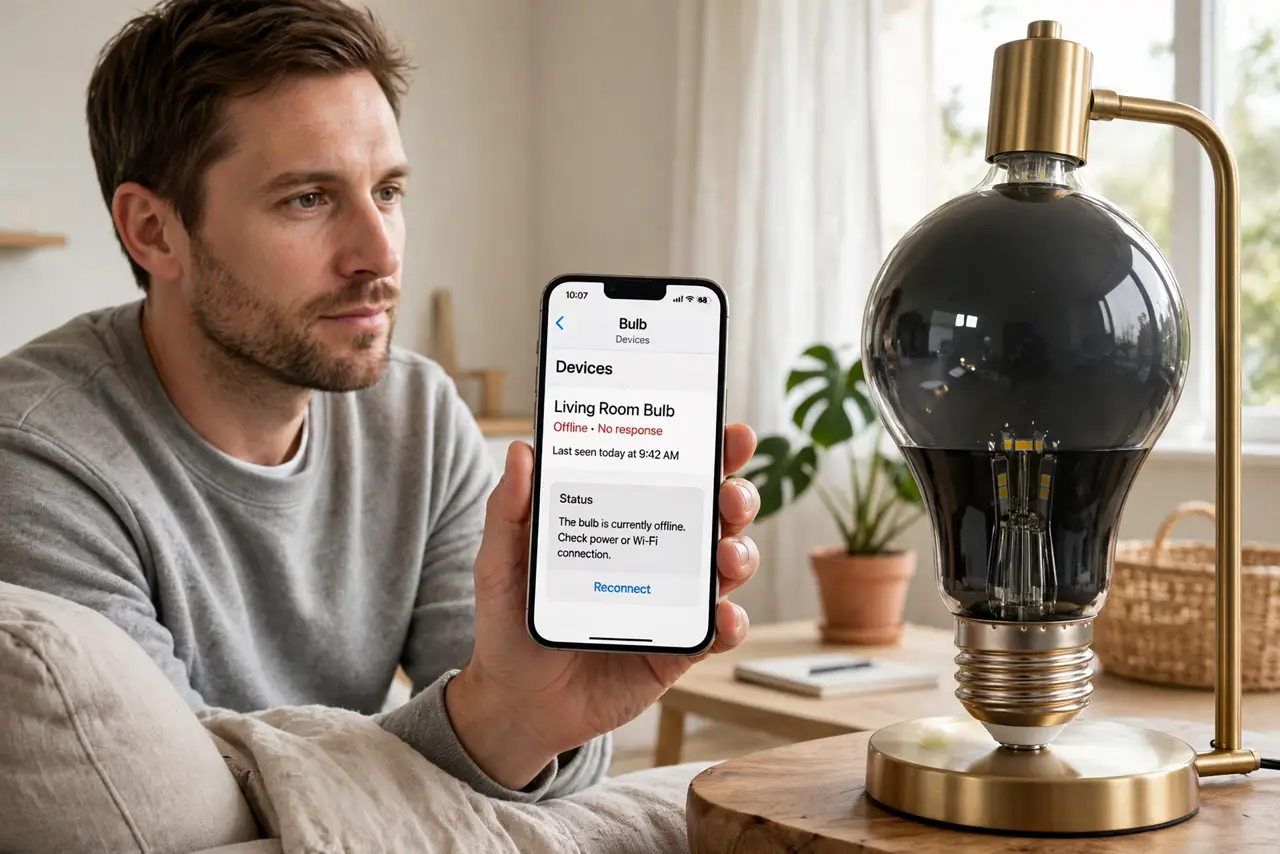
A new router means a new Wi-Fi name or password, and smart bulbs remember the old one — so they sit offline, unreachable from the app. The fastest fix is often making the new network wear the old network's name.
TL;DR / Quick Fix
Quick fix: check whether the new router broadcasts 2.4 GHz, since most bulbs need it. If the bulbs still will not join, rename the new Wi-Fi network and password to exactly match the old ones, and the bulbs will reconnect on their own within minutes.
Follow these steps
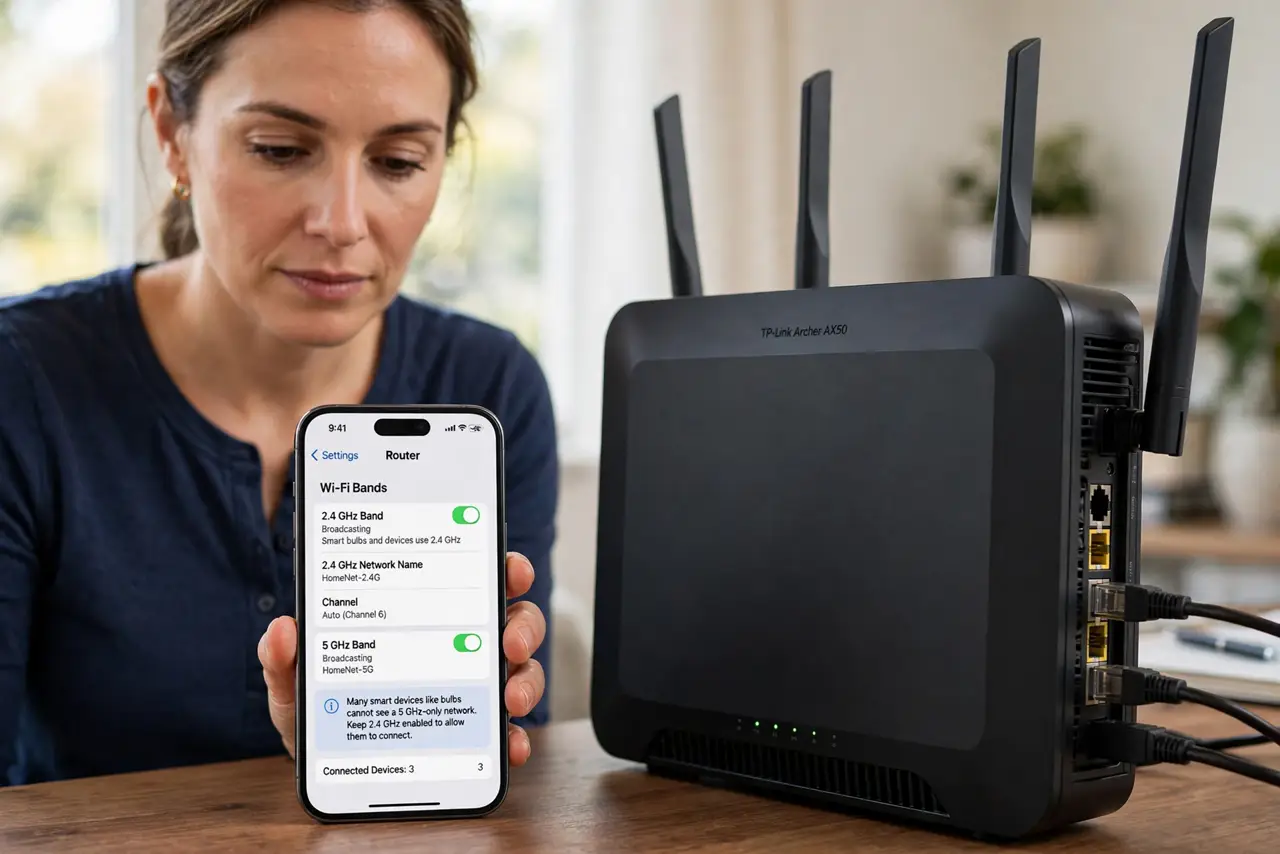
- Confirm the 2.4 GHz band is on. Open the router settings and check that 2.4 GHz is broadcasting. Many bulbs cannot see a 5 GHz-only network at all, which is the most common cause after a router swap.
- Try the old-name trick first. Set the new router's Wi-Fi name and password to exactly match the old router's. Bulbs look for the name they remember, so matching it brings them back with no per-bulb work.
- Reset one bulb as a test. If renaming is not an option, factory-reset a single bulb per the maker's steps and add it fresh in the app. One success proves the method before you reset the whole house.
- Re-add bulbs in the maker's app. After a reset, use the bulb maker's app — not the phone's Wi-Fi settings — to join the bulb to the network. The app walks the bulb through the join the phone alone cannot do.
- Keep the phone on the same band during setup. Put your phone on the 2.4 GHz network while adding bulbs. Some apps fail when the phone sits on 5 GHz and the bulb can only hear 2.4 GHz.
- Check for a wrong password rejection before resetting more. If the app says the password is wrong, retype it carefully on the new router's label — a wrong password rejection is often just a typo. One typo during setup sends you resetting bulbs that were never the problem.
What NOT to do
- Do not reset every bulb before trying the old-name trick. Renaming the network takes two minutes, while resetting twenty bulbs takes an evening.
- Do not throw away bulbs that will not connect. An offline bulb after a router change is a settings mismatch, not a dead bulb, in nearly every case.
- Do not set up bulbs on a guest network with isolation on. Some guest networks block devices from talking to each other, which can break bulb control from your phone.
- Do not ignore the 2.4 GHz requirement. A shiny new router with only 5 GHz enabled will leave every 2.4 GHz bulb dark no matter how many times you reset them.
Frequently asked questions
Why do all bulbs die after a router change?
Because they stored the old network name and password. The new router looks like a stranger to them until the name matches or they are re-added.
Do bulbs need 2.4 GHz specifically?
Most do. Their tiny radios only speak 2.4 GHz, so that band must be on for them to join.
Is renaming my network to the old name safe?
Yes, as long as the password is strong. The name is just a label; the password is what protects the network.