Snipping Tool Saves Nowhere? Find Your Screenshots
You take a snip, and then you cannot find the picture anywhere. In most cases the Snipping Tool did save it, just not where you expected, or it only copied it to the clipboard. These steps track it down.
TL;DR / Quick Fix
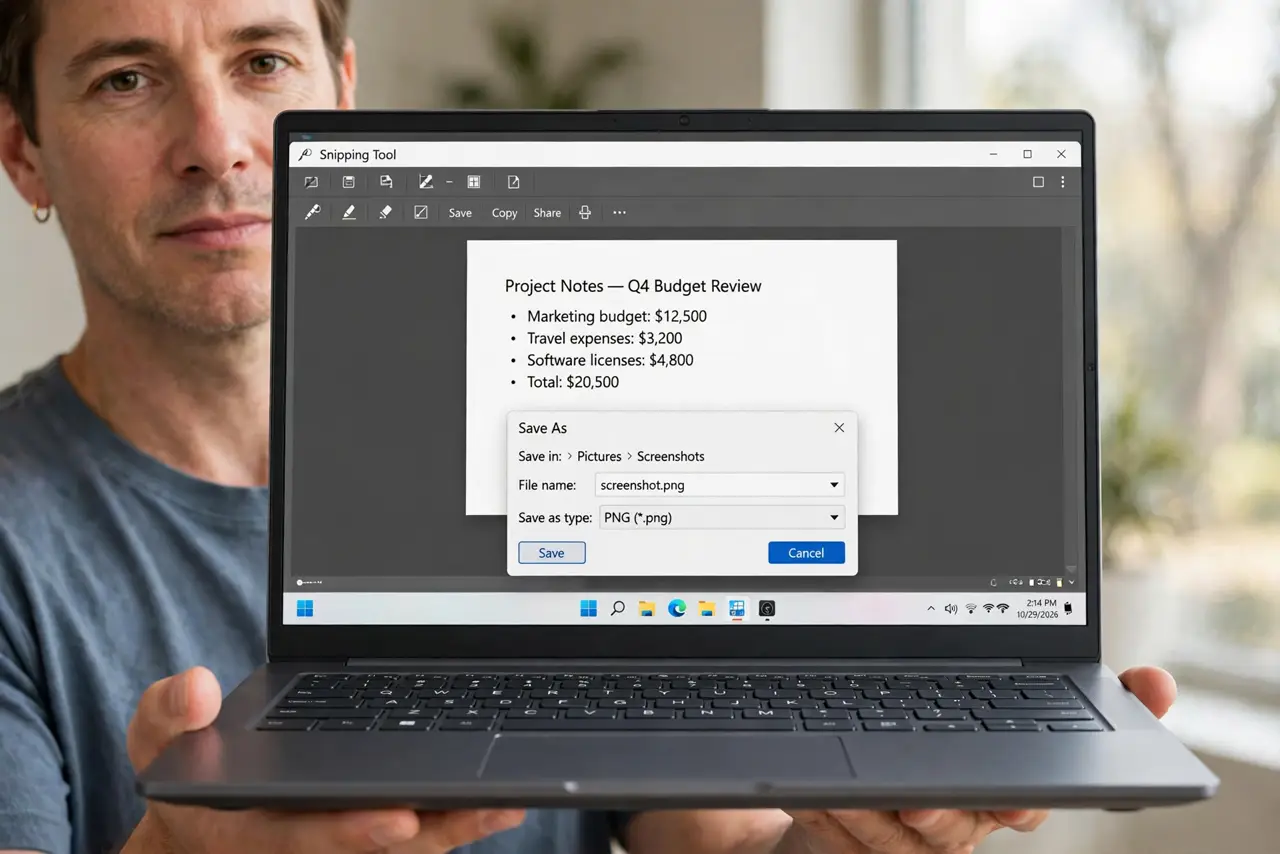
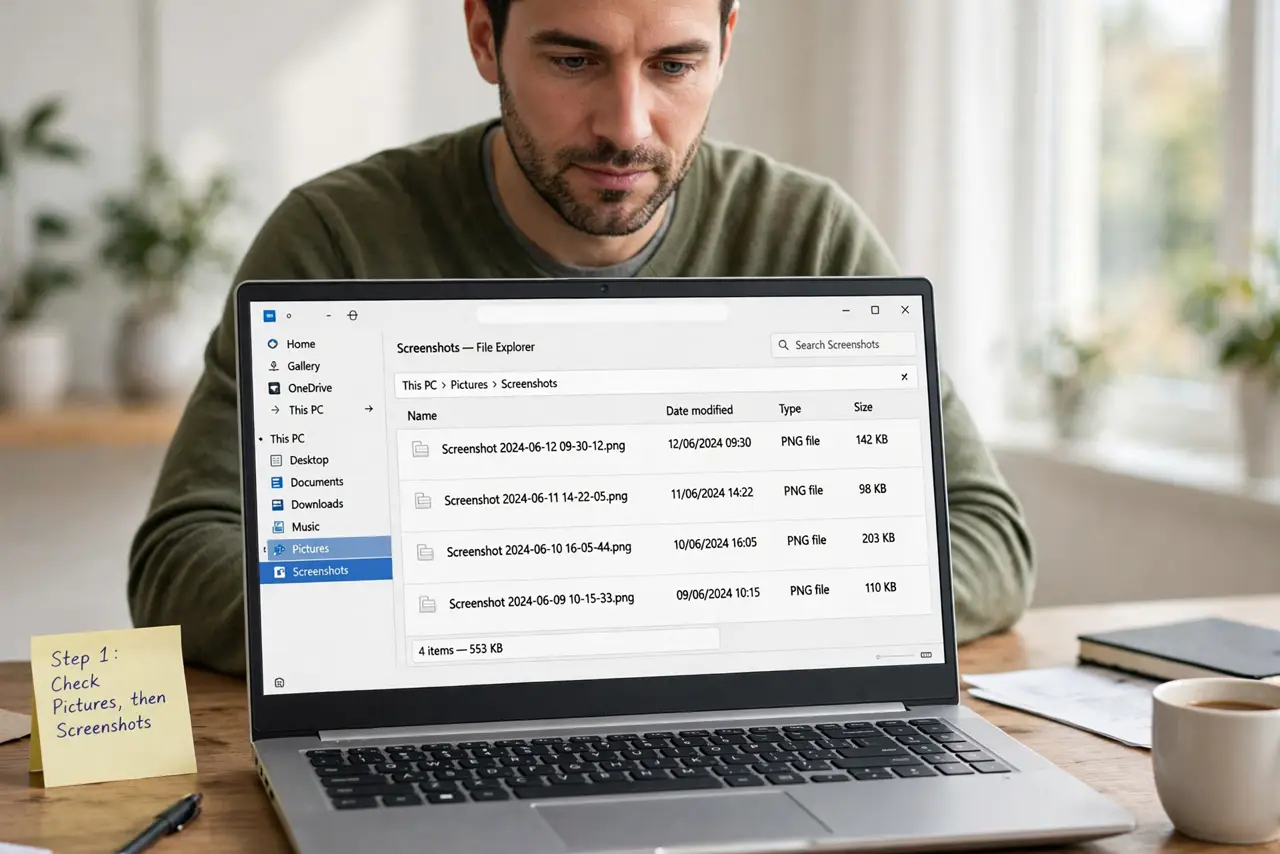
Quick fix: open File Explorer and check Pictures, then Screenshots. If the snip is not there, check the Snipping Tool notification and turn on auto-save. Also check the clipboard, then take a fresh test snip and watch exactly where Windows asks you to save it.
Follow these steps
- Check Pictures, then Screenshots. Open File Explorer, then Pictures, then Screenshots. This is the default home for Snipping Tool captures when auto-save is on, so look here before assuming the snip is lost.
- Click the snip notification. After a capture, Windows shows a small notification. Click it to open the snip in the Snipping Tool, where you can see the image and choose Save. If you dismiss the notification, the editor may never open.
- Check the clipboard. Open an app such as Paint or a document and paste. If the snip appears, the tool copied it but never saved a file. Save it from there with a name you will recognize.
- Turn on auto-save in the tool. Open the Snipping Tool, open its settings, and turn on the option to save snips automatically. Note the folder it shows, so you know exactly where future captures will land.
- Choose a folder you control. In the same settings or in the Save dialog, pick a simple folder such as Pictures, then Screenshots. Avoid a folder that another app cleans up, or a removable drive that may not be plugged in.
- Take a test snip and follow it. Take one new snip, click the notification, save it with a clear name, and then find it in File Explorer. If the test snip saves correctly, your setting is fixed and older snips were only copied, not saved.
What NOT to do
- Do not keep taking snips hoping one will appear. Each unsaved capture only replaces the clipboard, so you lose the previous one without learning where files go.
- Do not search the whole drive for random image names. Check the default folder and the tool settings first, because that is where the answer almost always is.
- Do not turn off notifications to stop the pop-up. That notification is the fastest route to the editor and the Save button.
- Do not install a different screenshot app before checking the setting. The built-in tool already saves reliably once auto-save points at a folder you can find.
Frequently asked questions
Where does the Snipping Tool save by default?
With auto-save on, captures go to Pictures, then Screenshots. Without auto-save, the snip lives only on the clipboard until you save it.
Why did my old snips disappear?
If auto-save was off, each new capture replaced the clipboard copy. Those snips were never files, so there is no folder to recover them from.
Can I change the save folder?
Yes. Save one snip manually and pick your folder, or set the folder in the Snipping Tool settings, then test with a fresh capture.