How to Take a Screenshot on Windows Easily
Taking a screenshot on Windows should be quick, but the right key depends on your keyboard, and screenshots can save to different folders. Learn one reliable method, check where the file went, and you will not lose screenshots again.
TL;DR / Quick Fix
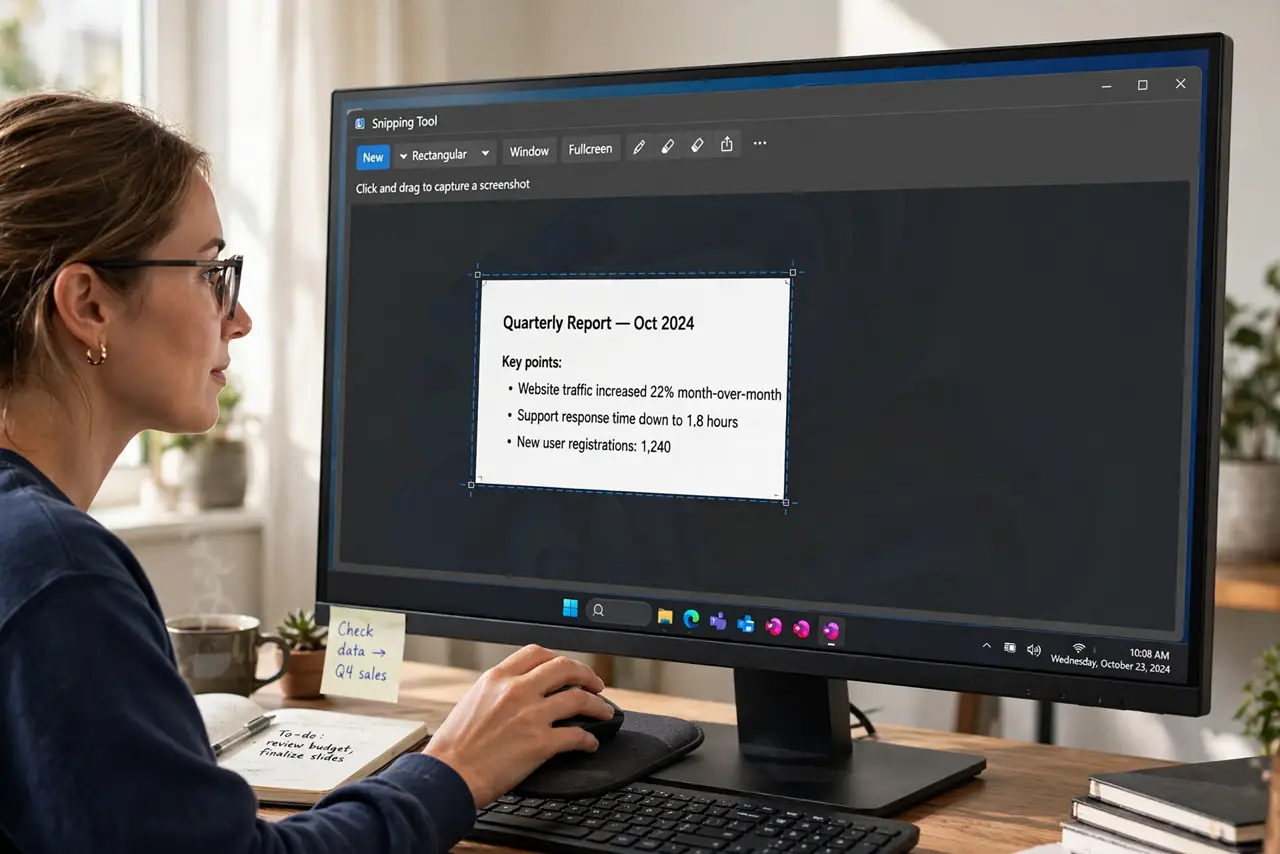
Quick fix: press Windows, Shift, and S together, then drag to select the area you want. Click the notification to open the capture, then save it. If that does nothing, press Print Screen, then paste into Paint and save the image.
Follow these steps
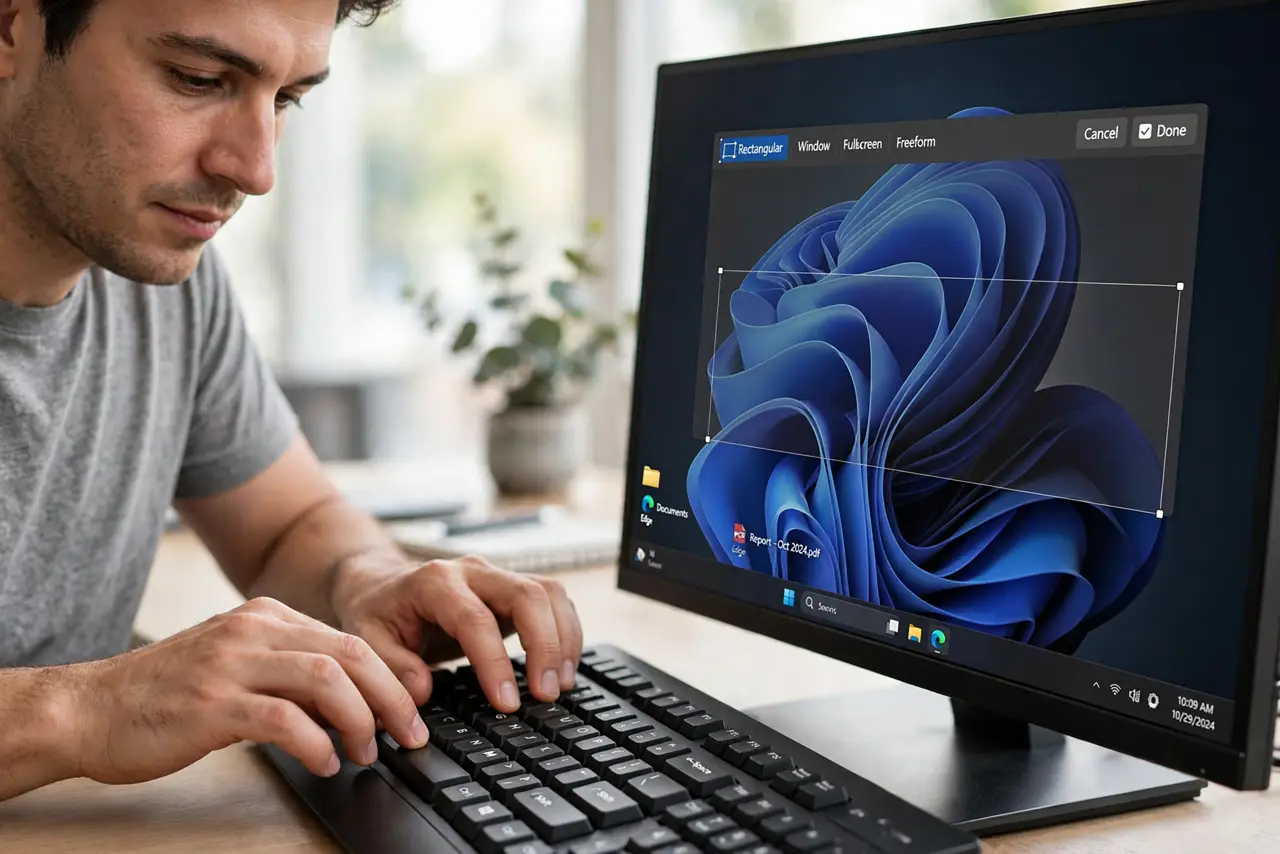
- Use Windows, Shift, and S. Press Windows + Shift + S. The screen dims and you can drag to select a rectangle, a window, or the full screen. Release the mouse to capture the area you selected.
- Open the capture notification. After you capture, a notification appears. Click it to open the capture in Snipping Tool. If you miss the notification, open Snipping Tool from Start and check recent captures.
- Save the file with a clear name. In Snipping Tool, choose Save, pick a folder you will remember, and give the file a clear name with the date. Do not leave it unsaved, because an unsaved capture can be lost when you close the tool.
- Try Print Screen as a backup. Press Print Screen to copy the full screen, then open Paint and press Ctrl + V to paste it. Save the image from Paint. This method works even when the Snipping Tool shortcut does not.
- Check where screenshots save. Open File Explorer and check Pictures, then Screenshots. If your screenshots are not there, check the folder you chose in Snipping Tool, because the save location can change.
- Capture one window only if needed. In the Snipping Tool selection bar, choose Window snip, then click the window you want. This avoids capturing private windows or notifications that were open beside it.
What NOT to do
- Do not paste a screenshot into a chat and assume it is saved. A pasted image is not a saved file unless you also save it from Snipping Tool or Paint.
- Do not share a screenshot without checking it first. Screenshots can include open tabs, notifications, names, or private details at the edges.
- Do not press Print Screen repeatedly and hope. Each press replaces the clipboard copy, so save or paste each capture before taking the next one.
- Do not use a random screenshot tool from an ad. Windows already has Snipping Tool and Paint, and extra tools can add watermarks or unwanted software.
Frequently asked questions
Where did my screenshot go?
Check the notification first, then Pictures, then Screenshots in File Explorer. If you used Print Screen, paste into Paint and save it, because it is only on the clipboard until you save.
Why does Windows, Shift, and S do nothing?
The shortcut can be disabled or another app can use it. Try Print Screen plus Paint as a backup, then check Snipping Tool settings.
How do I screenshot only one window?
Use Window snip in the Snipping Tool selection bar, then click the window you want, instead of dragging a rectangle.