Snooze Emails for Later
An email arrives that needs action — but not right now. If it sits in your inbox, it nags you; if you archive it, you forget it. Snoozing hides the email until the moment you choose, then brings it back. This guide shows how to snooze in Gmail, Outlook, and Apple Mail, and how to make it a habit.
TL;DR / Quick Fix
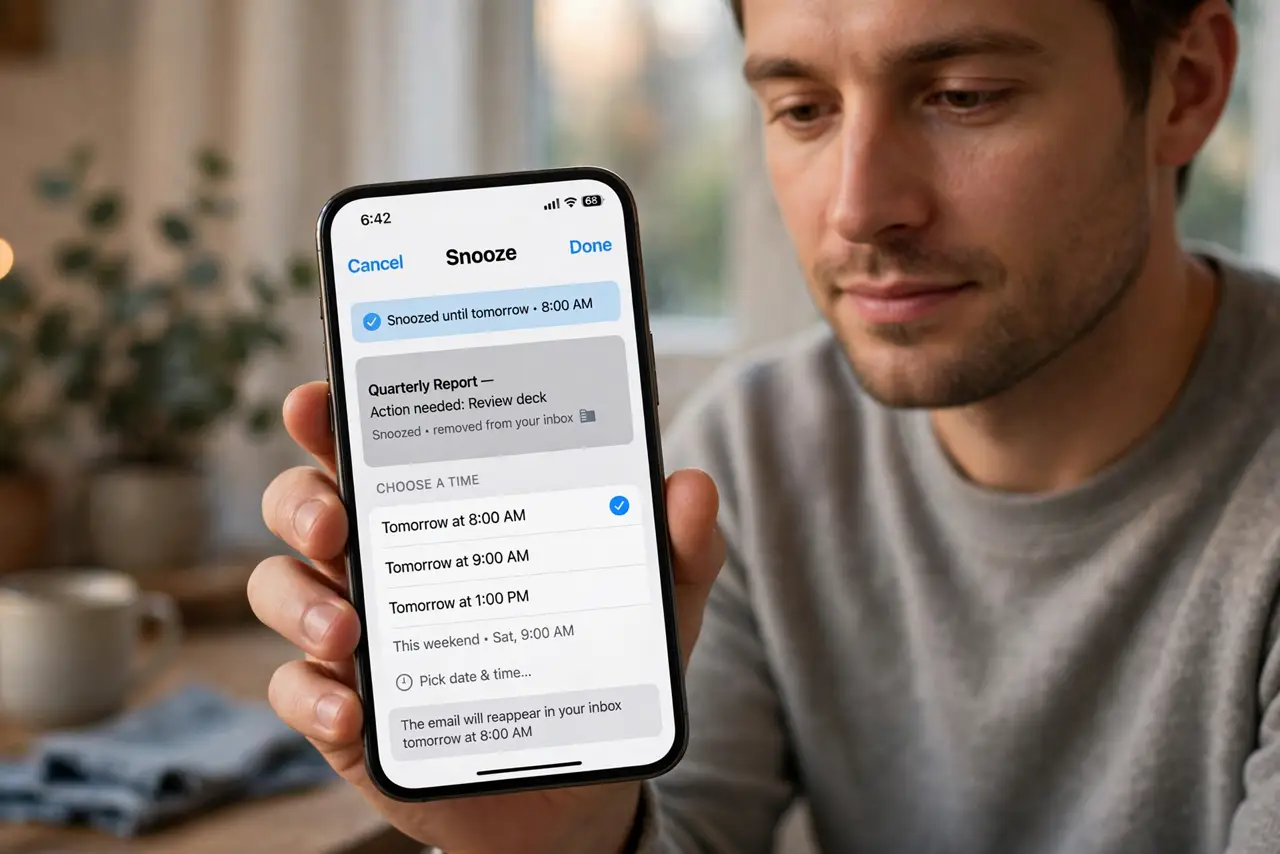
Quick fix: in Gmail, hover an email and click the clock icon, then pick tomorrow morning or a custom time. In Outlook, right-click and choose Snooze. The email vanishes and returns at the chosen time, top of inbox. Use it for anything that needs action later but not now.
Follow these steps
- Find the snooze control. In Gmail: hover the email and click the clock icon. In Outlook: right-click the message and choose Snooze. In Apple Mail on Mac: right-click and choose Snooze — or see Mac's snooze steps.
- Pick a meaningful time. Tomorrow morning for things to handle at day's start; next week for non-urgent items; a custom date for event-tied emails. The default suggestions cover most cases.
- Snooze instead of starring. Stars are vague; a snooze is a commitment. If an email needs future action, snooze it — if it is just reference, archive it.
- Handle it when it returns. When the email pops back, deal with it: reply, file, or delete. Re-snoozing the same email three times means it needs a real decision, not another delay.
- Snooze sent emails awaiting replies. After sending something that needs an answer, snooze the sent thread for a few days — it becomes your automatic follow-up reminder.
- Review snoozed mail weekly. Glance at what's snoozed to catch anything whose deadline moved. Thirty seconds keeps the system honest.
What NOT to do
- Do not snooze everything. Snoozing is for emails needing future action — archiving is for the rest.
- Do not re-snooze the same email endlessly. Three snoozes without action means decide: do it, delegate it, or drop it.
- Do not snooze truly urgent emails. If it needs action today, do it now — snoozing urgent mail just manufactures a crisis.
- Do not forget snoozed mail exists. The system only works if you handle emails when they resurface.
Frequently asked questions
Where do snoozed emails go?
They leave the inbox and wait in a Snoozed folder or section, then return to the top of the inbox at the chosen time.
Can I snooze on my phone?
Yes — Gmail and Outlook mobile apps both support snoozing with the same clock icon or swipe actions.
What is the difference between snooze and remind?
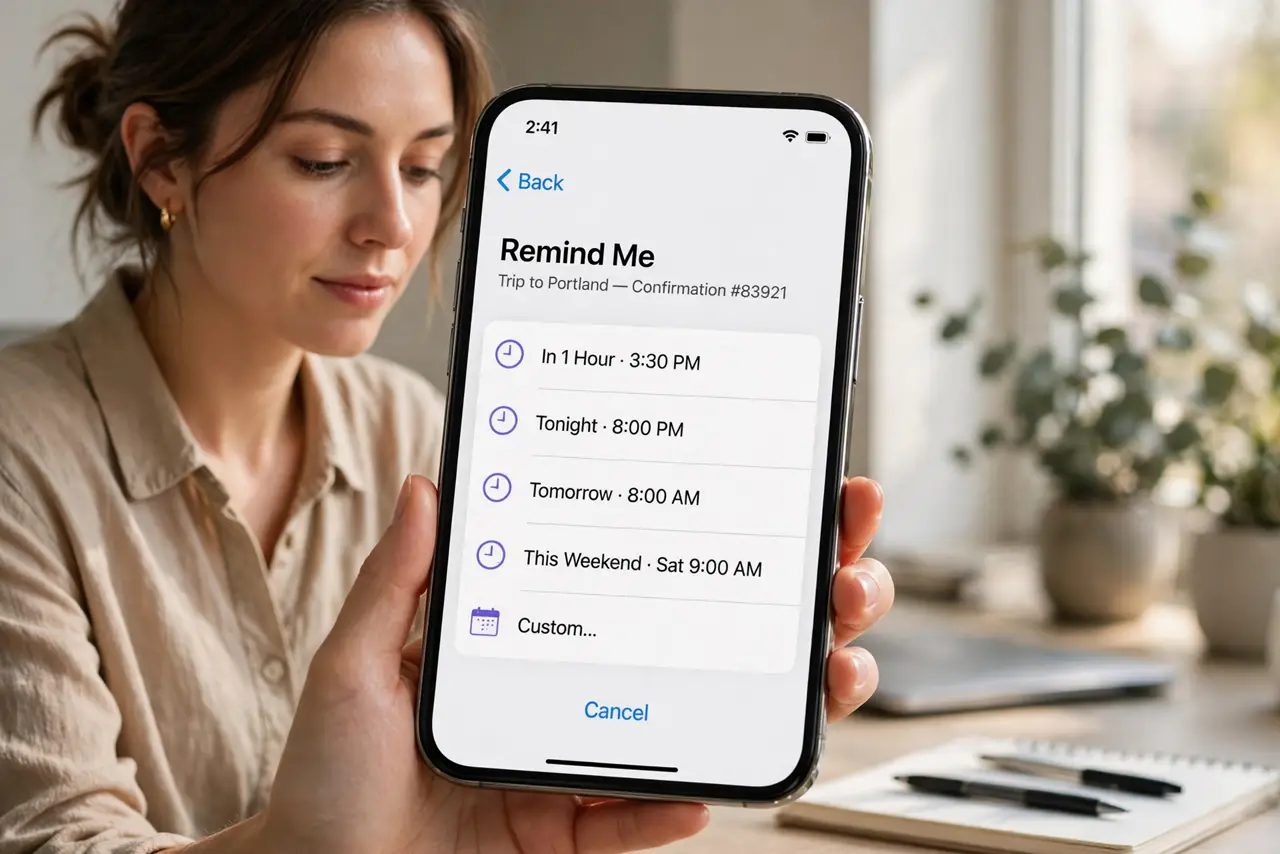
They are the same idea under different names — hiding an email until a chosen time. Use whichever your app calls it.