Set Up a Sonos Speaker
You plugged in the Sonos speaker, opened the app, and now it wants Wi-Fi details, an account, and a room name — in what feels like the wrong order. Sonos setup is smooth once you know the sequence: app first, product detection, Wi-Fi handoff, then tuning. Here is the order that works, including the 5 GHz trap that stalls half of all setups.
TL;DR / Quick Fix
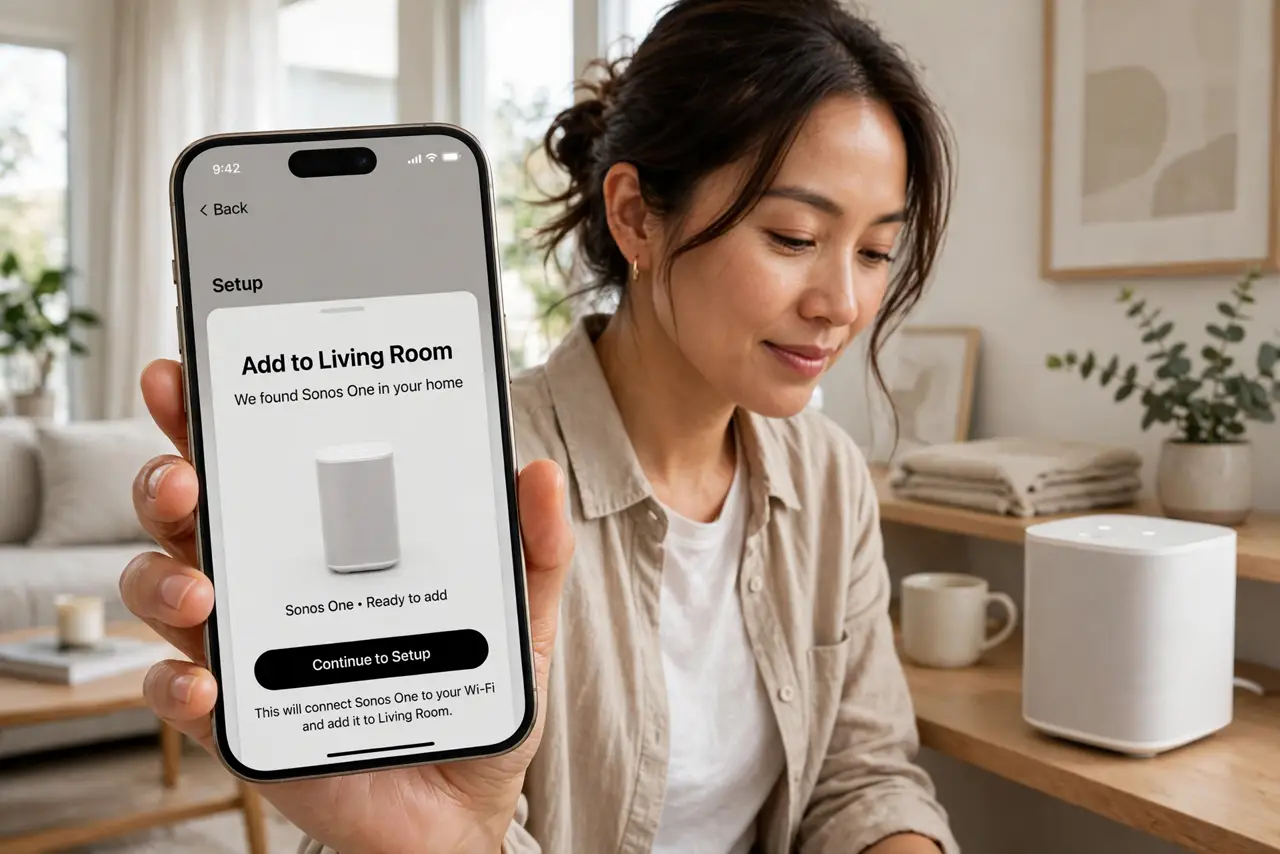
Quick fix: plug in the speaker, install the Sonos app, and tap Add Product when it appears. Keep your phone on 2.4 GHz Wi-Fi during setup — many speakers fail on 5 GHz-only networks. Sign in, name the room, and run Trueplay tuning if your model supports it.
Follow these steps
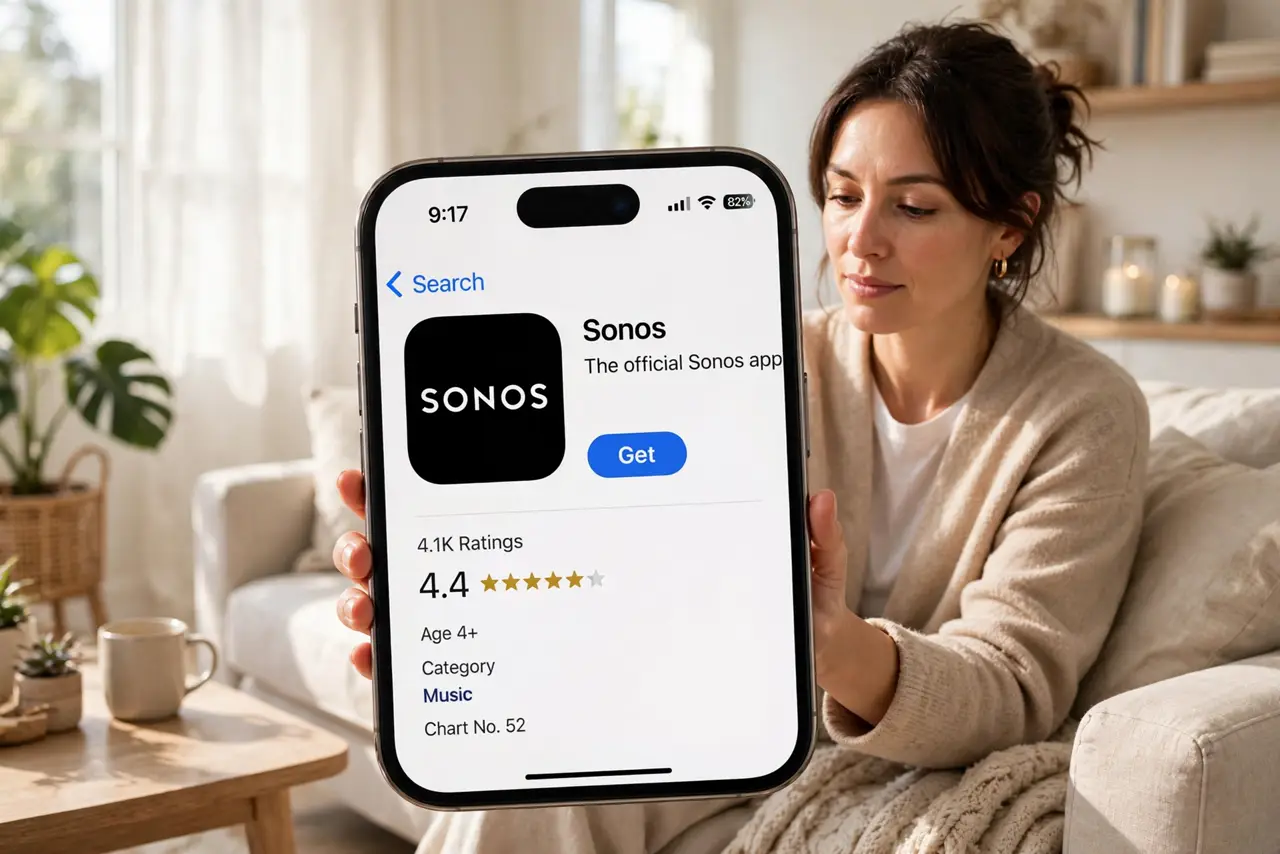
- Install the Sonos app first. Download the Sonos app on your phone before plugging anything in. The app drives the whole setup — the speaker alone cannot configure itself.
- Plug in and wait. Power the speaker and wait for the flashing light that means it is ready. Rushing this step and opening the app too early causes half of all failed detections.
- Tap Add Product. In the app, tap Add Product and let it find the speaker over Bluetooth or sound-based pairing. Keep the phone within a few feet during detection.
- Use 2.4 GHz Wi-Fi for setup. Many Sonos models only join 2.4 GHz networks during setup. If your phone is on 5 GHz, the handoff fails silently — temporarily join the 2.4 GHz band, then switch back after.
- Sign in and name the room. Create or sign into your Sonos account and assign the speaker to a room. Room names drive voice commands later, so name it what you will actually say.
- Run Trueplay tuning. If your model supports it, run Trueplay: walk the room waving your phone while it plays test tones. It tunes the sound to your space — and review the speaker privacy settings while you are in the app.
What NOT to do
- Do not set up on a 5 GHz-only network. The 2.4 GHz requirement during setup is the top stall — check your router's band settings.
- Do not skip the account sign-in. Sonos needs the account for updates and services; skipping it now just moves the prompt later.
- Do not place the speaker in a corner and judge the sound. Corners boom the bass — tune first, then judge.
- Do not unplug it during a firmware update. A bricked speaker from a mid-update unplug is an avoidable tragedy.
Frequently asked questions
Why can't the app find my speaker?
Usually the phone is too far, Bluetooth is off, or the speaker is not in pairing mode. Unplug for ten seconds, keep the phone close, and try again.
Does Sonos work without Wi-Fi?
No — Sonos is a Wi-Fi system at heart. Bluetooth on portable models is a bonus, not a replacement.
Can I use Sonos with an iPhone and Android in one house?
Yes. The Sonos account is the hub, so mixed households control the same speakers from either app.