Freeze Panes for Rows and Columns Together
Scrolling a big sheet loses the headers, so you cannot tell which column or row you are reading. Freezing panes locks the top rows and left columns in place while the rest scrolls.

TL;DR / Quick Fix
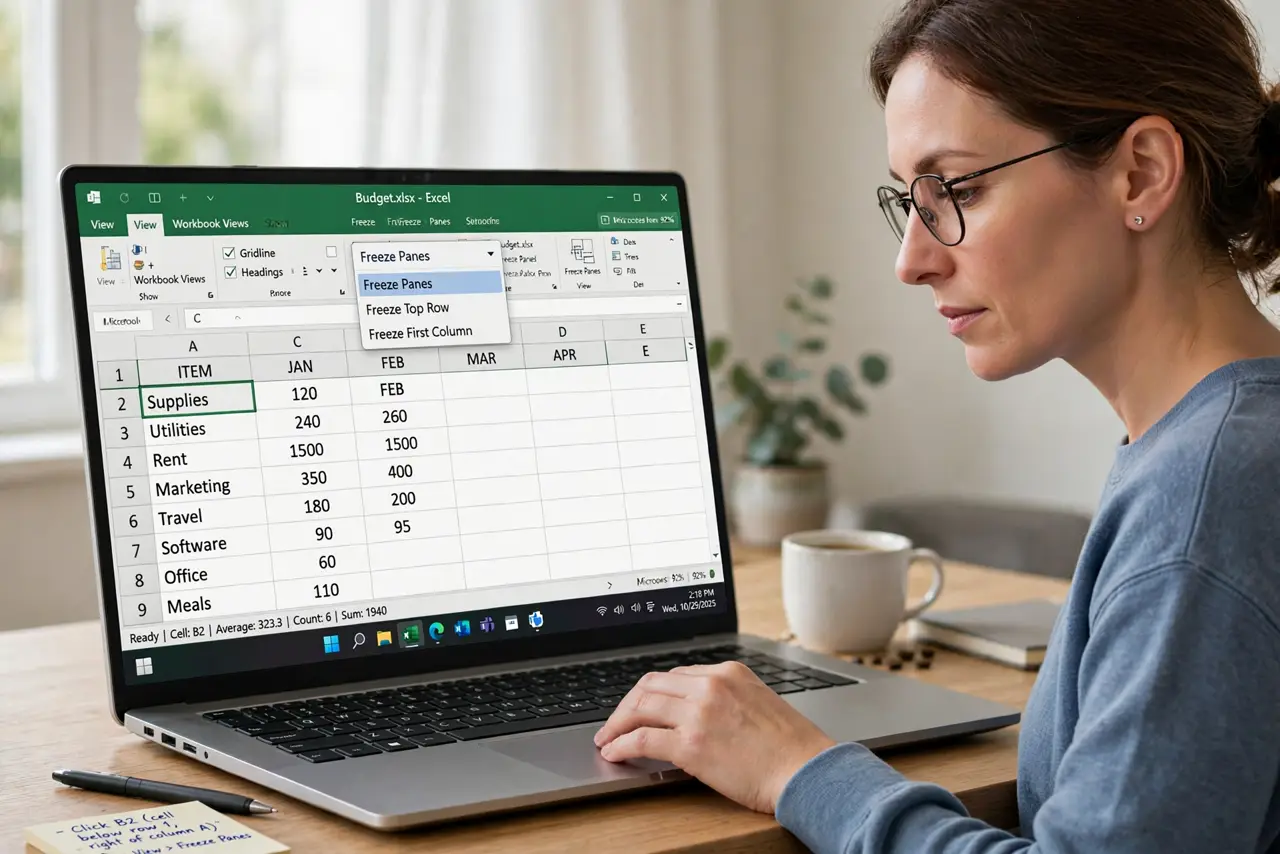
Quick fix: click the cell just below and right of what you want frozen, then choose freeze panes from the view menu. Scroll the sheet and confirm the headers stay put while the data moves and use it on every big shared sheet.
Follow these steps
- Pick the cell below and right. Click the cell just below the rows and just right of the columns to freeze. Everything above and left of that cell stays locked.
- Open freeze panes in the view menu. Find freeze panes under View. The option freezes at your selected cell, locking rows above and columns left of it.
- Scroll to test the freeze. Scroll down and right through the sheet. The frozen headers should stay visible while the data moves beneath them.
- Unfreeze to change the area. If the wrong area froze, choose unfreeze panes and reselect the cell. One clean reselect beats fighting a bad freeze.
- Freeze only what you need. Freeze the header row, or the row plus one column. Freezing half the sheet defeats the purpose of scrolling.
- Use it on every big shared sheet. Apply freeze panes before sharing a large sheet. Everyone who opens it benefits, and nobody has to set it up again.
What NOT to do
- Do not freeze from the wrong cell. The freeze locks above and left of your selection, so one cell off freezes the wrong area.
- Do not freeze half the sheet. Freeze only headers, since freezing data columns hides the very numbers you scroll to see.
- Do not forget to unfreeze before reselecting. The old freeze stays until you clear it, so unfreeze first.
- Do not skip this on shared sheets. A big sheet without frozen headers confuses every person who opens it.
Frequently asked questions
How do I freeze the top row and first column together?
Click the cell below the row and right of the column, then choose freeze panes from the view menu.
Why did the wrong area freeze?
Because the freeze locks above and left of the selected cell. Reselect the right cell and freeze again.
Can I freeze just the top row?
Yes. Select the row below it and freeze, or use the freeze top row option if your app offers one.