Clone to a New SSD
A new SSD sits on your desk, and the thought of reinstalling everything — the OS, the apps, the settings you forgot you had — is exhausting. Cloning copies your entire drive bit-for-bit onto the new SSD, so you swap the drive and boot into the exact system you left. Done right it takes an afternoon; done wrong it takes a weekend.
TL;DR / Quick Fix
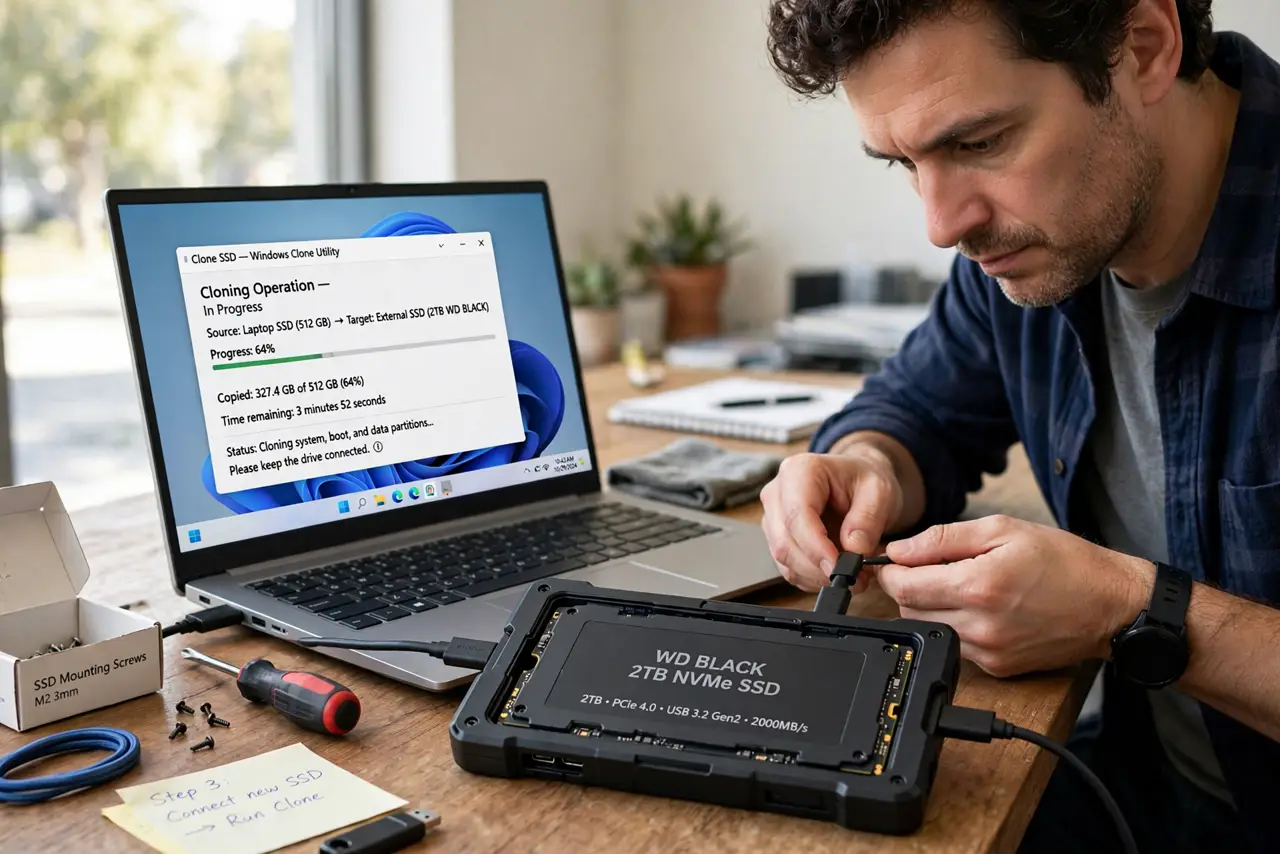
Quick fix: connect the new SSD with a USB adapter, run reputable cloning software, and copy the whole drive over. Verify the clone boots before wiping the old drive. Keep the old drive untouched for a week as your fallback. Never clone a failing drive without a backup first.
Follow these steps
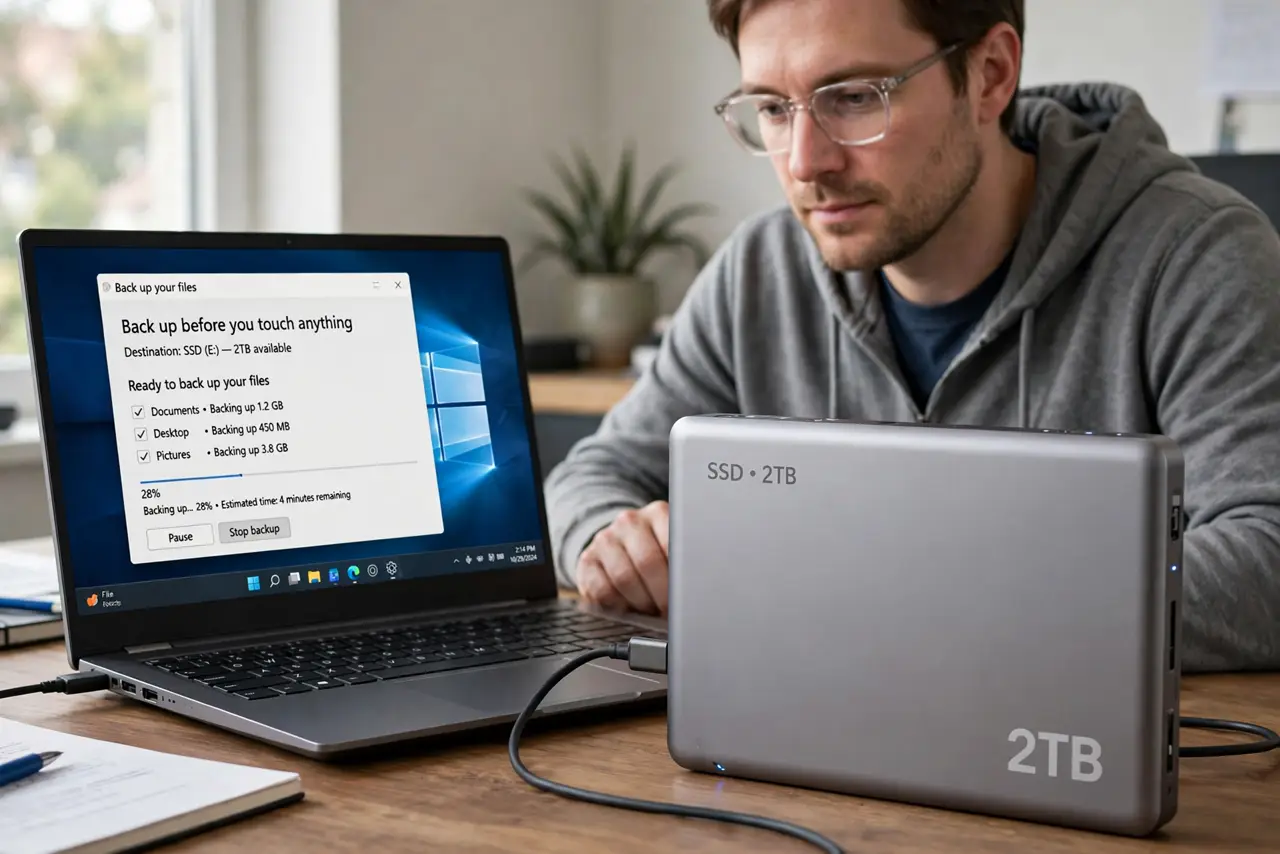
- Back up before you touch anything. Cloning is reliable, but a power cut mid-clone ruins both copies. Make a full backup of anything irreplaceable first. This is the step everyone skips and the one that saves people.
- Connect the new SSD externally. Use a USB-to-SATA or USB-to-NVMe adapter to attach the new SSD while the old drive still runs the system. Cloning from a live system to an attached target is the simplest reliable setup.
- Pick reputable cloning software. Use the drive maker's own migration tool or a well-known free cloner. Avoid random 'free clone pro' downloads — this software gets block-level access to your data, so trust matters more than features.
- Clone the whole drive, not just files. Choose the disk-clone or migrate-OS option so partitions, boot records, and hidden recovery areas come along. Copying files alone will not produce a bootable drive.
- Verify the clone boots. After cloning, boot from the new SSD — via USB first if the software supports it, or by physically swapping the drives. Confirm your desktop, apps, and files all appear before you trust it.
- Keep the old drive for a week. Do not wipe the old drive immediately. Run on the new SSD for several days; if anything is off, the old drive is your instant rollback. Then wipe it for reuse or disposal.
What NOT to do
- Do not clone a failing drive without a backup. Cloning copies corruption too — back up your files separately first.
- Do not wipe the old drive the same day. A clone that looks fine can hide a broken boot record; the week-long overlap is your insurance.
- Do not clone to a smaller SSD. The target must hold all used space on the source — check sizes before starting, not after.
- Do not download cloning tools from ads. Fake 'disk clone' ads bundle malware; get the tool from the drive maker's own site.
Frequently asked questions
How long does cloning take?
Roughly an hour per few hundred gigabytes over USB, depending on the adapter and drives. A full 1 TB drive typically finishes in one to three hours.
Will cloning work moving from SATA to NVMe?
Yes — cloning is about the data, not the interface. The system boots the same; it just runs faster. See NVMe generations if you are also upgrading the interface.
Do I need to reinstall Windows after cloning?
No. A proper clone is bootable as-is. Windows may ask to reactivate on very different hardware, but a same-machine drive swap just works.