SSD Missing in BIOS? Fix It
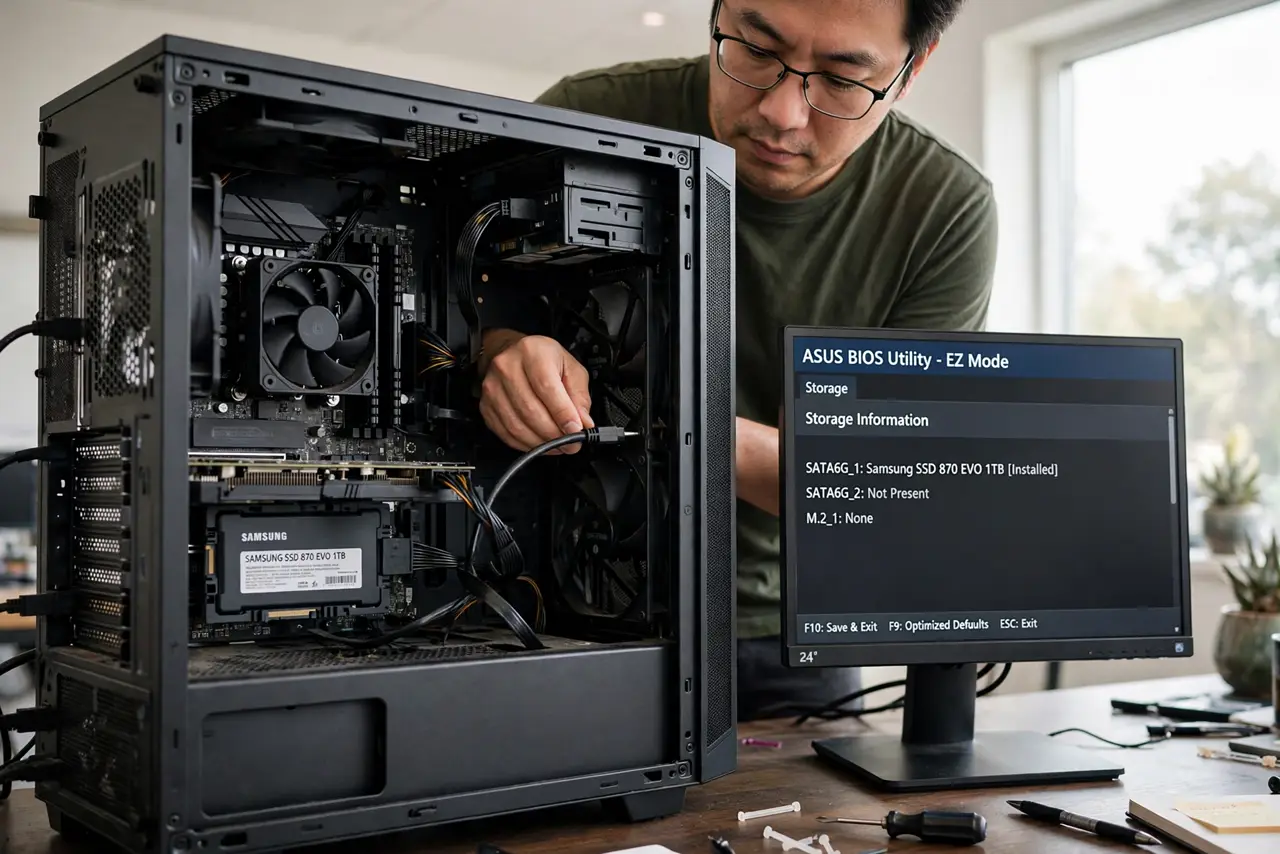
The new SSD is physically installed, but firmware setup shows no trace of it — no entry in the boot list, no drive in storage info. Before you blame the SSD, know that most 'invisible drive' cases are cables, ports, or a mode the firmware does not expect. This ladder starts with the five-minute physical checks.
TL;DR / Quick Fix
Quick fix: power off, reseat both the data and power cables, and try a different SATA port. For M.2 drives, reseat the stick and confirm the slot supports its type ([[NVMe vs SATA|nvme-vs-sata]]). If the drive appears after that, it was the connection. A drive invisible everywhere is likely faulty.
Follow these steps
- Reseat the SATA data and power cables. Power off fully, unplug both cables from the SSD, and reconnect them firmly. Loose SATA connectors are the number one cause of vanishing drives.
- Try a different SATA port. Ports fail or get disabled. Move the cable to another motherboard port — avoid any port the manual marks as shared with M.2 slots.
- Check the port is enabled in setup. Some firmware lets individual SATA ports be disabled. Open setup and confirm the port shows as enabled, not empty.
- Reseat M.2 drives carefully. For M.2 sticks: power off, remove the screw, lift and reseat the drive at its angle, then screw it down. A half-seated M.2 is invisible.
- Confirm the slot matches the drive type. Some M.2 slots accept only SATA or only NVMe drives. A mismatch means the firmware will never see it — see NVMe vs SATA.
- Test the drive in another PC. If it appears elsewhere, your board or port is the problem. If it is invisible everywhere, the SSD itself is likely dead.
What NOT to do
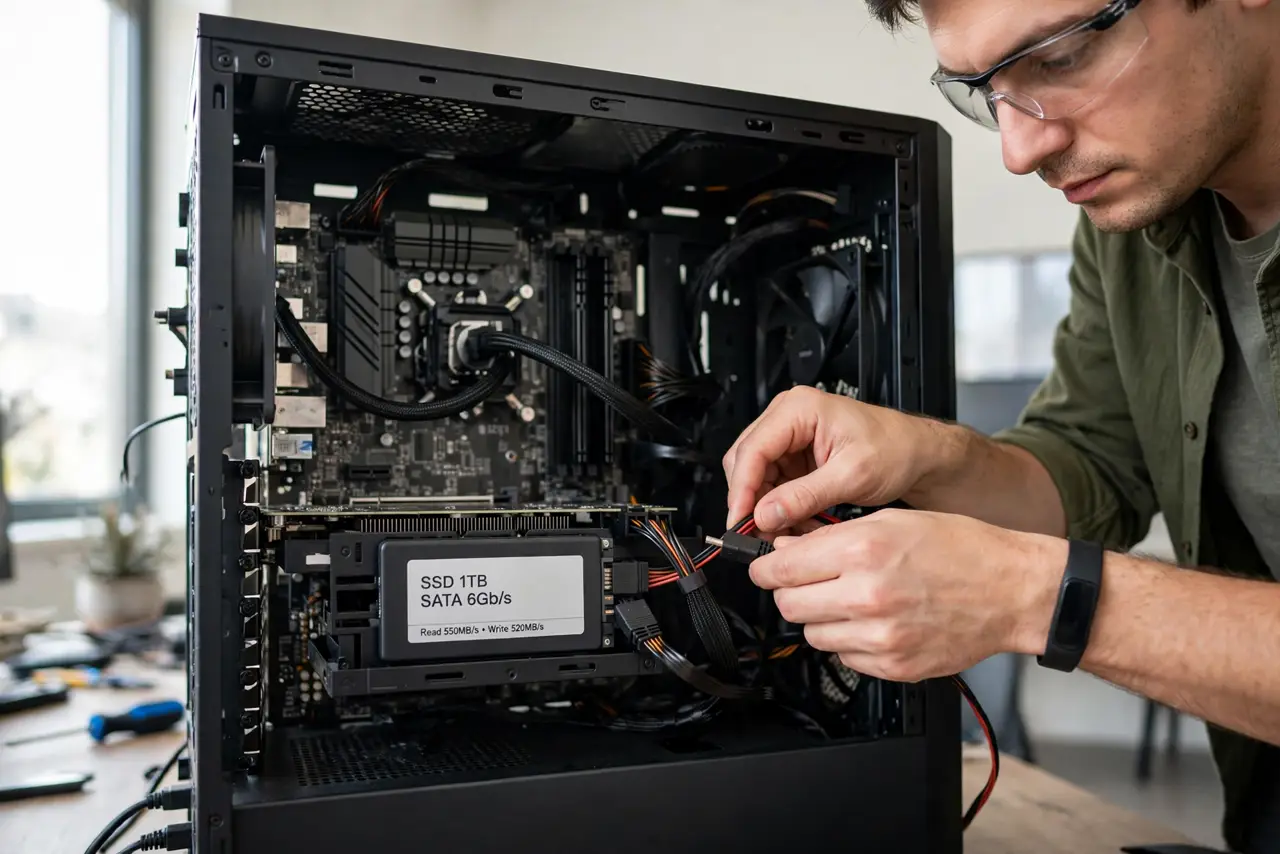
- Do not assume a new SSD is dead on arrival. Connection issues outnumber true DOA drives by a wide margin.
- Do not force an M.2 stick flat. It seats at an angle first, then screws down — forcing it straight cracks the slot.
- Do not enable RAID mode hoping the drive appears. Wrong controller modes hide drives; AHCI is the safe default for single SSDs.
- Do not keep swapping parts randomly. Work the ladder in order — cables, ports, settings, then the drive itself.
Frequently asked questions
Why does the SSD show in Windows but not in BIOS?
That usually means it is visible but not in the boot list — check boot priority, not detection. True invisibility means setup's storage page shows nothing.
Can a BIOS update make the SSD appear?
Rarely, but it happens with very new drive models on older boards. Update only after the physical checks fail — updates carry their own risk.
Does the SATA cable version matter?
Any working SATA cable works for detection. Cable quality affects speed and stability, not whether the drive appears at all.