Set a Static Home IP
Your printer worked yesterday and today the computer can't find it. Your media server's bookmark suddenly fails. The invisible culprit: DHCP gave the device a new IP address overnight, and everything pointing at the old one broke. A static IP — or better, a DHCP reservation — pins the address permanently. Here is how to set one up without breaking the network.
TL;DR / Quick Fix
Quick fix: give the device a static IP outside your router's DHCP range so its address never changes. Note the IP, gateway, and DNS, then set the same values manually on the device — or simpler, create a DHCP reservation in the router, and port rules plus shortcuts stop breaking.
Follow these steps
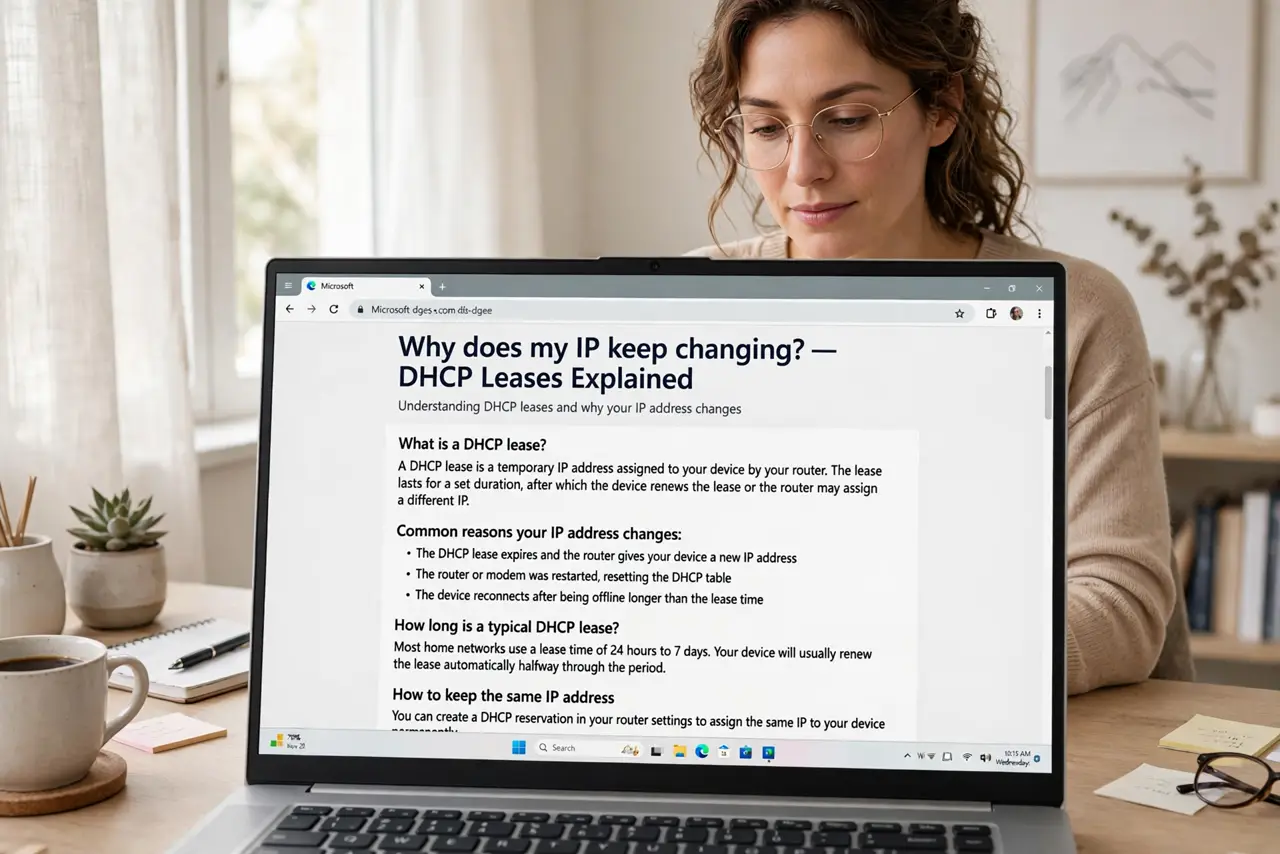
- Understand why the IP keeps changing. Home routers hand out addresses via DHCP from a pool, with leases that expire. When a device reconnects, it can get a different address — fine for phones, fatal for printers, servers, and cameras that everything else addresses by number.
- Note the current working settings. On the device, write down its current IP, subnet mask, gateway, and DNS. These working values are your template — a static IP keeps everything identical except the address itself stays fixed.
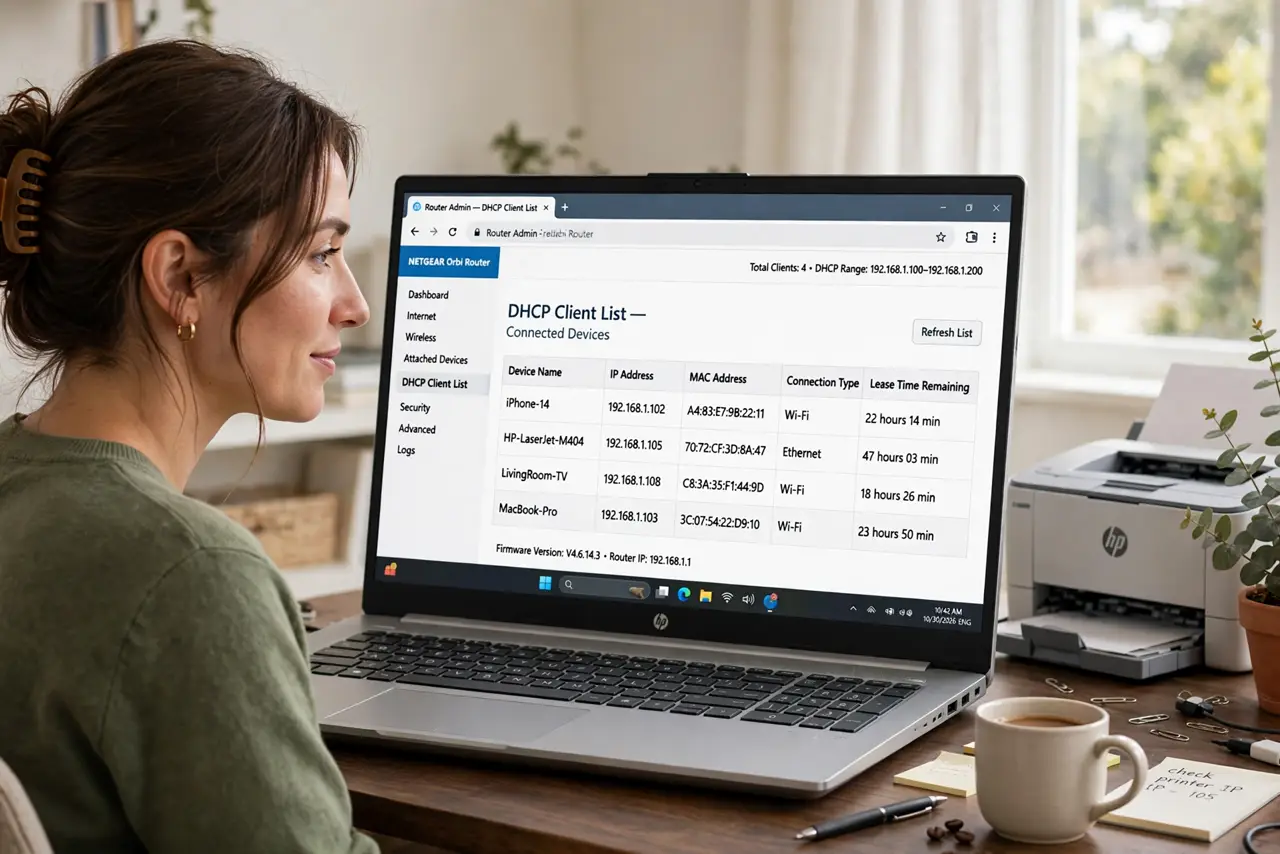
- Pick an address outside the DHCP pool. Log in to your router, check the DHCP range (often 192.168.1.100–200), and choose a static address outside it — like 192.168.1.50. Inside the pool, the router might hand your 'static' address to another device and cause a conflict.
- Set it on the device — or use a reservation. Enter the static IP, mask, gateway, and DNS in the device's network settings. Simpler and safer: make a DHCP reservation in the router instead — same permanent address, zero risk of typos on the device.
- Update everything that pointed at the old IP. Printer drivers, bookmarks, app configs, port forwarding rules — anything that used the numeric address needs the new one. This is a one-time chore; after it, the address never moves again.
- Test after a router reboot. Restart the router and confirm the device keeps its address and everything still connects. If something breaks only after reboots, the static address is likely inside the DHCP pool — move it outside.
What NOT to do
- Do not pick a static IP inside the DHCP pool. The router can assign it to another device, creating a conflict that breaks both.
- Do not set a static IP without noting the gateway and DNS. A device with the right IP but no gateway reaches nothing — copy all four values.
- Do not use static IPs for everything. Phones and laptops are fine on DHCP; reserve static addresses for infrastructure — printers, servers, cameras.
- Do not forget the change when troubleshooting later. A forgotten static IP is a classic 'mystery' when the network layout changes — document it.
Frequently asked questions
Static IP or DHCP reservation — which is better?
Reservations, almost always. Centrally managed in the router, no per-device typos, and the device still gets DNS and gateway automatically. Manual static IPs are for devices that can't do DHCP.
Will a static IP make my internet faster?
No. It only stabilizes the address — speed is unchanged. It fixes 'can't find the printer,' not 'pages load slowly.'
What if I don't know my router's DHCP range?
Log in to the router and look under LAN or DHCP settings — the range is listed there. When in doubt, pick a low number like .50, well below typical pools. See setting a static IP on Wi-Fi for the device-side steps.