Steam Deck Storage Tips
Your Steam Deck was fine until the 'storage full' warning appeared mid-download, and now every new game means deleting an old one. The Deck's storage fills faster than the spec sheet suggests because of shader caches and compatibility files piling up invisibly. The good news: a few targeted cleanups plus cheap expandable storage fix it permanently. This guide walks through both.

TL;DR / Quick Fix
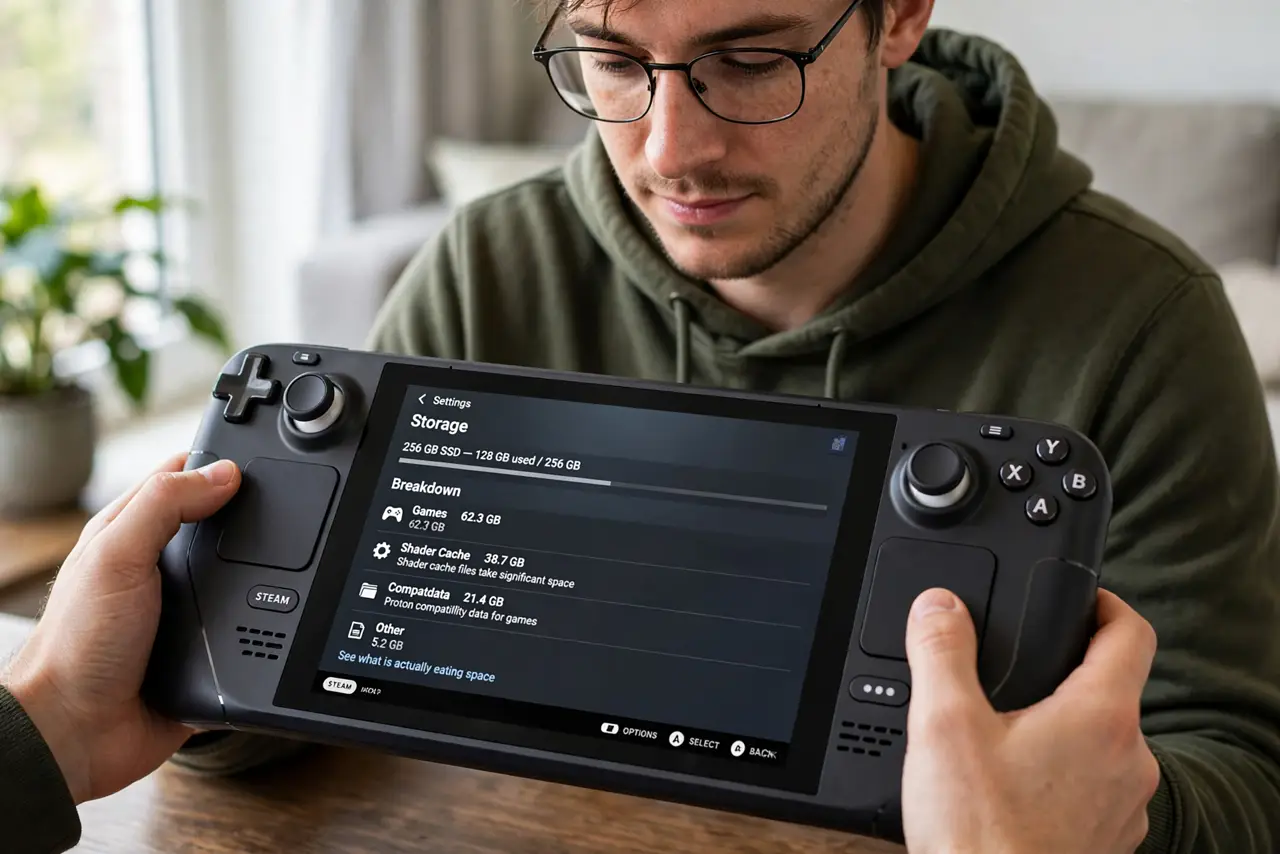
Quick fix: when Steam Deck storage fills up, open Settings, then Storage, to see what is eating space — usually shader cache and leftover game data. Uninstall finished games, clear shader cache for removed titles, and add a microSD card, the cheapest way to gain hundreds of gigabytes.
Follow these steps
- See what is actually eating space. Open Settings, then Storage, on the Deck. The breakdown shows games, but the hidden hogs are shader cache and the compatdata folders for games you already removed — gigabytes that sit there doing nothing.
- Uninstall games you have finished. In your library, open a game's menu and choose Uninstall. Your saves are stored separately (and in the cloud if enabled), so removing a finished game loses nothing but the download time if you ever return.
- Clear shader cache for removed games. Shader cache belongs to games you no longer have installed — dead weight. Clearing it is safe and often frees surprising amounts of space; the Deck rebuilds shaders for games you actually play.
- Move games to a microSD card. The Deck has a microSD slot, and games run well from a decent card. Move your backlog there and keep the fast internal storage for what you are actively playing — see how desktop mode helps with bigger storage jobs.
- Buy the right card size. A 512 GB or 1 TB card from a reputable brand costs far less than the internal-storage upgrade did. Bigger is better here — game sizes only grow, and a full card is as annoying as a full drive.
- Keep 10-15% free. Storage packed to the brim slows updates and shader compilation. Leave breathing room and treat 'nearly full' as the real warning, not 'completely full.'
What NOT to do
- Do not delete the compatdata folder of games you still play. That folder holds prefixes and saves for installed games — removing it can wipe configurations and progress.
- Do not buy a no-name microSD card. Counterfeit cards lie about capacity and corrupt saves; stick to known brands from reputable sellers.
- Do not ignore the shader cache after uninstalling. It is the single most common invisible space hog on the Deck.
- Do not fill the internal drive to zero bytes. The system needs working space for updates — a completely full drive can fail updates and behave strangely.
Frequently asked questions
Is running games from microSD slower?
Slightly longer load times versus internal storage, but in-game performance is essentially the same. Most players cannot tell the difference during actual play.
Can I use an external SSD instead?
Yes, via USB-C — useful as an archive for games you rotate through. It is less portable than a microSD card living inside the Deck, though.
How big are shader caches really?
They vary by game, but collections of them routinely reach tens of gigabytes. On a 64 or 256 GB model, that is a serious fraction of the drive.