Stop Smart TV Spying
Your smart TV watches what you watch — literally. A technology called ACR (automatic content recognition) fingerprints everything on screen and reports it back for ads and profiling, and it is on by default on most brands. The good news: it is a settings toggle, not a hardware fate. For brand-by-brand paths, see turn off TV tracking.
TL;DR / Quick Fix
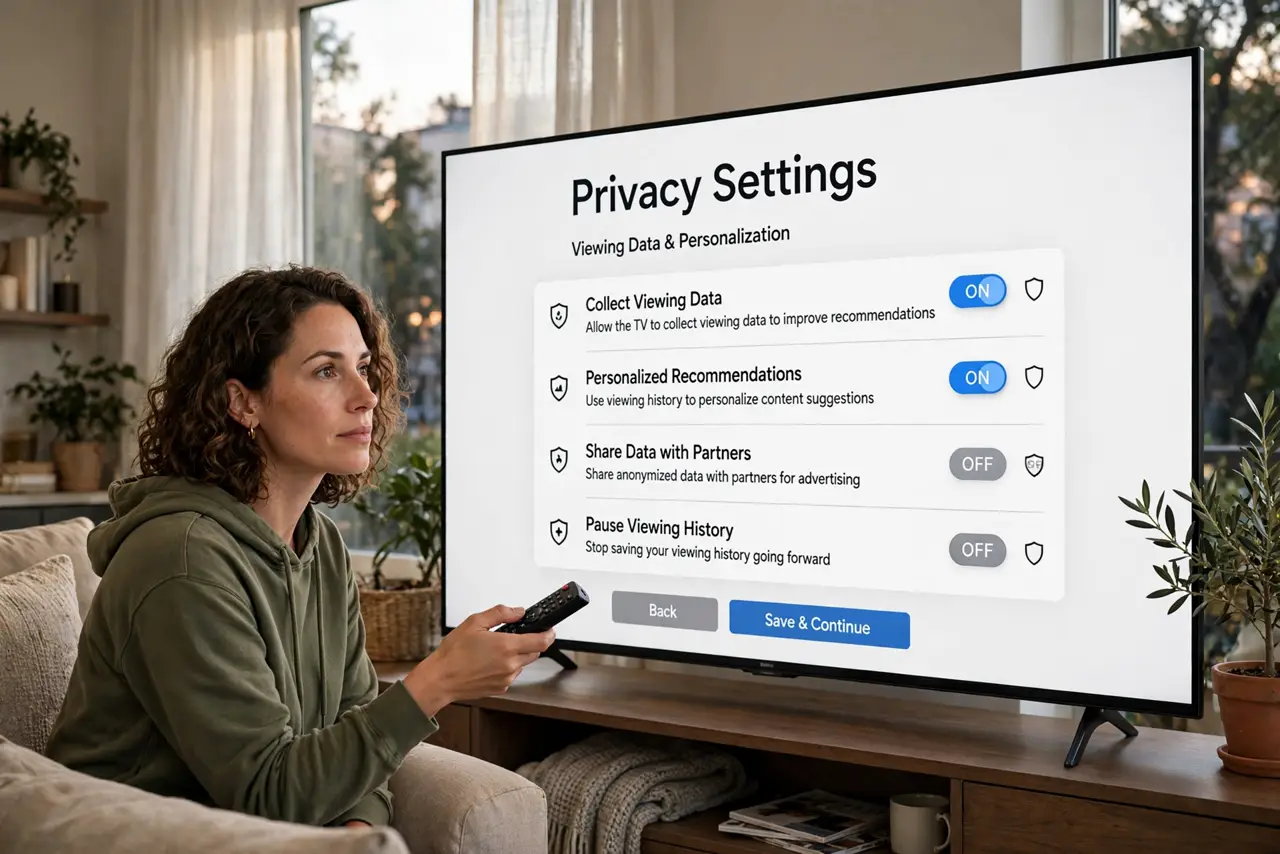
Quick fix: open your TV's Settings > Privacy and switch off Viewing Information (ACR) and interest-based ads — that stops the TV reporting what you watch. Decline optional data sharing during setup. A streaming stick with its own privacy controls gives you smart features without the spying.
Follow these steps
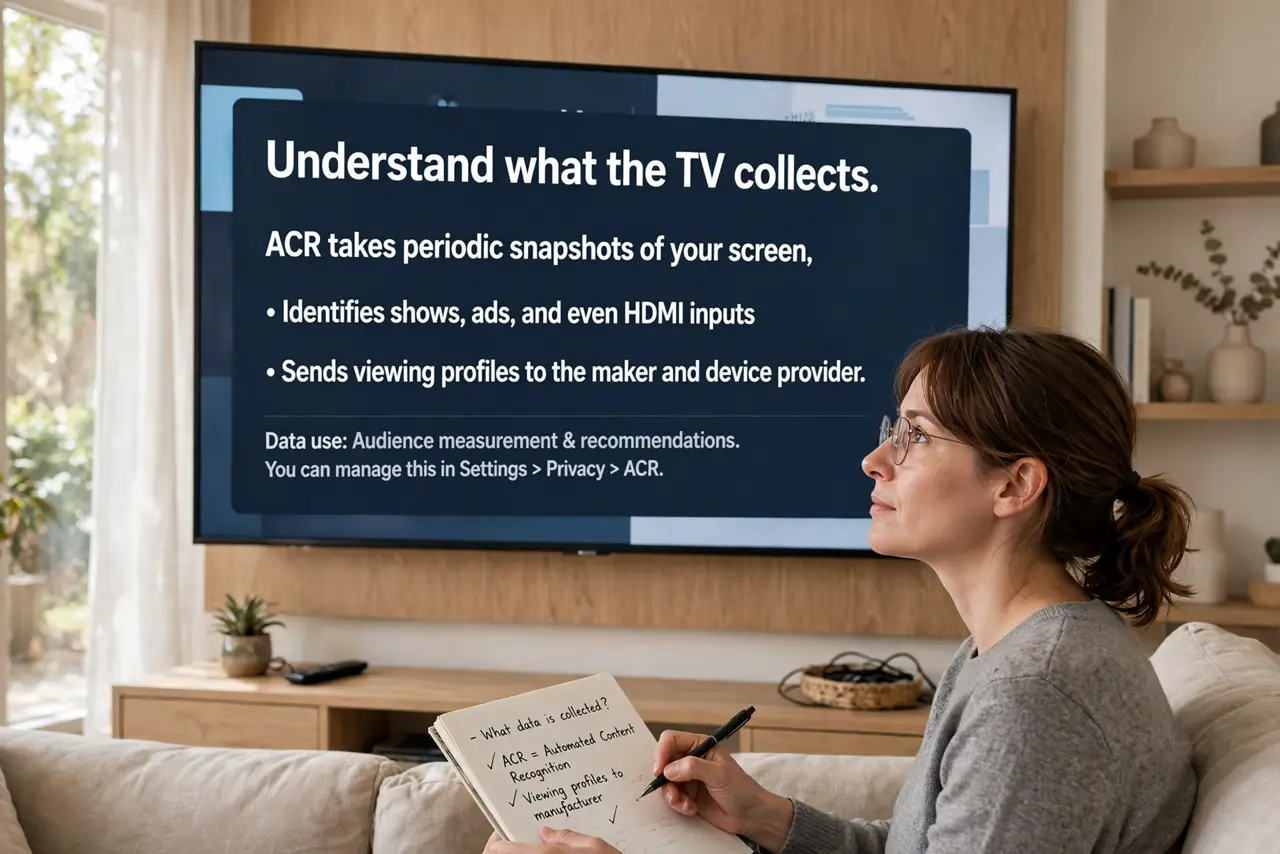
- Understand what the TV collects. ACR takes periodic snapshots of your screen, identifies shows, ads, and even HDMI inputs, and sends viewing profiles to the maker and partners. It is the TV equivalent of browser tracking.
- Find the privacy settings. Look under Settings > Privacy, General > System, or Support on your brand. The toggles hide under names like “Viewing Information Services,” “Live Plus,” or “Samba.”
- Disable viewing data and ACR. Switch off every toggle mentioning viewing information, content recognition, or data collection. This is the big one — it stops the screen fingerprinting.
- Disable interest-based ads. A separate toggle usually controls ad personalization. Off means generic ads instead of ads built from your viewing profile.
- Decline extras during setup. Fresh setup screens bundle “agreements” that re-enable tracking. Read them and decline everything optional — the TV works fine without.
- Consider a streaming stick instead. A stick with hardened privacy settings (see Fire TV privacy) gives you the apps without the TV maker's data collection — then never connect the TV itself to Wi-Fi.
What NOT to do
- Do not assume “I have nothing to hide” settles it. Viewing profiles are sold and breached like any data — minimization is just hygiene.
- Do not connect the TV to Wi-Fi if you use a stick. A TV that cannot phone home cannot report — the strongest setting is no network.
- Do not ignore the voice remote. Mic-enabled remotes have their own listening settings; check them too.
- Do not forget to recheck after updates. Firmware updates have been known to quietly re-enable data toggles.
Frequently asked questions
Is ACR actually on by default?
On most major brands, yes — buried in setup agreements most people accept blindly.
Can the TV see my HDMI devices?
ACR fingerprints whatever is on screen, including game consoles and cable boxes plugged into HDMI.
Will disabling break any apps?
No. Streaming apps work identically — you lose personalized ads and “more like this” rows, nothing else.