Fix High Disk Use in Task Manager on Windows
When Task Manager shows disk use stuck near 100 percent, your computer feels slow even for simple tasks. The fix depends on which process is busy, so do not change settings blindly. Identify the process first, then act on what you find.
TL;DR / Quick Fix
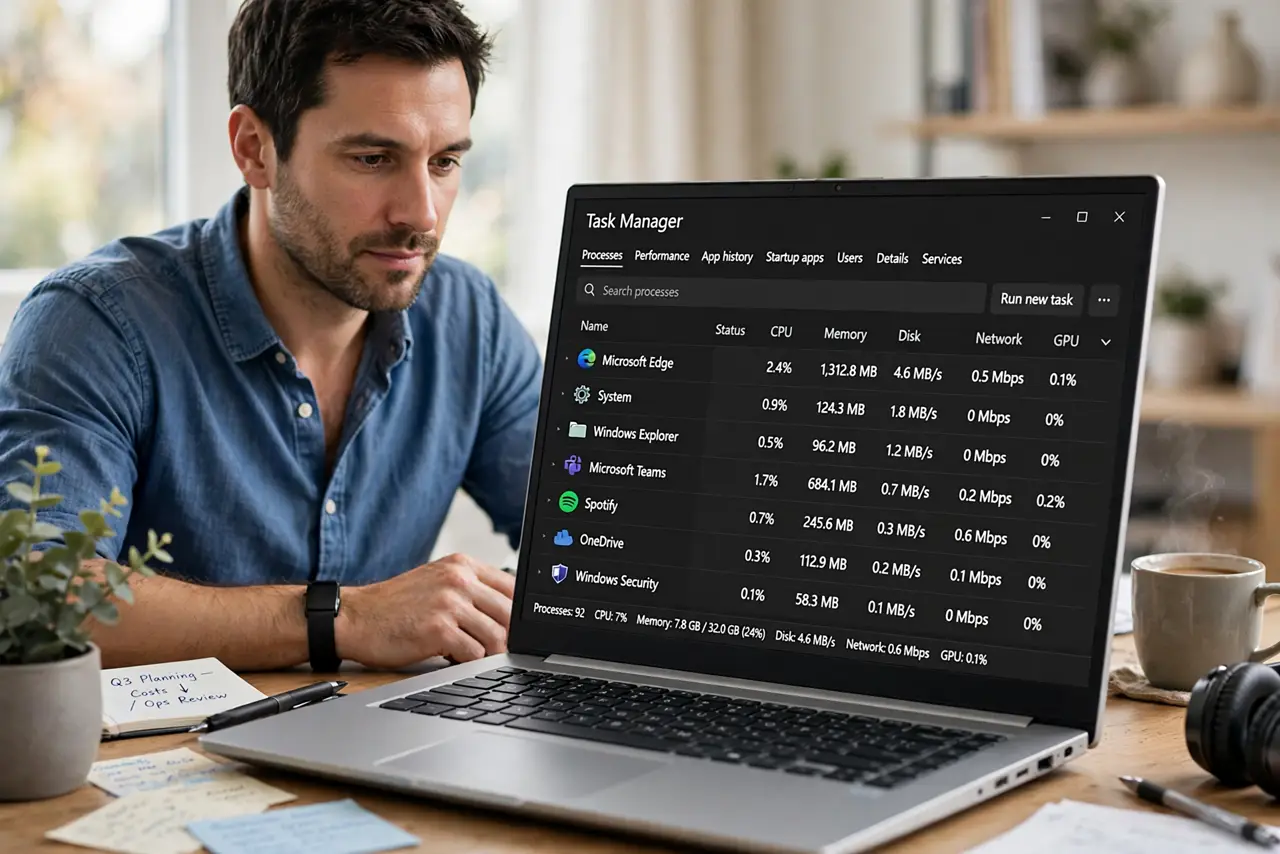
Quick fix: open Task Manager, sort by Disk, and note which process sits at the top. Then restart the computer, install pending Windows updates, and free space if the drive is nearly full. If one app dominates the list, close it and test again.
Follow these steps
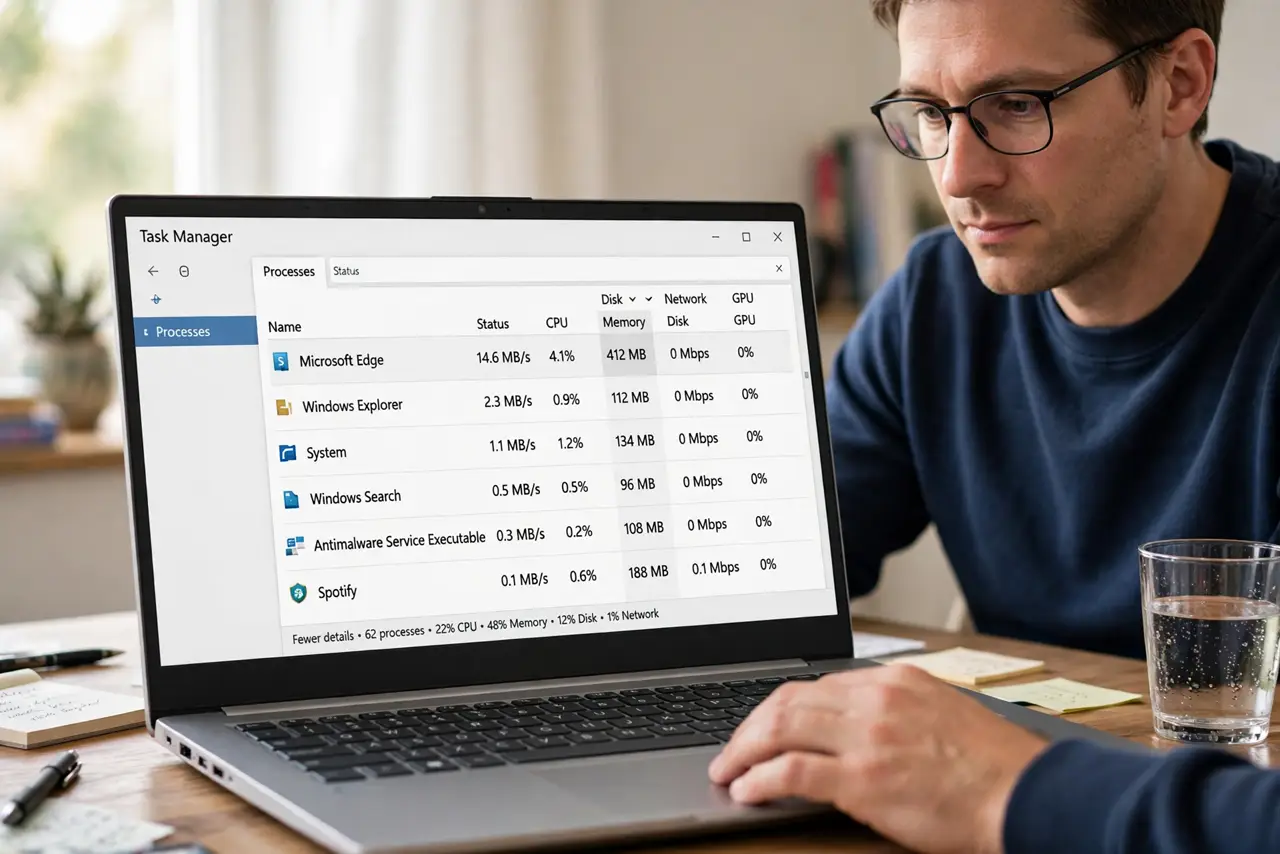
- Sort Task Manager by Disk. Open Task Manager, then Processes, and click the Disk column to sort by disk use. The process at the top is using the drive the most right now.
- Wait a few minutes before acting. High disk use after startup or an update can be temporary while Windows finishes indexing or installing. Watch for a few minutes to see whether it settles on its own.
- Restart the computer. A restart clears stuck background work and unfinished update steps that can hold disk use high. Check Task Manager again after the computer settles.
- Install pending Windows updates. Open Settings, then Windows Update, and install offered updates. Updates can fix a background service that loops and hammers the drive.
- Free space if the drive is nearly full. Open Settings, then System, then Storage, and check free space. A nearly full drive works harder, so delete downloads and temporary files you no longer need.
- Check the drive's health if it stays high. If disk use stays high with no clear process, use the drive maker's official health check or Windows drive tools, and back up important files promptly.
What NOT to do
- Do not end system processes at random. Ending a Windows service can crash the computer, so end only apps you recognize and have saved work for.
- Do not disable Windows services from a random online list. Many of those services are needed, and disabling them can break updates or search.
- Do not install a disk optimizer or registry tool to fix this. Identify the busy process first, since a tool cannot know which one is at fault.
- Do not ignore a noisy or very hot drive. Back up important files first, then check drive health, rather than continuing to use a failing drive.
Frequently asked questions
Is 100 percent disk use always a problem?
Not for a few minutes after startup or an update. It is a problem when it stays high and the computer stays slow for a long time.
Which process usually causes high disk use?
It varies: an update service, a search indexer, an antivirus scan, or one heavy app. Sorting by Disk in Task Manager shows which one in your case.
Will more free space fix high disk use?
It helps if the drive is nearly full, but it will not fix a stuck service or a failing drive, so check the process first.