Captions in Teams
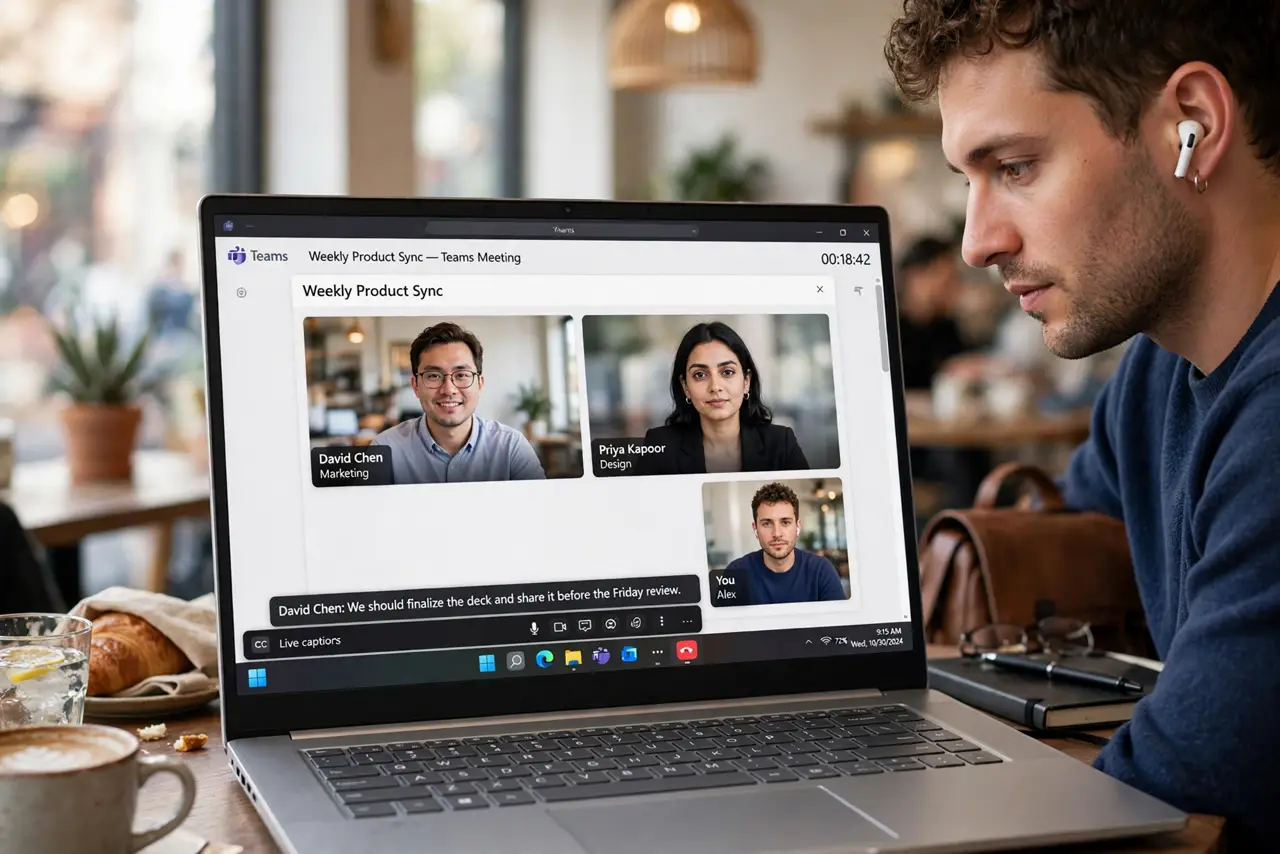
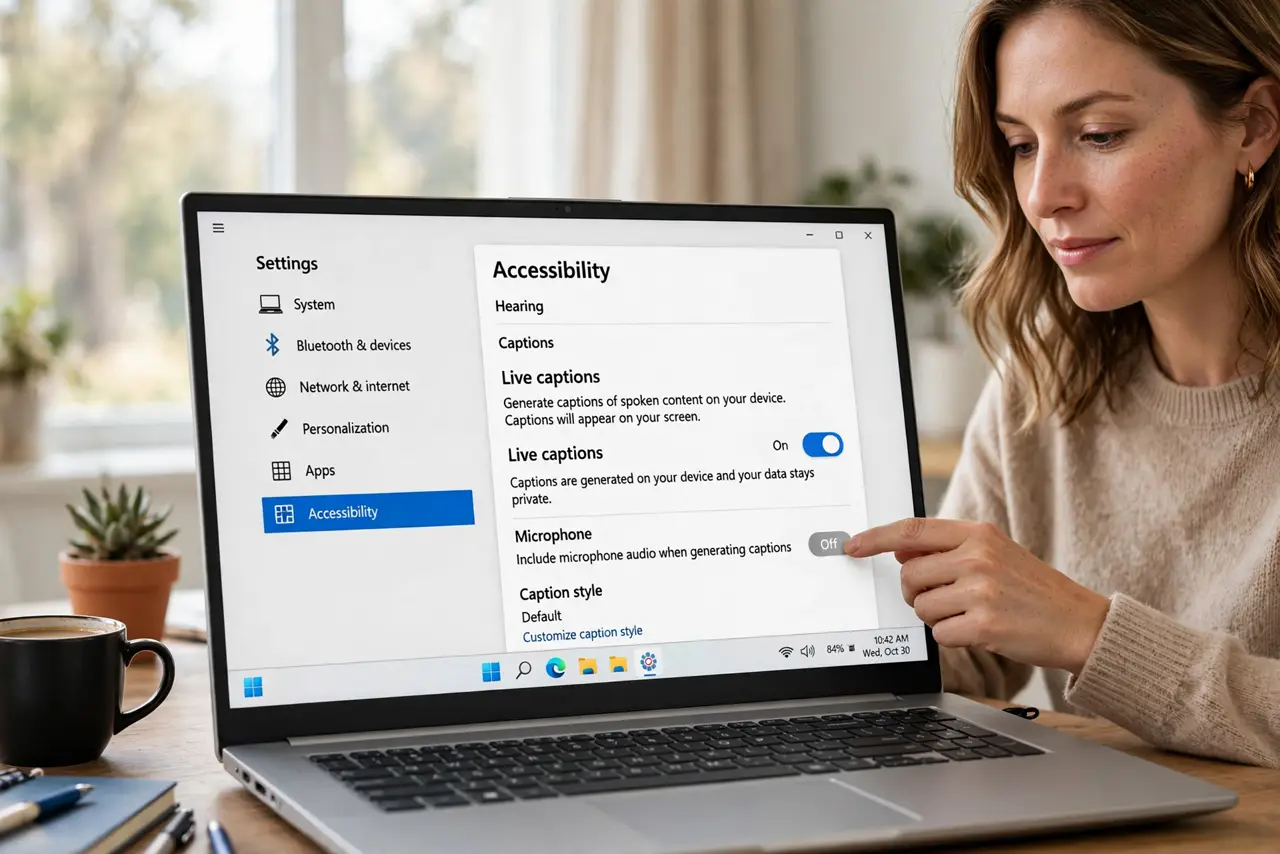
You joined the Teams meeting from a noisy cafe, or the presenter mumbles, or English is your third language — live captions make it followable. Teams can subtitle meetings in real time and even translate them. This guide turns captions on, picks the spoken and caption languages, and saves the transcript when it matters. For the same feature in Zoom, see how to turn on live captions.
TL;DR / Quick Fix
Quick fix: during a Teams meeting, click More, then Language and speech, and turn on Live captions — pick your spoken language for accuracy. Presenters can enable CART captions for the whole meeting. Save the transcript afterward from the meeting chat when decisions need a record.
Follow these steps
- Turn on live captions. In the meeting, click More (the three dots), then Language and speech, then Turn on live captions. Captions appear at the bottom within seconds.
- Set the spoken language. In the same menu, set the spoken language to match the presenter. Captions transcribe far better when the language matches — the number one accuracy fix.
- Enable translation if needed. Teams can translate captions into your language live. Set your caption language separately from the spoken language for multilingual meetings.
- Use CART captions for important meetings. For accessibility-critical meetings, enable CART captions in the meeting options — a human captioner provides accuracy automation cannot match.
- Save the transcript. After the meeting, the transcript is available from the meeting chat or the recap, depending on settings. Download it when the discussion produced decisions.
- Mind the privacy. Transcripts are meeting records. Tell participants when transcription is on — and check company policy before saving transcripts of sensitive discussions.
What NOT to do
- Do not rely on captions for verbatim records. They are good but not exact — critical quotes deserve a human check.
- Do not enable transcription silently in sensitive meetings. People speak differently when recorded; transparency keeps trust.
- Do not set the wrong spoken language and blame the captions. A language mismatch is the top cause of gibberish captions.
- Do not forget captions are per-person. Turning them on for yourself does not enable them for anyone else.
Frequently asked questions
Are Teams captions free?
Yes — live captions are included in Teams meetings at no extra cost, with translation on most plans.
Can I get captions in a different language than spoken?
Yes. Set the spoken language to what is being said and the caption language to what you read — live translation handles the rest.
Where is the transcript saved?
In the meeting chat or the meeting recap in Teams, depending on your admin's settings. Ask IT if you cannot find it.