Share Screens in Teams
You need to show the spreadsheet, not describe it — but the Share button offers a maze of windows, screens, and modes, and picking wrong shares your private messages to the whole call. Teams screen sharing is powerful once you know the options: which content, whether to include sound, and how to hand over control. This guide shares the right thing every time. For captions during the presentation, enable captions in Teams.
TL;DR / Quick Fix
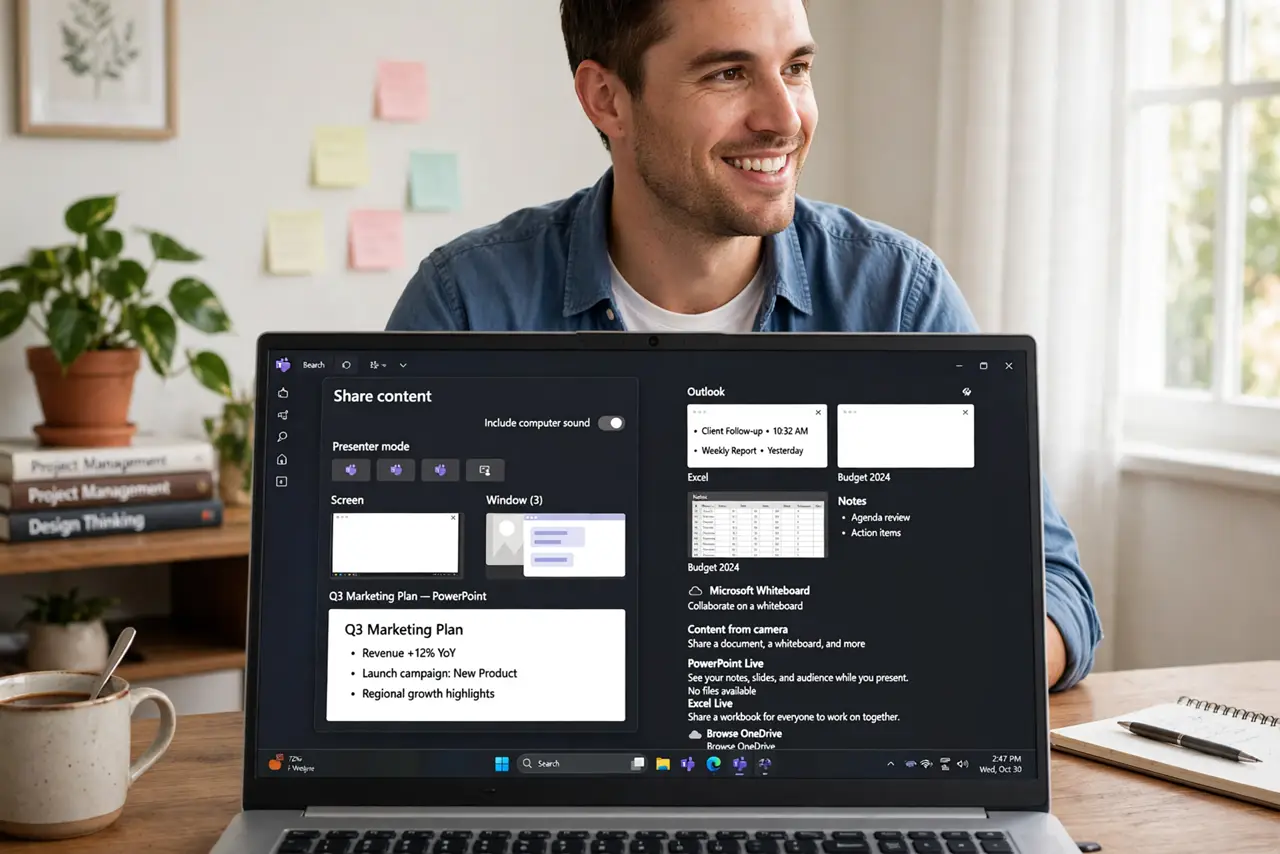
Quick fix: in a Teams call, click Share, pick the specific window — not your whole desktop — and toggle Include computer sound when sharing video. Use Presenter mode to keep your video visible alongside. Stop sharing the moment you are done; an open share is a privacy leak.
Follow these steps
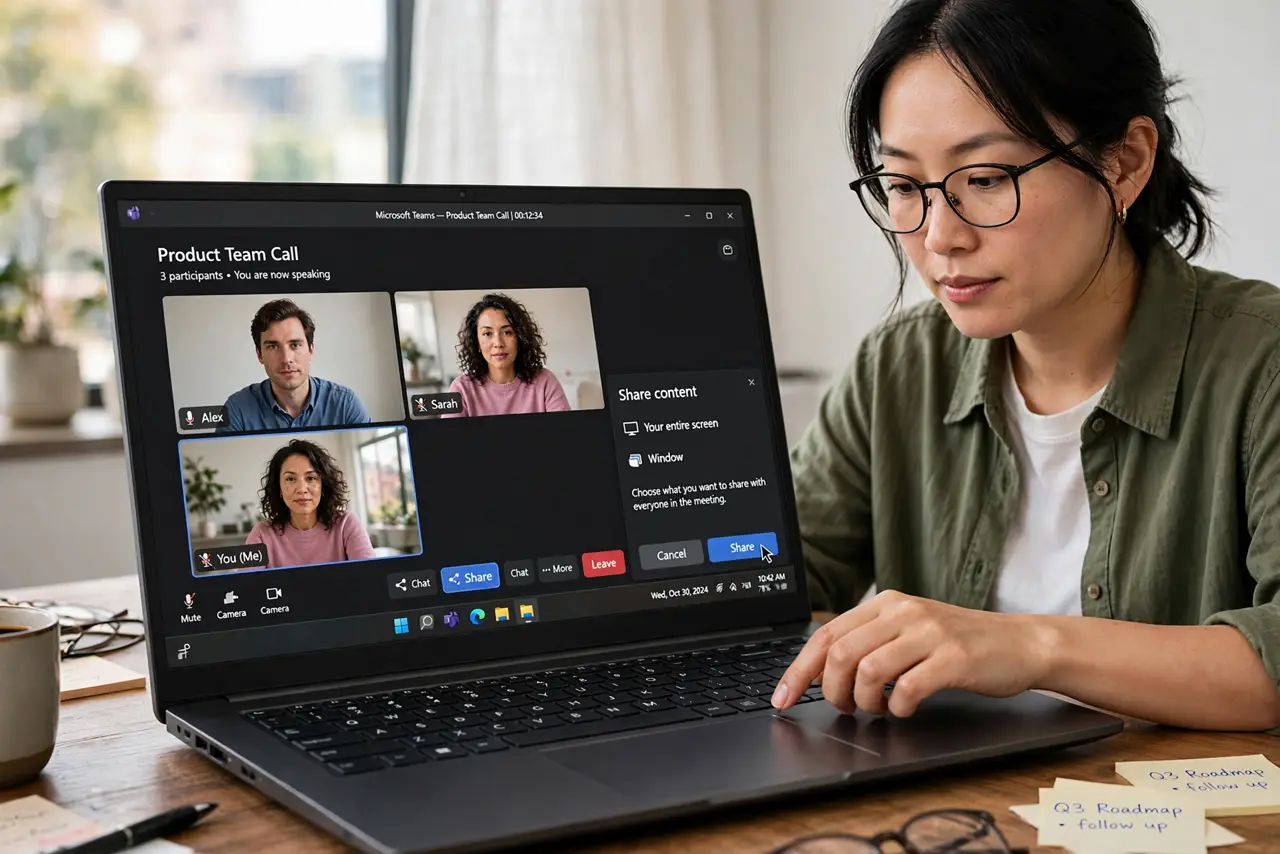
- Click Share in the call. The Share button opens the content picker. Take a breath here — the thirty seconds you spend choosing correctly beats sharing the wrong thing.
- Pick a window, not the desktop. Choose the specific app window for your content. Whole-desktop sharing broadcasts notifications, messages, and open tabs to everyone — window sharing does not.
- Include computer sound for video. Toggle Include computer sound when the content has audio. Without it, your video plays silently to everyone but you — the classic Teams fail.
- Use Presenter modes. Standout, Reporter, and Side-by-side modes overlay your video on the shared content. They keep the human connection that plain screen sharing loses.
- Hand over control when needed. For collaborative work, give control to a colleague from the share toolbar. They can then drive your shared screen — great for pair troubleshooting.
- Stop sharing promptly. Click Stop sharing the moment you finish. A forgotten open share has broadcast many an embarrassing message — make stopping a reflex.
What NOT to do
- Do not share your entire desktop by default. One notification popup can derail a client call — window sharing is the safe habit.
- Do not forget the sound toggle for videos. Silent video sharing is the most common Teams embarrassment, and it is one toggle.
- Do not share sensitive windows accidentally. Close or minimize anything private before you even click Share.
- Do not leave sharing on while you 'quickly check something.' The call watches whatever you do — stop first, browse later.
Frequently asked questions
Can I share from my phone?
Yes — the mobile app shares your screen, though the options are simpler. Start the share before opening the content you want to show.
Why can attendees not hear my video?
The Include computer sound toggle was off. Stop sharing, re-share with it on — there is no way to add it mid-share.
What is the difference between the presenter modes?
They arrange your video over the content differently: standout, side-by-side, or reporter style. Pick whichever keeps you visible without covering content.