Save Typing with Text Expansion
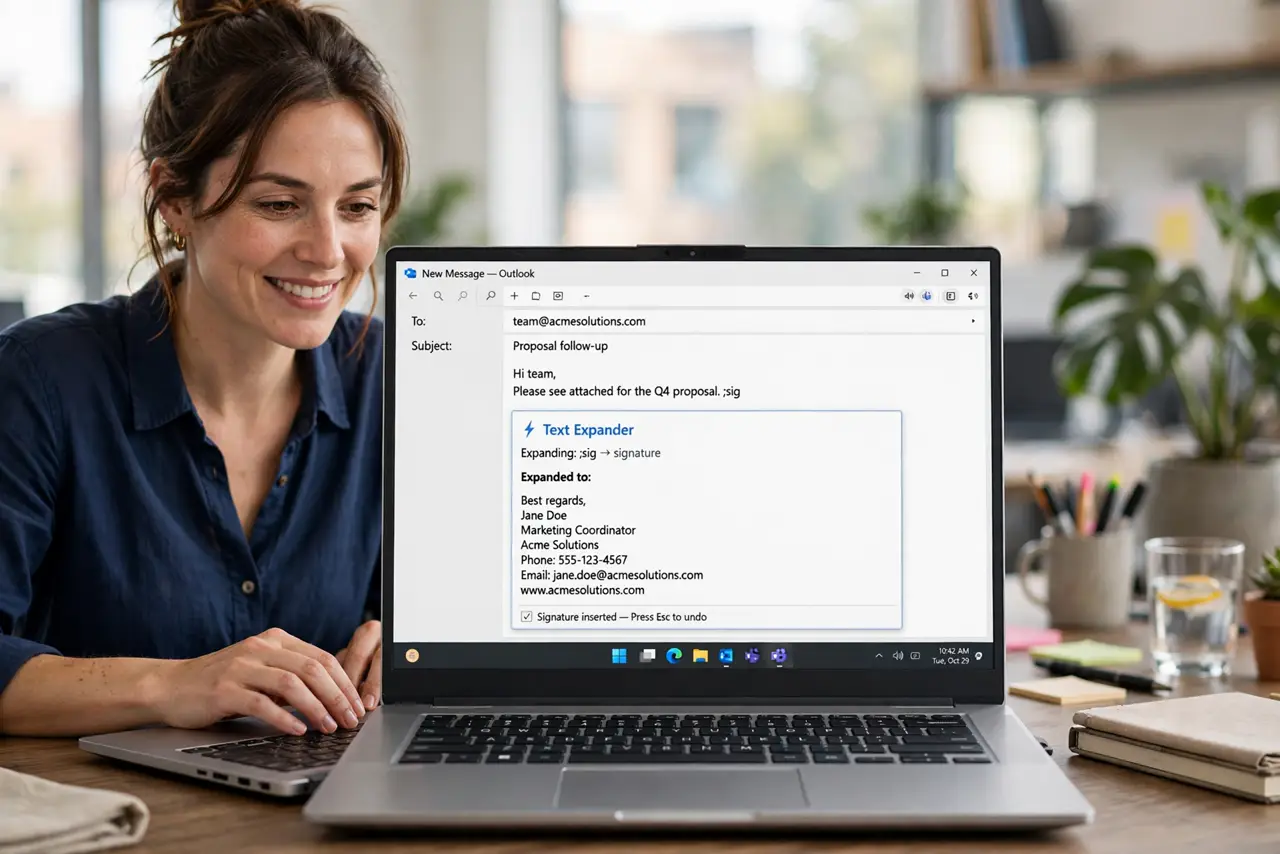
You type your email address, your address, the same support reply, dozens of times a week. Text expansion turns a short abbreviation into the full text automatically — type eml and your email appears. It is the highest-ROI typing trick most people have never heard of.
TL;DR / Quick Fix
Quick fix: set up a text expander with snippets for your email, address, phone, and common replies — each triggered by a short abbreviation you would never type normally. Start with five snippets you use daily. It works in nearly every app.
Follow these steps
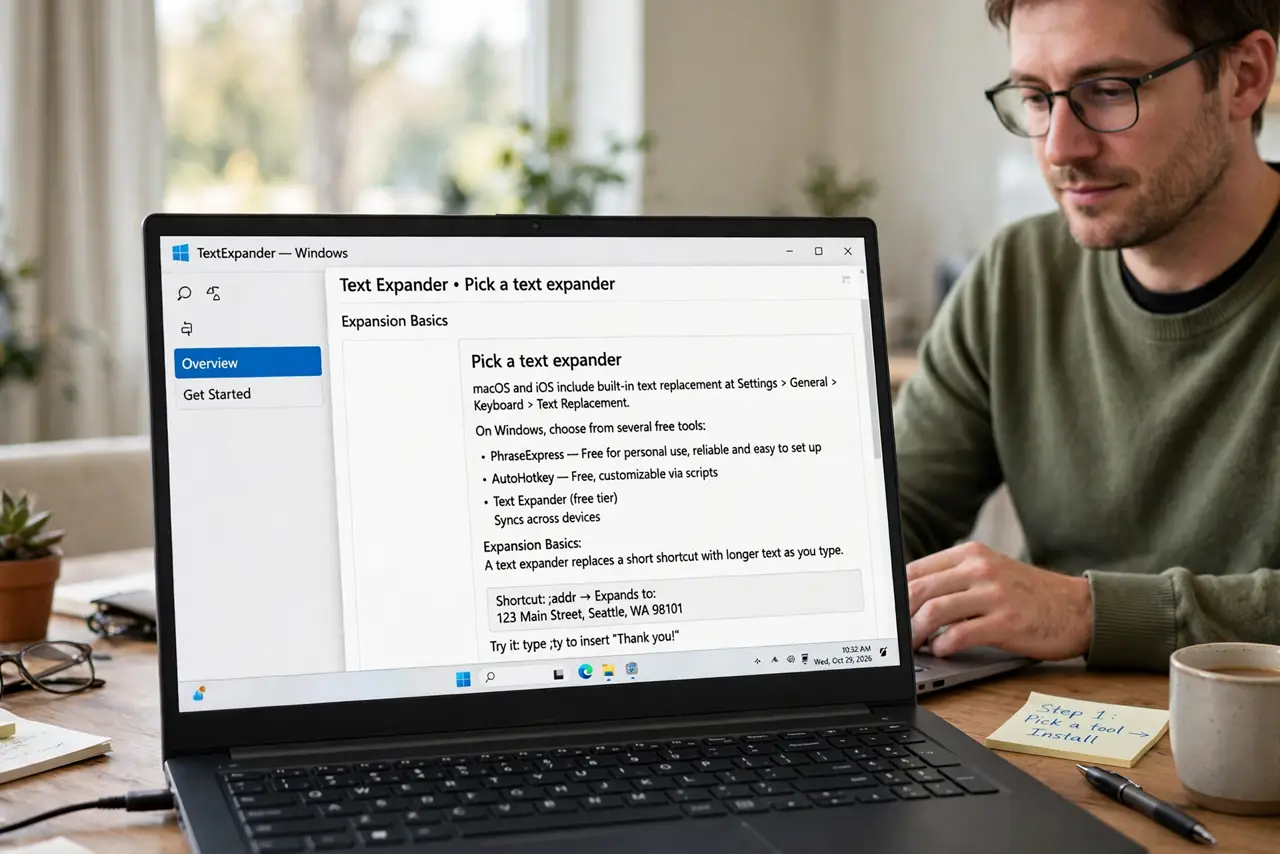
- Pick a text expander. macOS and iOS have one built in (Settings > General > Keyboard > Text Replacement); Windows users can pick from several free tools. See the expansion basics for the concept.
- Create your first five snippets. Email address, phone number, home address, and your two most-typed replies. Five snippets cover most people's repetitive typing.
- Choose safe abbreviations. Use prefixes you never type normally — ';em' for email, ';ph' for phone. Plain words like 'em' will expand when you do not want them to.
- Test in your real apps. Try each snippet in email, browser, and chat. Expansion works nearly everywhere, but verify your specific tools.
- Add snippets as you notice repetition. Whenever you catch yourself typing the same thing twice in a week, make it a snippet. The library grows organically.
- Back up your snippet library. Export it occasionally. Rebuilding dozens of snippets after a fresh install is pure drudgery.
What NOT to do
- Do not use common words as triggers. 'addr' as a trigger will ambush you mid-sentence — prefix with a semicolon or similar.
- Do not store passwords as snippets. Convenient, yes — and readable by anyone with your unlocked device.
- Do not create fifty snippets on day one. Start with five daily-use ones; the rest earn their place over time.
- Do not forget it syncs. Check that snippets sync across your devices, or you will have two half-libraries.
Frequently asked questions
Is text expansion safe?
Yes — it is just typing automation. Avoid storing sensitive data like passwords or card numbers as snippets.
Does it work on phones?
Yes — both iPhone and Android have built-in text replacement in keyboard settings.
What is the difference from autocorrect?
Autocorrect fixes mistakes; text expansion inserts whole blocks of text you defined. Different jobs.