To-Do Alerts Silenced by the System? Fix It
Your to-do app swears it reminded you, but your phone never made a sound. System notification settings, focus modes, and battery savers can all silence an app without telling it. This guide shows how to give your to-do alerts a clear channel.
TL;DR / Quick Fix
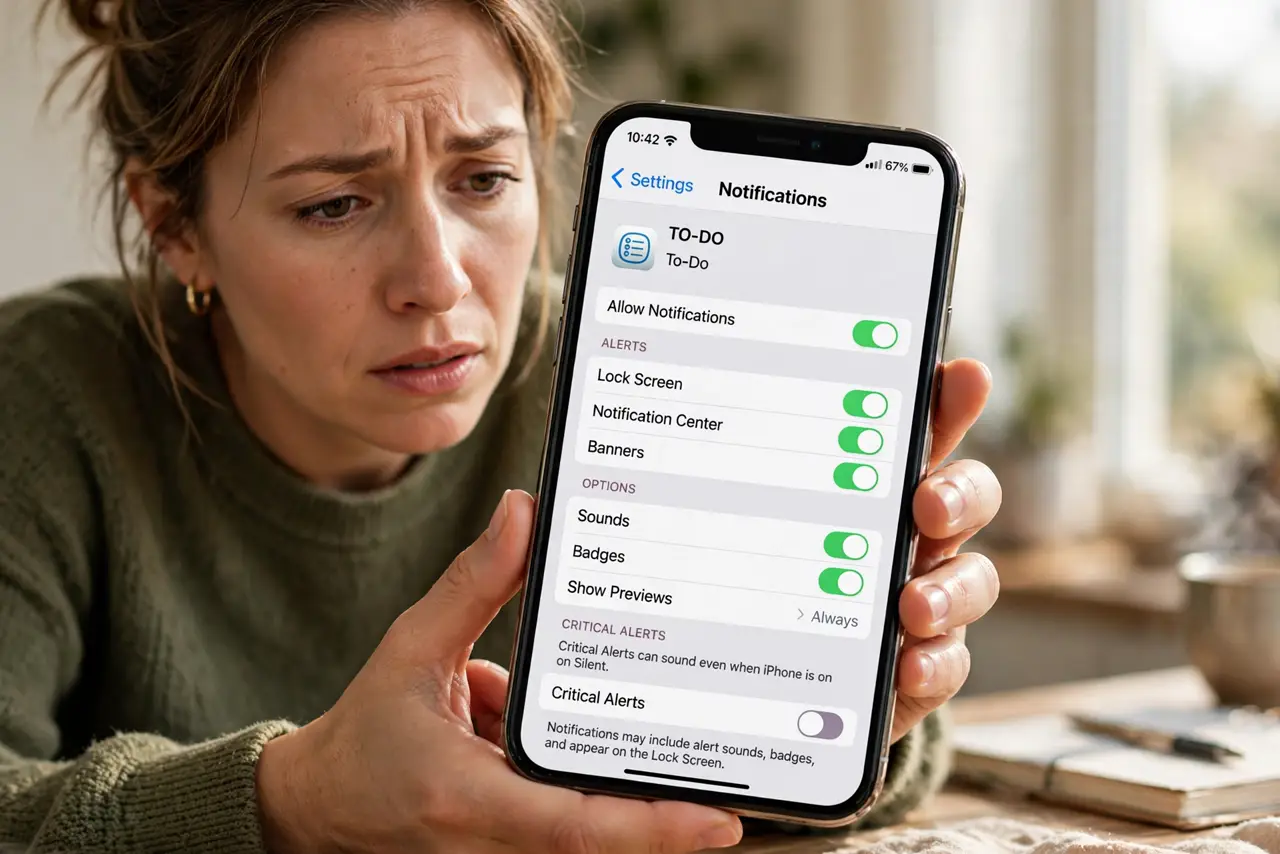
Open system settings and allow the to-do app's notifications with sound and lock-screen visibility. Exempt the app from battery optimization and check focus modes for exceptions. Send a test reminder and confirm it actually alerts you. Repeat the test after every major system update, since updates reset permissions.
Follow these steps
- Check the app's notification permission. Open system settings, find the to-do app, and confirm notifications are allowed with sound. A denied permission silences everything — the same root cause as calendar reminders that never pop up.
- Allow lock-screen and banner visibility. Enable banners, lock-screen alerts, and notification-center entries. An alert that only badges the icon is easy to miss for hours.
- Exempt the app from battery optimization. Turn off battery restrictions for the to-do app. Battery savers delay or kill the background alarms that fire reminders.
- Check focus and do-not-disturb modes. Open your focus modes and add the to-do app to the allowed list, or schedule focus hours that do not cover your reminder times.
- Verify in-app reminder settings. Open the app itself and confirm reminders are enabled per task with the right time. A task with no due time has nothing to fire.
- Send a test reminder. Create a reminder two minutes out and watch the phone. If it fires, the channel is clear; if not, repeat the steps above.
What NOT to do
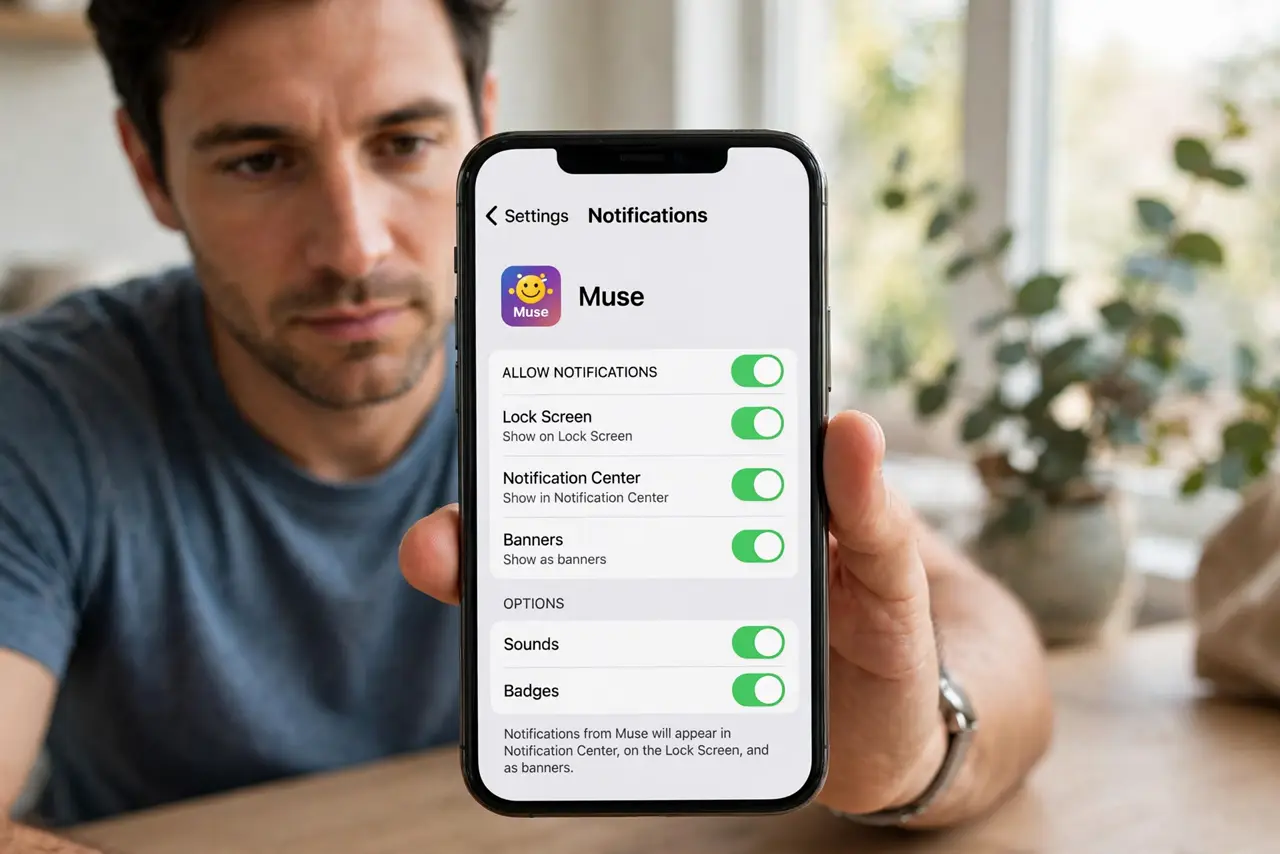
- Do not assume the app is broken. In nine cases out of ten, the system silenced it.
- Do not enable every notification channel at once. Allow the alert styles you will actually notice.
- Do not skip the test after a system update. Updates reset permissions and focus settings without asking.
- Do not set reminders without due times. An app cannot alert you about a task with no time attached.
Frequently asked questions
Why am I not getting to-do notifications?
The system likely blocked them: check notification permission, battery optimization, and focus modes for the app.
Do battery savers block reminders?
Yes. Aggressive battery optimization delays or kills background alarms, so exempt your to-do app.
My reminders worked yesterday. What changed?
A system update, a new focus mode schedule, or a battery-saver threshold. Re-check all three.