UEFI vs Legacy Boot?
Your new drive refuses to boot, or the BIOS shows two entries for the same disk — one labeled UEFI, one not. That is the old BIOS system (Legacy/CSM) and its modern replacement (UEFI) colliding. Picking the wrong mode is the most common reason a fresh install will not start. This guide explains the difference in plain terms, how to tell which mode you are in, and which one to choose for a new setup.
TL;DR / Quick Fix
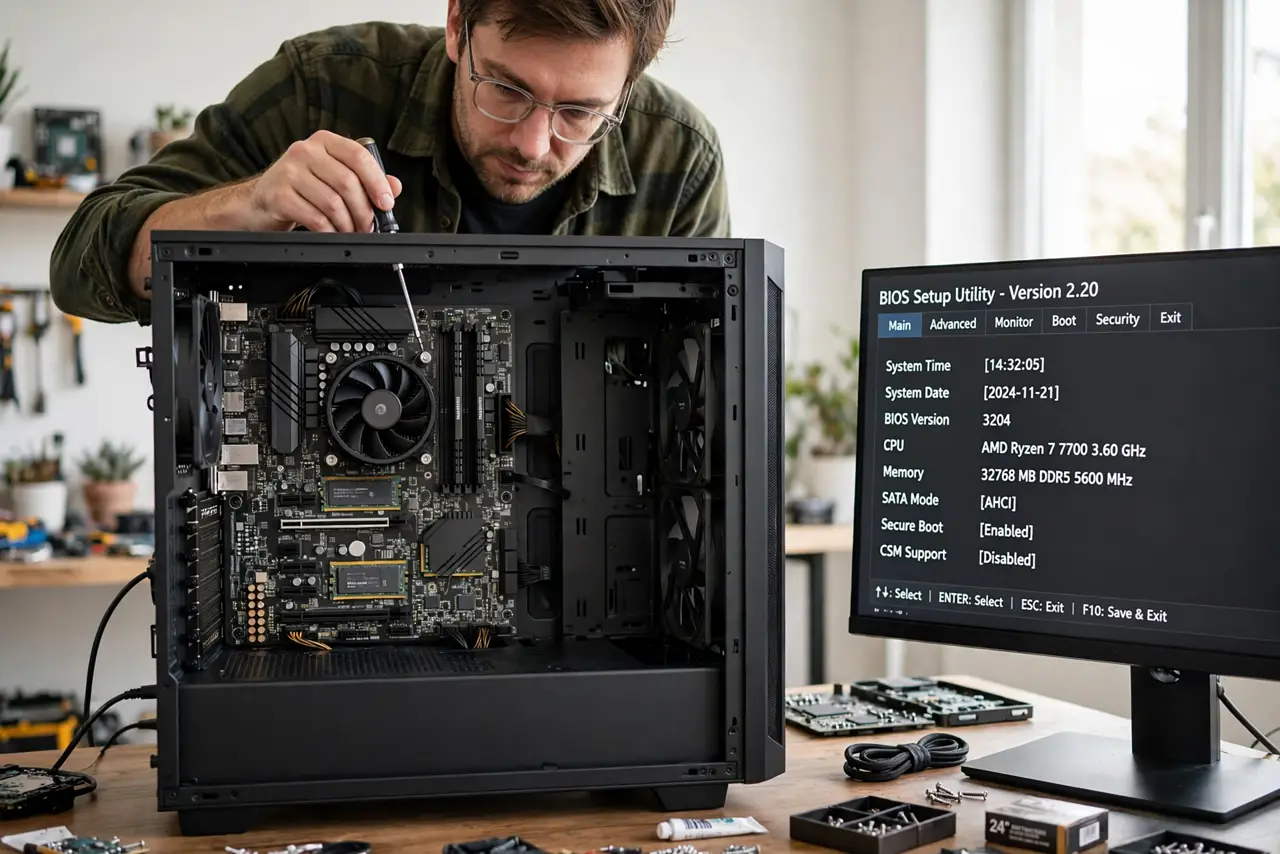
Quick fix: on a modern PC use UEFI mode — faster booting, support for drives over 2 TB, and Secure Boot compatibility. Legacy (CSM) is only for very old operating systems. Check your mode in Windows under System Information > BIOS Mode. Switching modes after installing usually means reinstalling.
Follow these steps
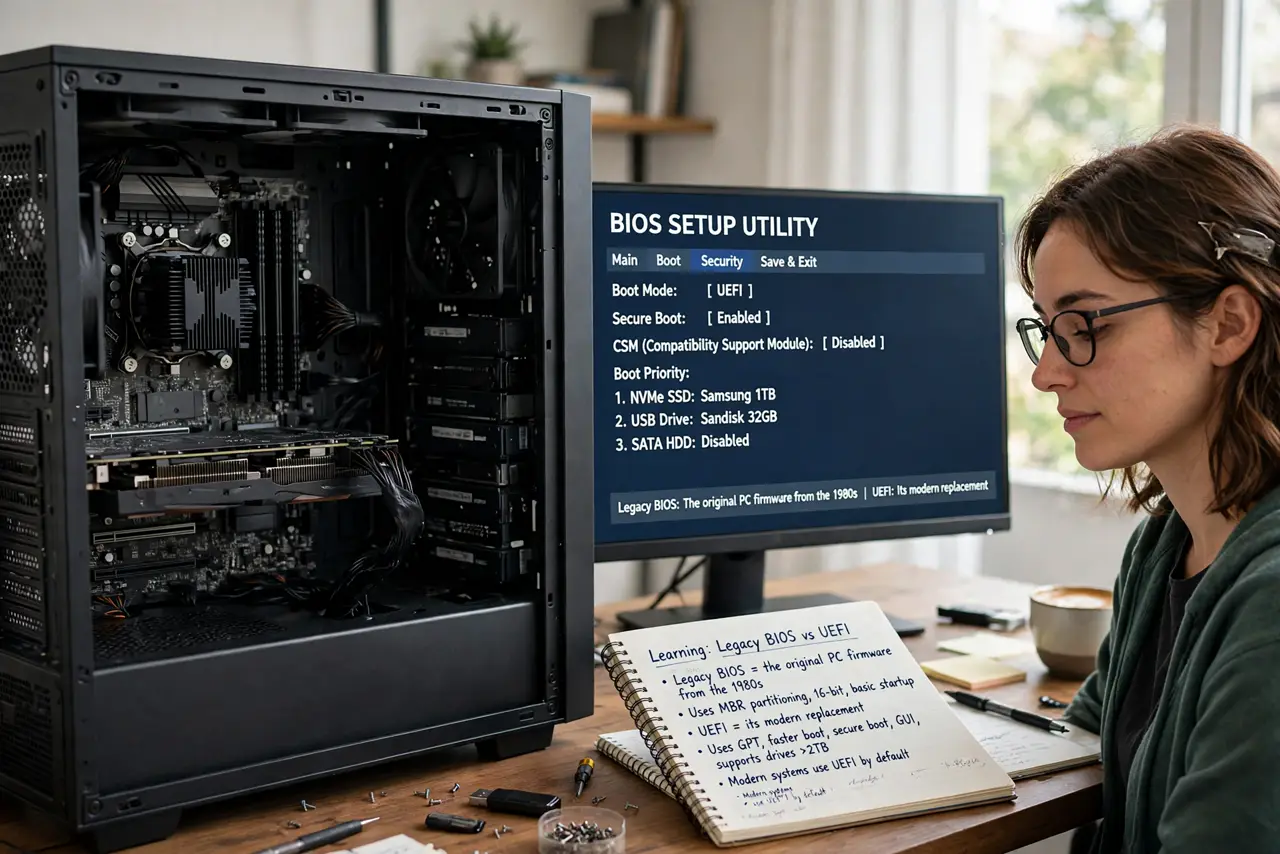
- Learn what each mode actually is. Legacy boot is the original PC BIOS from the 1980s — simple, limited, and capped at 2 TB boot drives. UEFI is its modern replacement: a small operating system of its own that initializes hardware faster and supports huge drives. When people say BIOS settings, they usually mean the UEFI setup screen.
- Check which mode your PC uses now. In Windows, open System Information and read the BIOS Mode line: UEFI or Legacy. That tells you how your current installation boots — no guessing.
- Choose UEFI for anything new. Every operating system released in the last decade supports UEFI. It boots faster, enables Secure Boot, and removes the 2 TB boot-drive limit. There is no upside to Legacy on new hardware.
- Understand why the wrong mode breaks booting. A drive installed in UEFI mode will not boot with Legacy selected, and vice versa. This is why a fresh SSD refuses to start — the installer and the firmware disagree about the mode.
- Change the mode only before installing. Switching from Legacy to UEFI on an installed system usually breaks booting until you reinstall. Set the mode in firmware setup first, then install the OS.
- Leave Secure Boot on with UEFI. Secure Boot blocks tampered bootloaders and only works in UEFI mode. Some Linux installs ask you to disable it temporarily — re-enable it afterward.
What NOT to do
- Do not enable CSM/Legacy 'just to be safe.' It disables Secure Boot and the fast boot path for zero benefit on modern hardware.
- Do not switch boot modes on a working system to experiment. You will get a non-booting PC and a scare.
- Do not assume a drive over 2 TB will boot in Legacy mode. The old partition scheme physically cannot address it.
- Do not flash the BIOS to change the mode. UEFI vs Legacy is a setting, not a firmware version.
Frequently asked questions
Can I convert Legacy to UEFI without reinstalling?
Windows includes a conversion tool that can switch the partition scheme in place, but it only works when conditions are perfect. For most people, backing up and reinstalling cleanly in UEFI mode is the safer, faster path.
Why does my BIOS show two entries for one drive?
One is the UEFI entry, one is the Legacy/CSM entry. Pick the UEFI one for a modern install — the duplicate is the firmware offering both modes, not two drives.
Does UEFI make my PC faster?
Boot times, yes — noticeably. Once the OS is running, the difference vanishes. The real wins are Secure Boot and large-drive support.