Read USB-C Cable Ratings
All USB-C cables look identical, but one charges your laptop at full speed while another barely trickles — and a third cannot carry video at all. The tiny print on the cable (or the missing print) encodes power, data speed, and video support, and mismatched cables cause the most mysterious USB-C failures. This guide reads the ratings and buys right. For the video side specifically, the one-cable USB-C monitor guide shows what the cable must carry.
TL;DR / Quick Fix
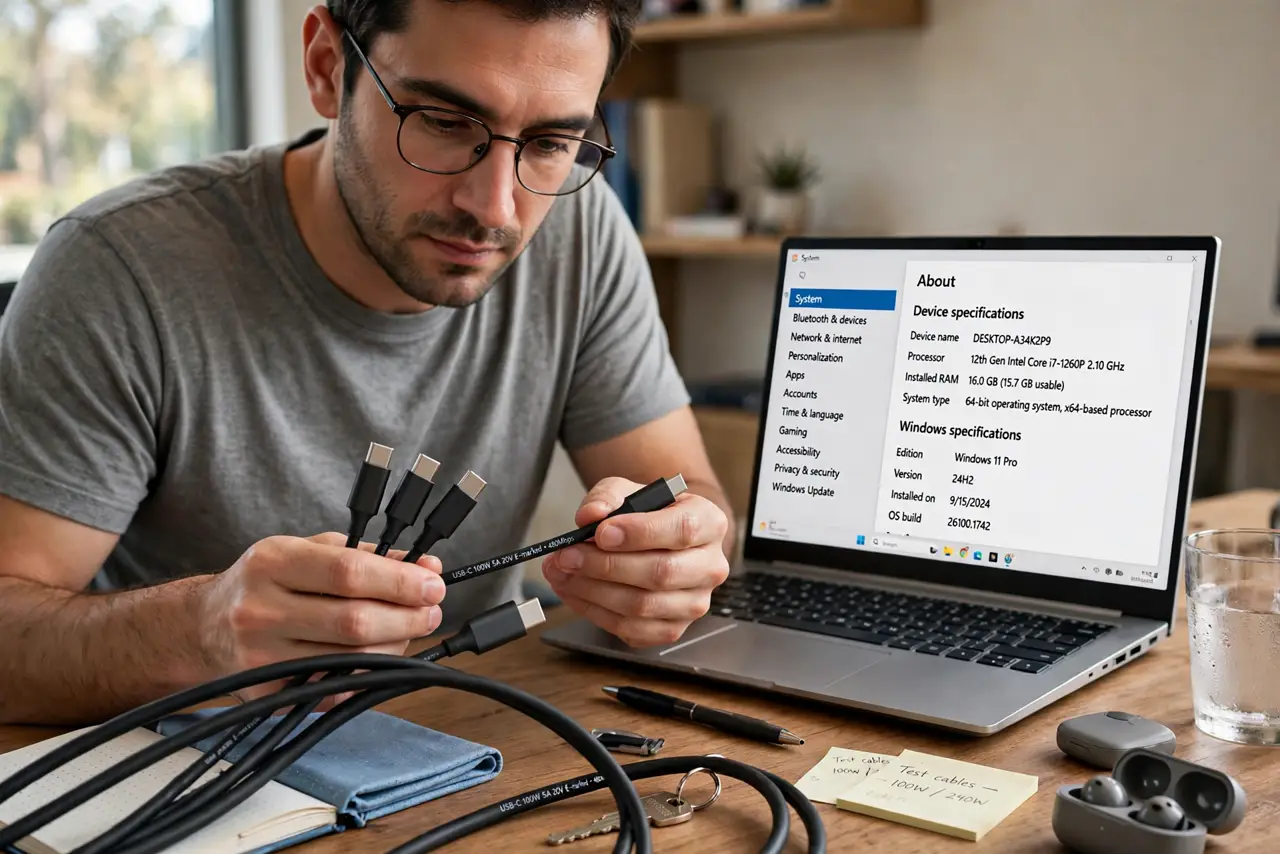
Quick fix: check the cable's printed ratings — watts for charging, Gbps for data, video support for monitors. For laptop charging, match the cable's wattage to your charger; for monitors, the cable must explicitly support video. When in doubt, buy certified cables and keep the included ones.
Follow these steps
- Find the printed ratings. Good cables print their specs on the jacket: wattage (60W, 100W, 240W), data speed (480Mbps, 10Gbps), and sometimes video support. No print at all usually means a basic charge-and-slow-data cable.
- Match watts to the charger. A 100W laptop charger needs a 100W-rated cable — a 60W cable throttles charging or overheats. The cable, charger, and laptop negotiate the lowest common wattage.
- Check data speed for drives. Moving files to an SSD over a 480Mbps cable is painful. For drives and docks, get 10Gbps or faster cables — the speed rating matters as much as for the devices.
- Verify video support for monitors. Only cables rated for video (or Thunderbolt) carry a display signal. A charge-only cable looks identical and fails silently — see how to identify charge-only cables.
- Prefer certified cables. USB-IF certification logos mean the cable passed testing. Uncertified bargain cables lie about ratings routinely — certification is cheap insurance.
- Keep the included cables. The cable that came with the dock, monitor, or charger is rated for that job. Label and keep them; they are the known-good reference.
What NOT to do
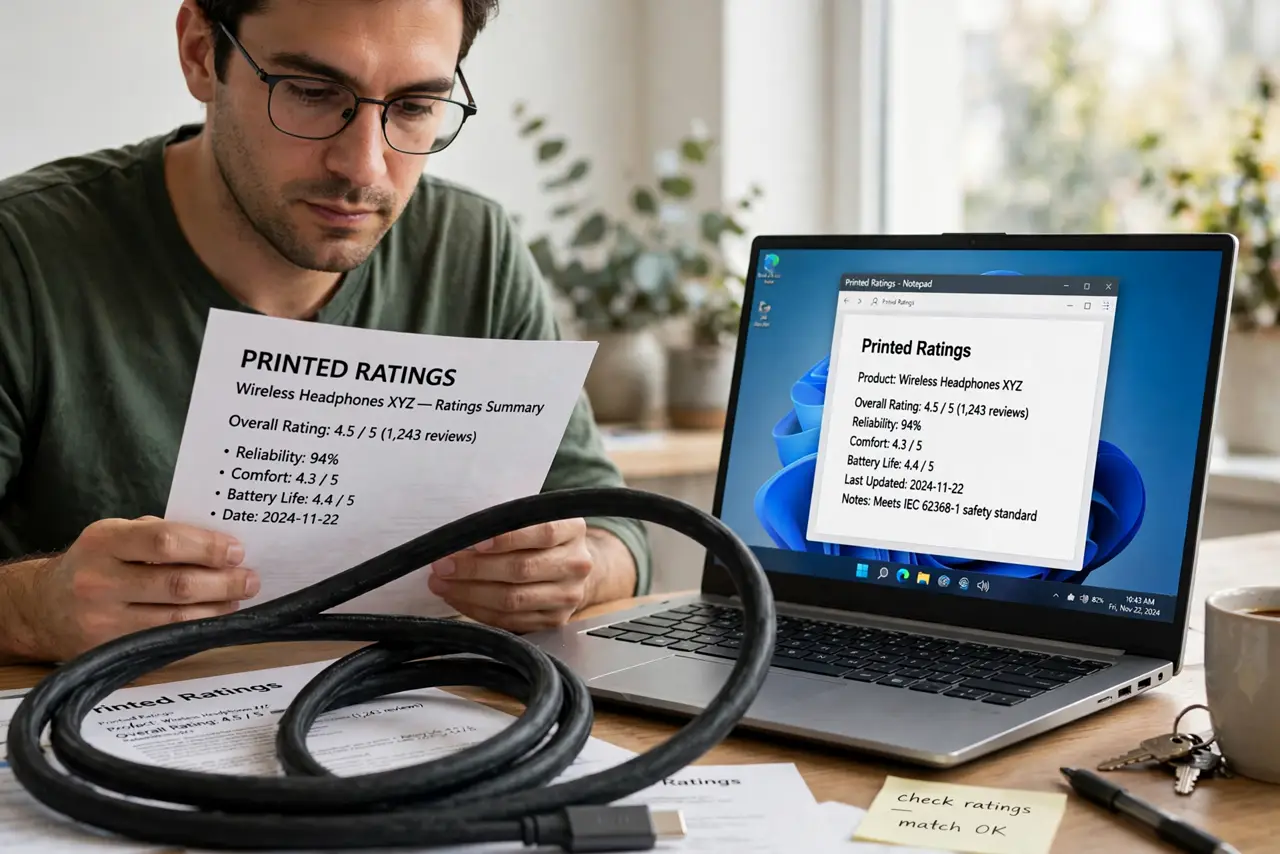
- Do not assume all USB-C cables are equal. Identical looks hide wildly different capabilities — the rating is everything.
- Do not use a phone cable for a laptop dock. Thin phone cables cannot carry the power or data a dock setup demands.
- Do not buy the longest cable 'just in case.' Long passive cables lose signal quality — buy the length you need, no more.
- Do not ignore heat. A cable getting hot under load is undersized for the job — replace it before it fails.
Frequently asked questions
Why does my monitor not work with this cable?
Almost certainly a charge-only or low-spec cable. Monitors need video-rated cables — swap in the one from the monitor's box.
What does Thunderbolt add?
Thunderbolt cables guarantee high data, video, and power in one spec — the premium universal option. USB4 is converging on the same idea.
Are braided cables better?
The braid is durability theater for the jacket — it says nothing about the wires inside. Check the printed ratings, not the fabric.