USB-C vs Thunderbolt?
Two cables, identical oval connectors, wildly different abilities — one drives a dual-4K dock at 40Gbps, the other charges your phone and not much more. USB-C is the connector; Thunderbolt is the high-speed capability that may or may not ride inside it. Here is how the cables differ and how to buy the right one.
TL;DR / Quick Fix
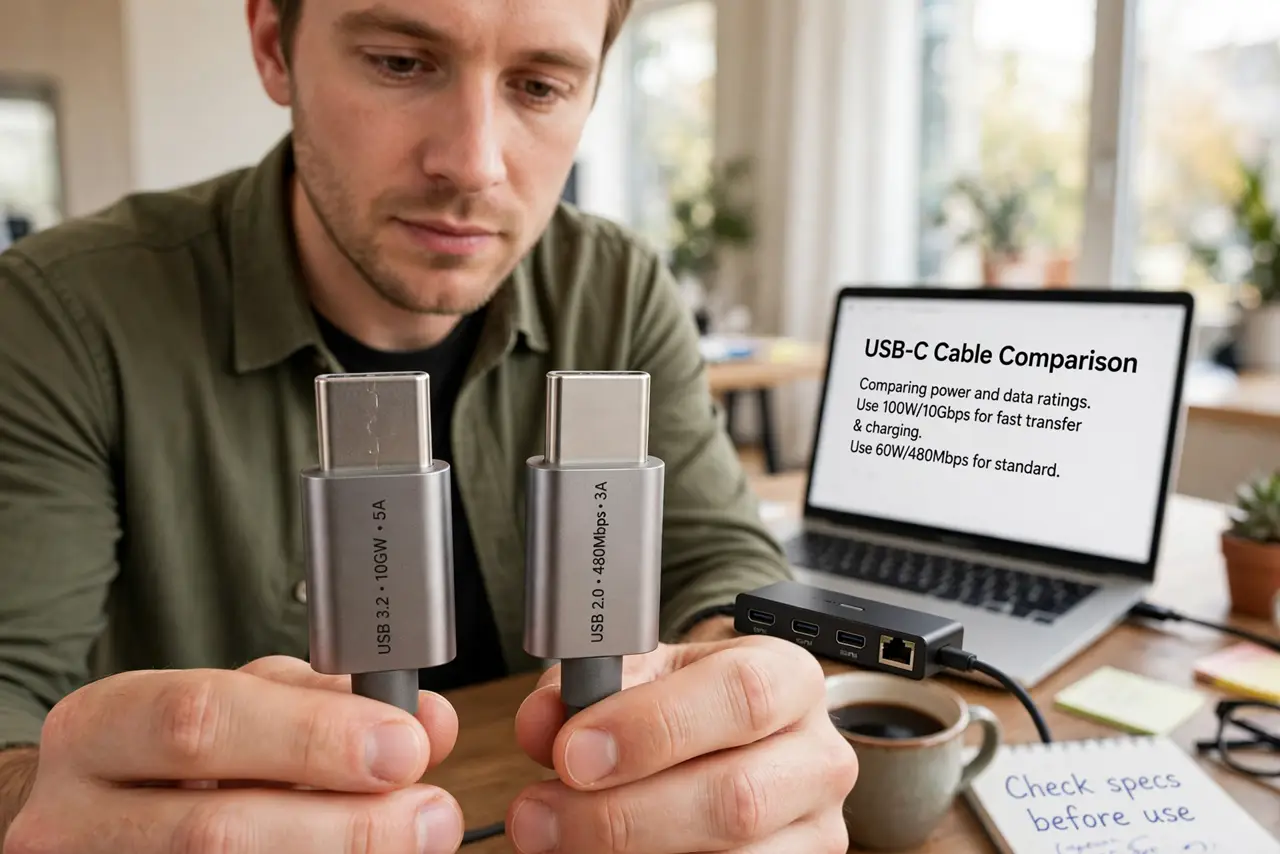
Quick fix: Thunderbolt cables carry 40Gbps and drive demanding docks and displays; plain USB-C cables range from charge-only to 10Gbps. Look for the lightning-bolt logo and speed ratings — no markings means assume the slowest. Buy Thunderbolt only when the device needs it; plain USB-C is fine and cheaper otherwise.
Follow these steps
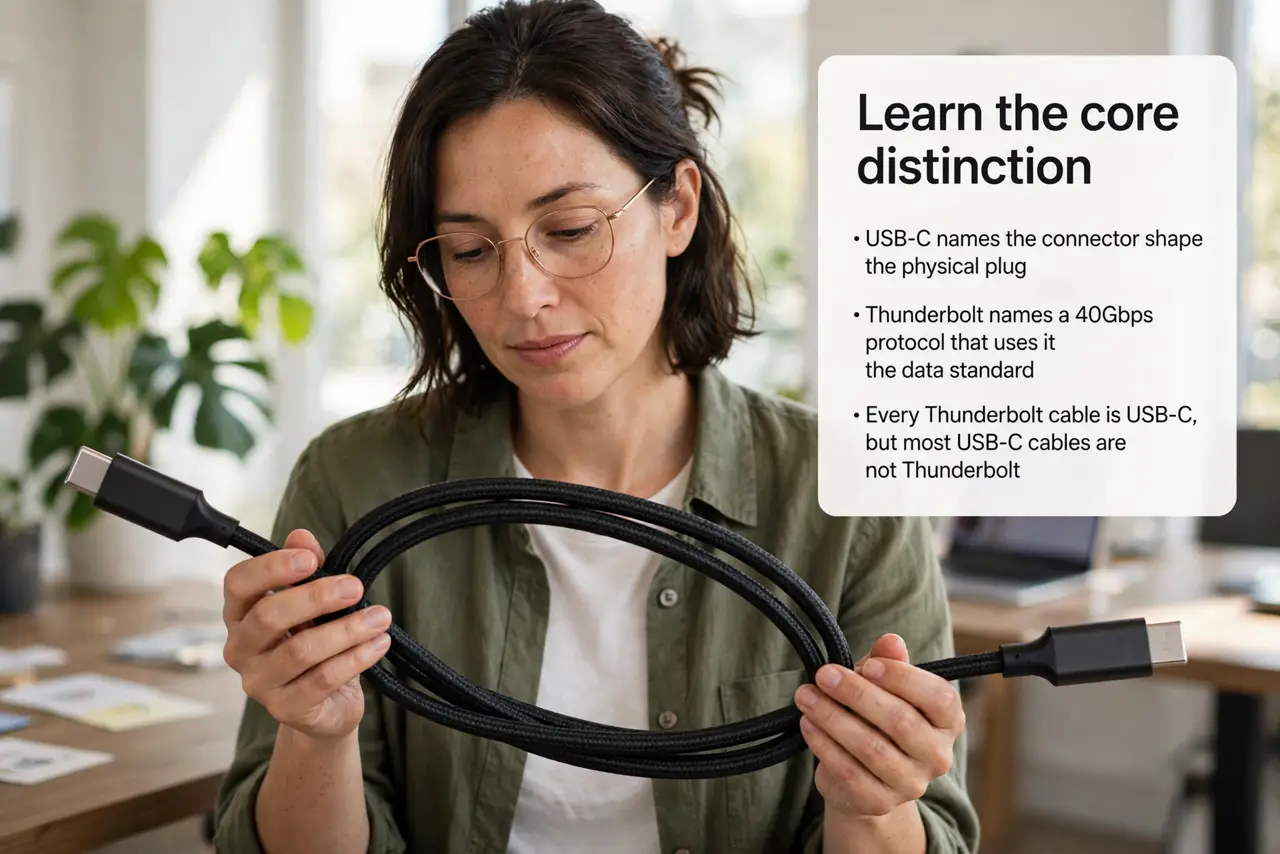
- Learn the core distinction. USB-C names the connector shape; Thunderbolt names a 40Gbps protocol that uses it. Every Thunderbolt cable is USB-C, but most USB-C cables are not Thunderbolt — see the marking guide.
- Read the cable's markings. Lightning-bolt logo plus a printed speed rating (40Gbps) marks true Thunderbolt. Plain USB-C cables print ratings like 10Gbps, 5Gbps, or nothing at all — unmarked means assume basic.
- Match the cable to the device. Docks, fast SSDs, and multi-display setups need Thunderbolt. Phones, chargers, and basic peripherals are happy with plain USB-C — do not overspend where speed is irrelevant.
- Respect the length rule. Full-speed Thunderbolt only reaches about 0.8 meters on passive cables; longer needs expensive active cables. A 2-meter bargain 'Thunderbolt' cable is the classic fake.
- Know USB4 enters the chat. USB4 also uses the USB-C connector at Thunderbolt-like speeds, which is why the markings matter more than ever — the connector alone tells you nothing.
- Test before trusting. Plug the cable into your fastest device and check the negotiated speed in system info. Packaging lies; the link speed does not.
What to avoid
- Do not buy Thunderbolt for phone charging. A plain quality cable charges identically for a fraction of the price.
- Do not trust 'Thunderbolt compatible' listings. Compatible often means 'fits the port' — look for certification and the bolt logo.
- Do not use an unmarked cable for a dock. Mystery cables are the number one cause of docks that half-work.
- Do not assume price equals capability. Expensive-looking braided cables are often plain USB-C with fashion pricing — read the markings, not the price.
Frequently asked questions
Can I use a Thunderbolt cable as a regular USB-C cable?
Yes — it works fine for charging and basic data, just overpriced for the job. Keep one good Thunderbolt cable for the dock and cheap ones for the rest.
Why is my Thunderbolt dock slow with a new cable?
The cable is almost certainly plain USB-C. Swap in a certified Thunderbolt cable and the full speed returns.
Do I need Thunderbolt 4 or is 3 enough?
For most docks and displays, Thunderbolt 3's 40Gbps suffices. Thunderbolt 4 adds stricter minimums rather than more speed — check the version differences.