Dock Your Laptop
You carry the laptop between home and office, and every arrival means plugging in the monitor, keyboard, mouse, charger, and Ethernet — five cables, twice a day, with the ports wearing out. A USB-C dock collapses all of it into one plug: sit down, connect one cable, and the whole desk wakes up. This guide picks the right dock, checks the one-cable requirements, and avoids the classic wattage trap. For the monitor side of the setup, read the one-cable USB-C monitor guide.
TL;DR / Quick Fix
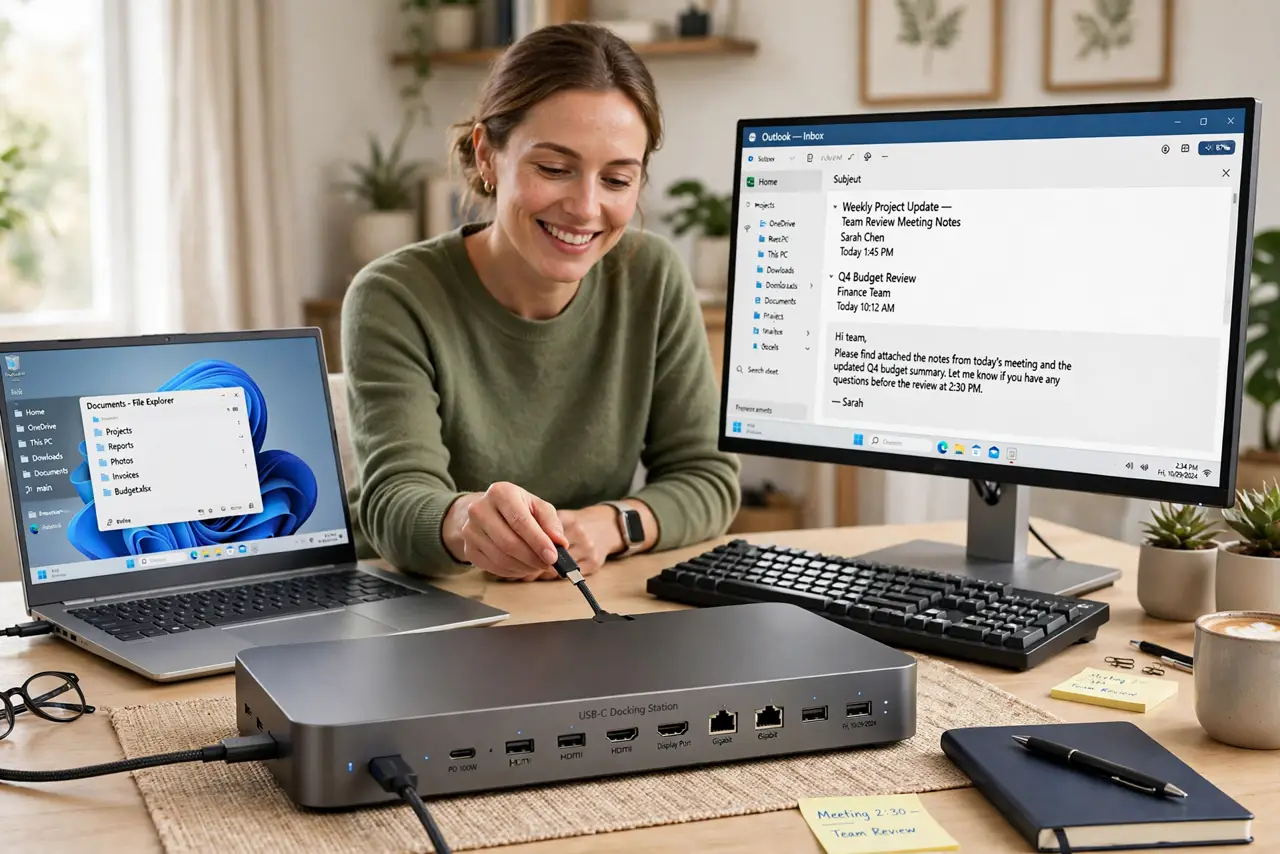
Quick fix: a USB-C dock connects your monitor, keyboard, mouse, and charger through one cable — but your laptop's USB-C port must support video output. Check the dock's power wattage against your laptop's charger needs. Plug everything into the dock once, then enjoy single-cable arrivals.
Follow these steps
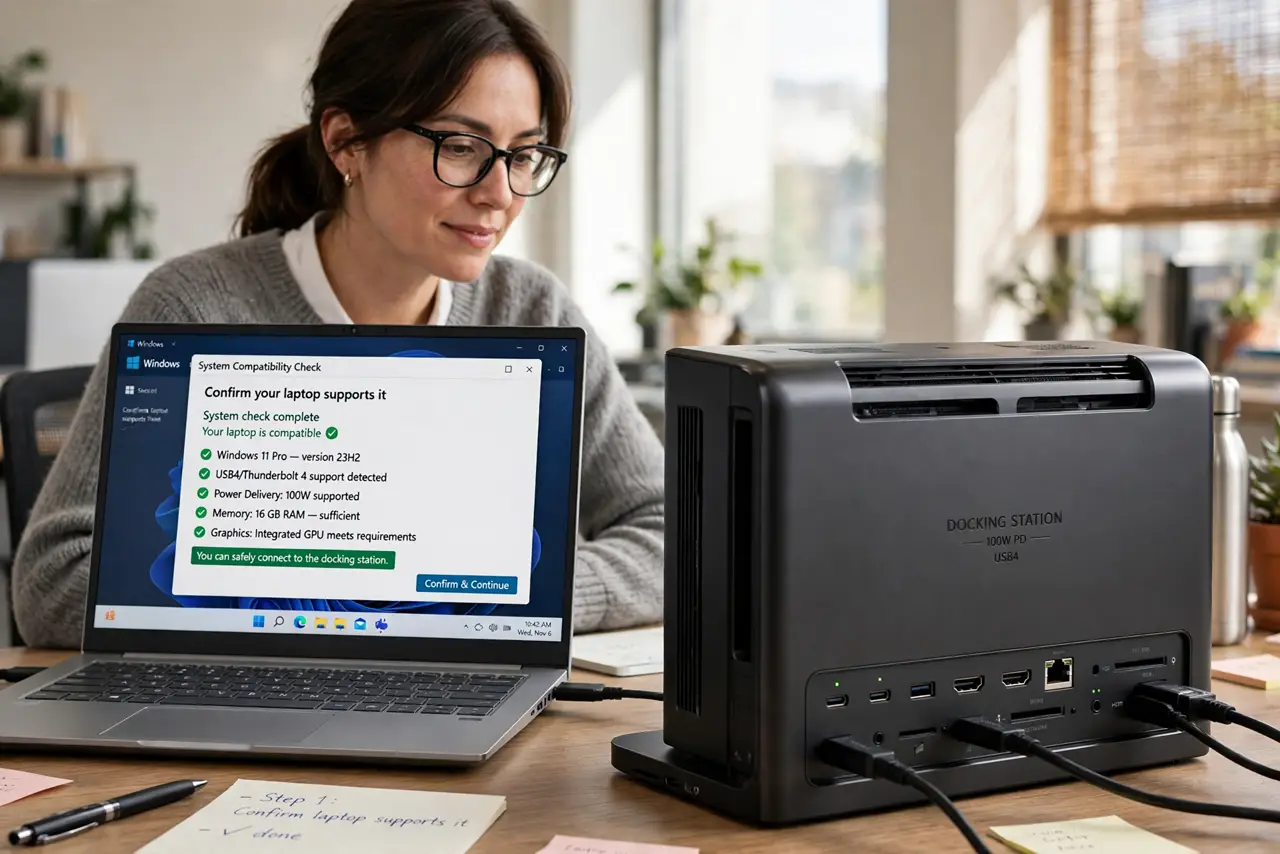
- Confirm your laptop supports it. The laptop's USB-C port needs video output (DisplayPort Alt Mode) or Thunderbolt for the monitor to work through the dock. Check the specs — data-only USB-C ports cannot drive displays.
- Match the dock's power to your laptop. The dock charges through the same cable — its wattage must meet your laptop's needs. A 65W dock slowly drains a laptop that wants 90W under load; check before buying.
- Count your ports honestly. List everything: monitors, keyboard, mouse, webcam, Ethernet, drives. Buy the dock with one more port than you need today — running out in six months is the classic regret.
- Connect peripherals to the dock. Plug the monitor, keyboard, mouse, and Ethernet into the dock's ports, and the dock's single cable into the laptop. The desk is now a one-plug operation — see the single-cable setup checks.
- Update the dock firmware. Docks have firmware, and updates fix the flaky wake-from-sleep and monitor-detection issues people blame on the dock. Check the maker's utility after setup.
- Test sleep and wake behavior. Close the laptop, let it sleep, and wake it through the dock a few times during the return window. Finicky wake behavior is the top reason docks get returned — catch it early.
What NOT to do
- Do not buy a dock without checking your laptop's USB-C video support. Data-only ports make an expensive USB hub, not a dock.
- Do not ignore the wattage math. An underpowered dock means the battery drains during heavy work despite being 'docked.'
- Do not daisy-chain docks through adapters. Each adapter is a failure point — one dock, direct cable, done.
- Do not expect dual 4K from a bargain dock. High-resolution multi-monitor needs real bandwidth — check the dock's display specs against your monitors.
Frequently asked questions
What is the difference between a dock and a hub?
A dock typically includes power delivery and video outputs for a full desk setup; a hub is usually just extra USB ports. For one-cable desk life, you want a dock.
Can one dock serve two laptops?
Yes — unplug from one and plug into the other. Some docks even have a switch button for two machines, like a KVM for laptops.
Why does my monitor flicker through the dock?
Usually the cable or the dock's bandwidth limit. Try the dock's included cable first, then check the resolution specs.