Front USB Ports Weaker? Why
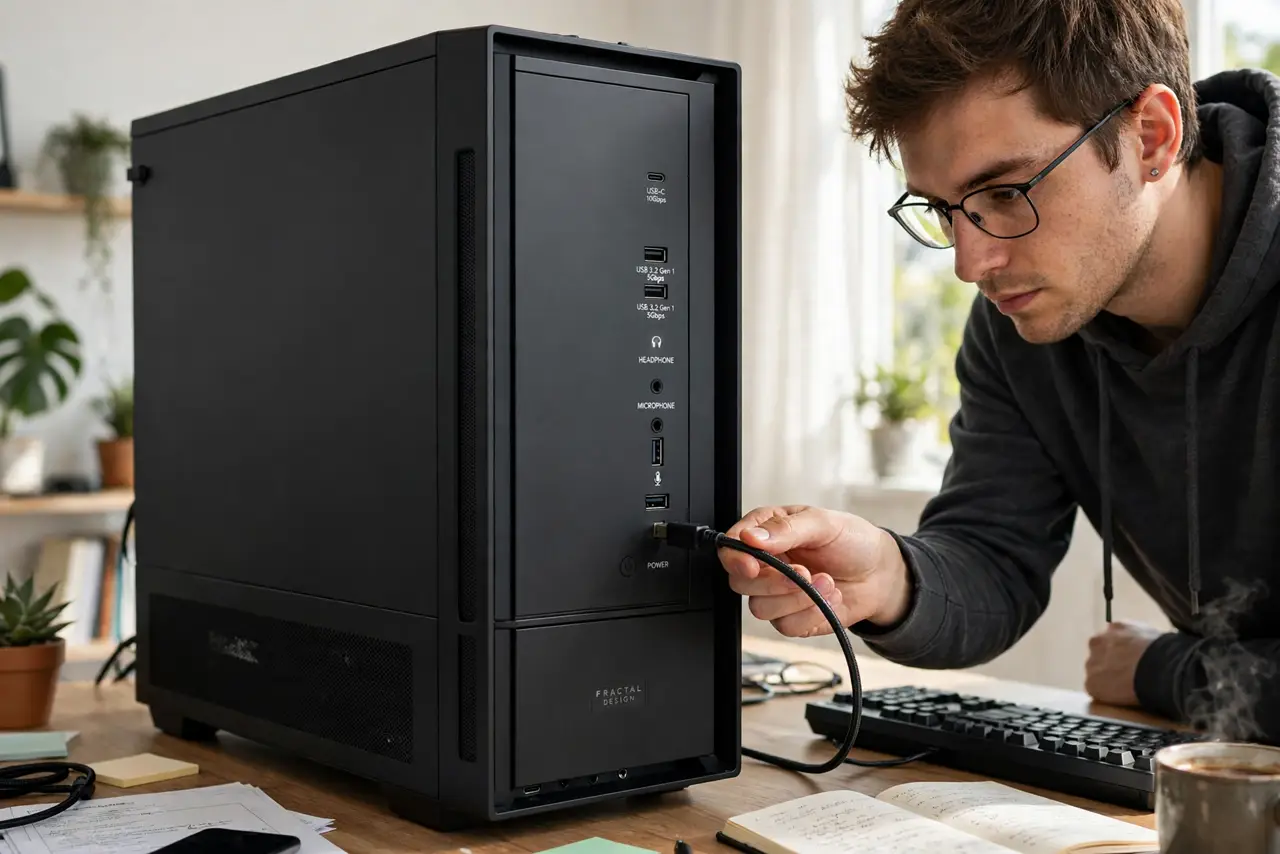
The external drive works fine on the back of the PC but disconnects — or crawls — on the front ports. Or a device charges slowly up front and fast in back. Front ports are not worse by design, but the cable run inside the case makes them the weaker link. Here is why, and when it actually matters.
TL;DR / Quick Fix
Quick fix: front USB ports run through internal cables and headers, so they deliver less clean power and speed than rear ports wired straight to the motherboard. For drives, audio interfaces, and anything flaky up front, use a rear port. Front ports are fine for keyboards, mice, and flash sticks.
Follow these steps
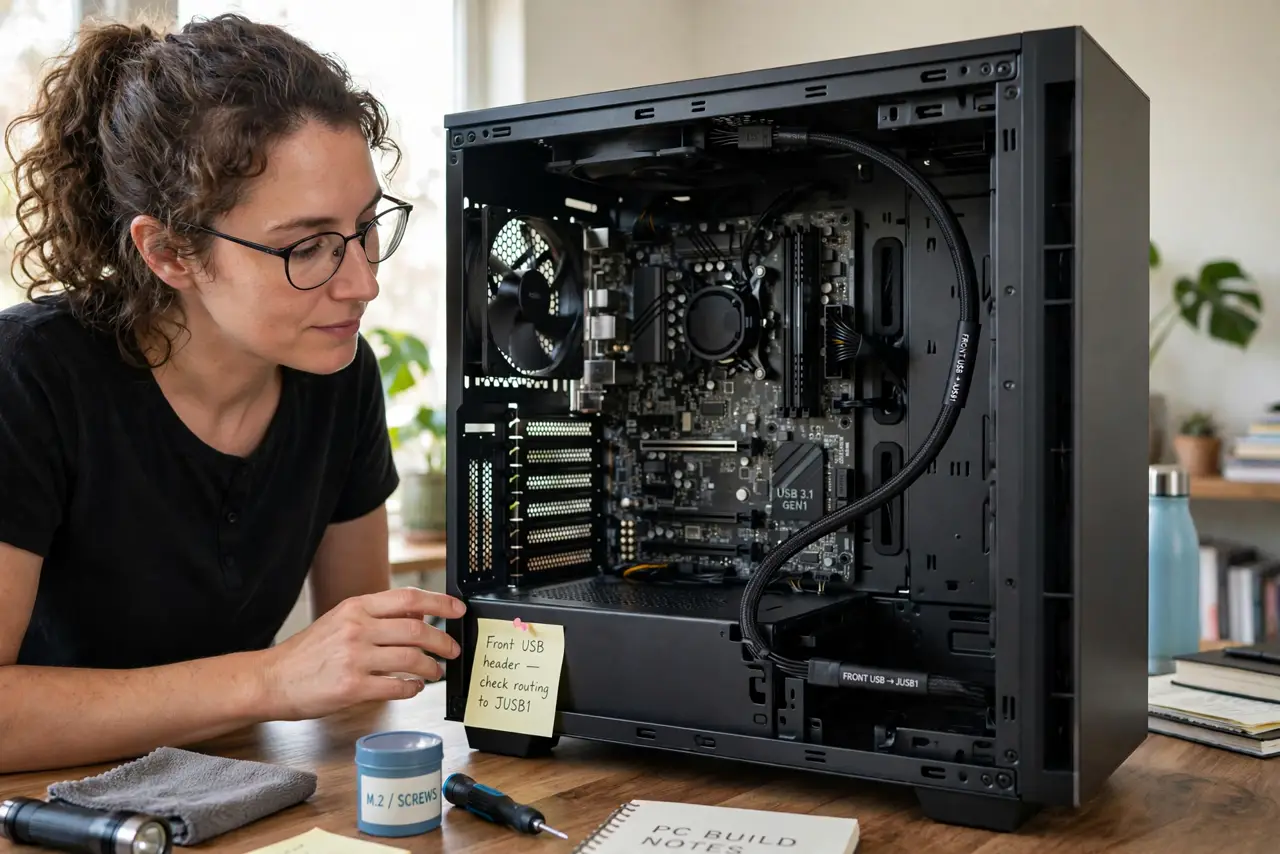
- Understand the internal cable run. Front ports connect to the motherboard through a header cable snaking through the case. Every centimeter adds resistance and noise — rear ports skip all of it.
- Know which devices care. Spinning external drives, audio interfaces, and capture devices are power- and signal-sensitive. Keyboards, mice, and basic flash drives genuinely do not care.
- Test the same device in back. If a flaky front-port device behaves perfectly on a rear port, you have your answer — no driver update or setting will fix a cable-length physics problem.
- Check the header is fully seated. A half-plugged front-panel USB header causes exactly these symptoms. Power off, open the case, and press the header block firmly onto its pins.
- Confirm the port generation. Some cases wire front ports as USB 2.0 even on modern boards. A slow front port may simply be an older header — check the case specs.
- Use a powered hub for hungry devices. If rear ports are inconvenient, a powered USB hub gives finicky devices clean power anywhere — see the powered vs unpowered difference.
What NOT to do
- Do not blame the device first. A drive that fails up front and works in back is exonerated — the port path is the problem.
- Do not force a USB plug that resists. Front-panel headers bent by force cause intermittent faults that are miserable to diagnose.
- Do not daisy-chain unpowered hubs off front ports. Two weak links stacked make flakiness nearly certain.
- Do not assume all front ports are equal. Cases often mix generations — one front port can be USB 3 while its neighbor is USB 2.
Frequently asked questions
Are front USB ports slower?
Slightly, sometimes. The extra cable run can cost a little signal quality, and older case headers may be USB 2.0. For most everyday devices you will never notice.
Why does my drive disconnect on front ports?
Usually marginal power delivery through the internal header. Rear ports or a powered hub fix it — the drive is almost certainly fine.
Can I upgrade front ports to USB 3?
Only with a case or adapter that provides a USB 3 header cable. The motherboard header must support it too — check both ends.