Fix a Quiet USB Microphone
Everyone on the call says you're whispering, but you're talking normally — your USB mic is barely picking you up. Quiet mics are almost never broken; they're misconfigured: wrong side, too far away, or input levels turned down in two different places. Fix the setup before shopping for a new mic.
TL;DR / Quick Fix
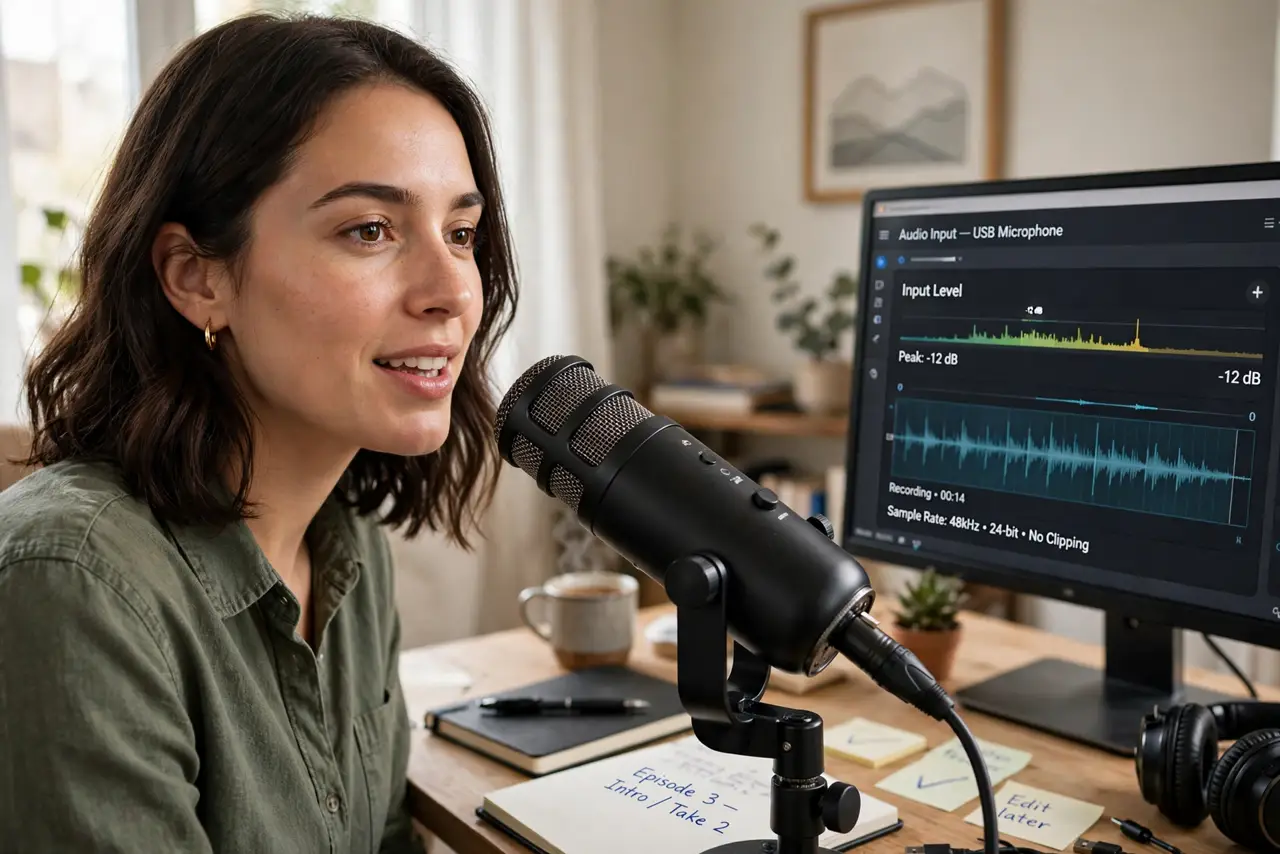
Quick fix: get close — a hand's width from the mic — and speak into the correct side. Raise the input level in system sound settings and in the app; both have separate sliders. Turn off any 'enhancement' gating your voice, and test with a short recording.
Follow these steps
- Get close to the microphone. A hand's width — 6 to 8 inches — is the sweet spot for most USB mics. Distance is the number one cause of quiet audio; no setting compensates for talking across the room.
- Speak into the correct side. Most USB mics pick up from one side or the top — check the manual's diagram. Talking into the back of the mic gives you a whisper no slider can fix.
- Raise the input level in system settings. In your sound settings, find the mic and raise its input volume while watching the level meter — aim for peaks in the upper-middle, never slamming the top.
- Raise the input level in the app too. Discord, Zoom, and recorders each have their own mic slider — separate from the system's. If the call app still sounds quiet, its slider is the culprit.
- Turn off aggressive 'enhancements.' Noise suppression and auto-gain features sometimes gate quiet voices into silence. Disable them while troubleshooting, then re-enable carefully if you need them.
- Test with a short recording. Record ten seconds and play it back. Meters lie a little; your ears don't — the recording is the ground truth.
What NOT to do
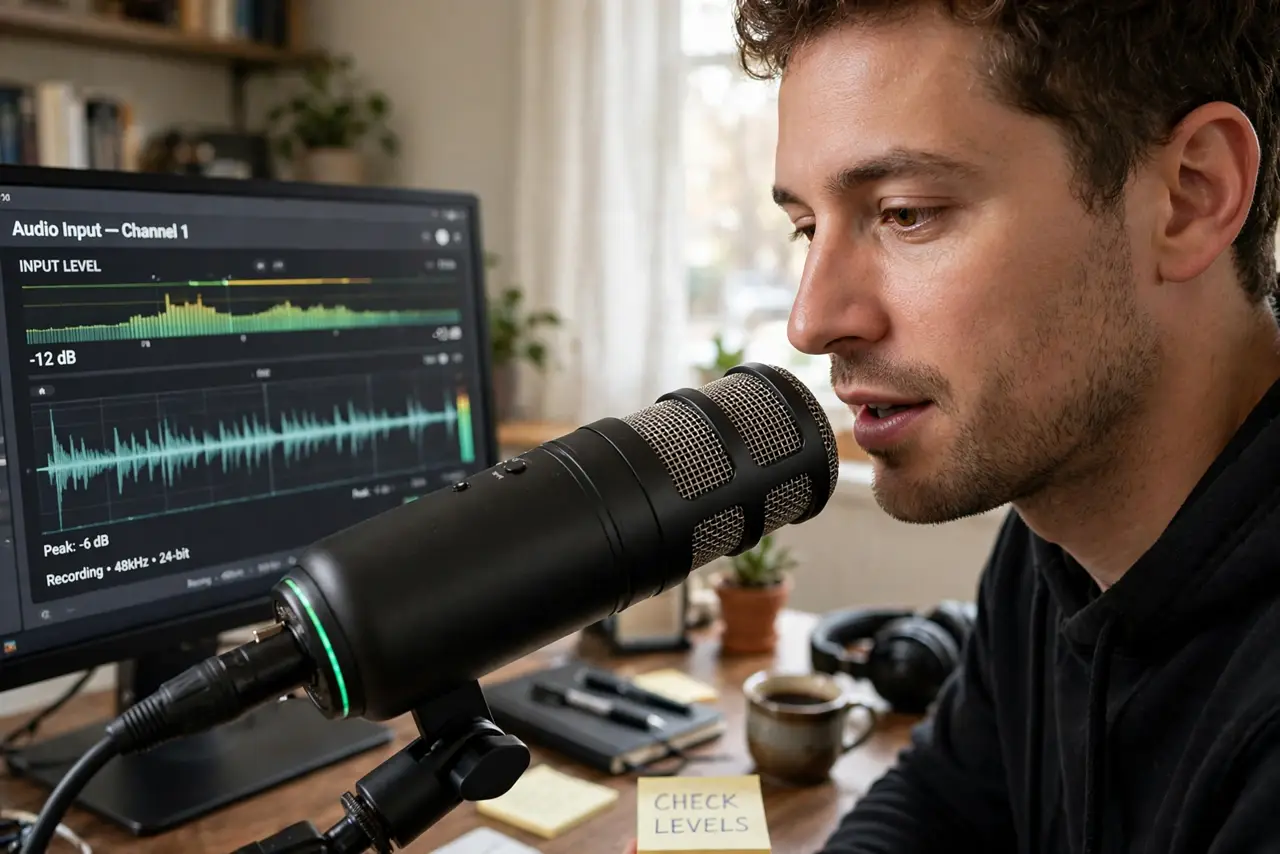
- Do not max the gain to compensate for distance. Get closer first — cranking gain amplifies room noise and hiss along with you.
- Do not talk into the wrong side and blame the mic. Side-address vs top-address is printed in the manual for a reason — check it.
- Do not enable every 'enhancement' at once. Stacked processing fights itself; fix the raw signal first, then add one feature at a time.
- Do not buy a new mic before checking both volume sliders. Most 'dead' USB mics are a muted app slider away from working.
Frequently asked questions
Why am I quiet on Windows but fine on Mac?
Each OS has its own input level — you set it per system. Check the level on the quiet machine; it likely got reset by an update.
USB or XLR — should I upgrade?
Fix your USB mic first — it's probably fine. If you later want an upgrade path, see the USB vs XLR comparison.
Why does my mic pick up my keyboard?
It's too far from your mouth and too sensitive overall. Get closer, lower the gain, and the keyboard fades — see the keyboard noise fix.