Meeting Captions Show the Wrong Language
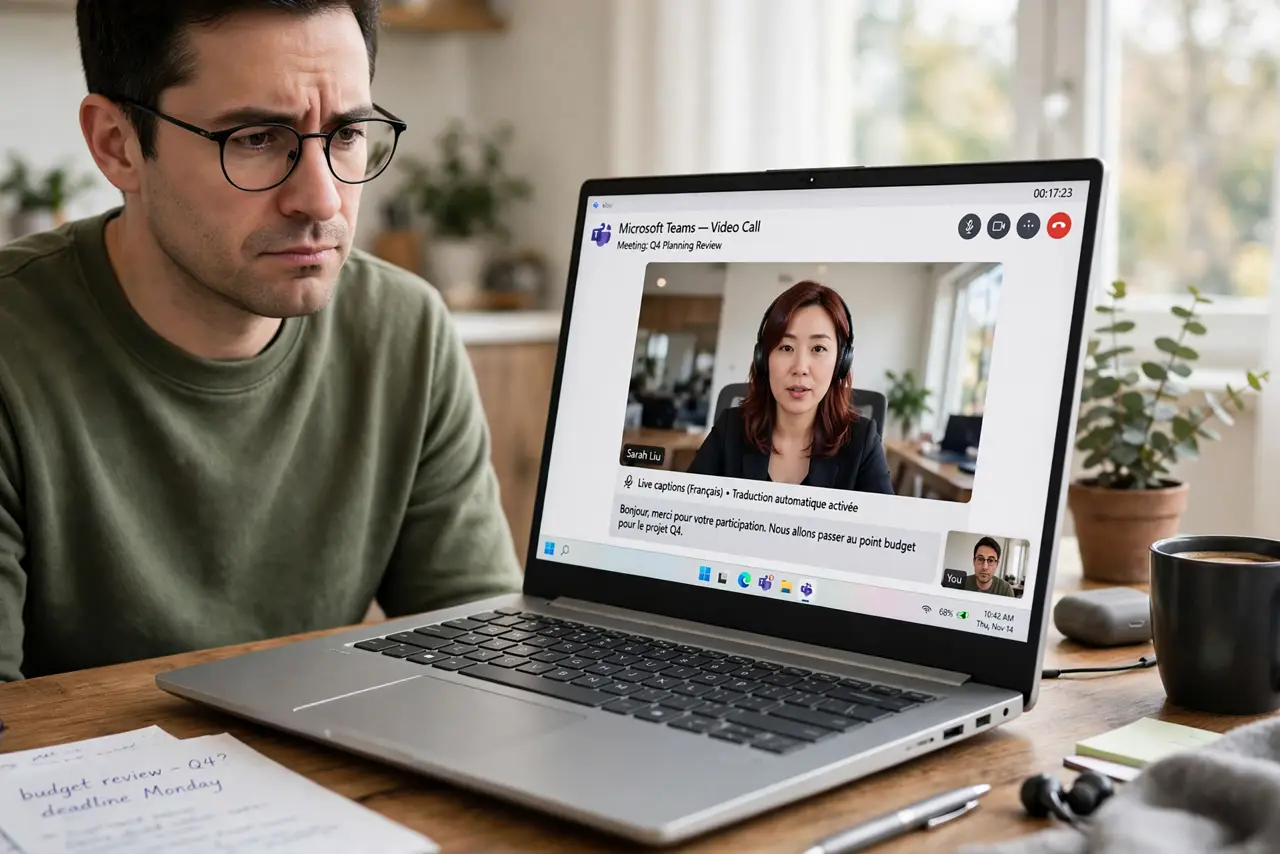
Live captions appear in a language nobody in the meeting speaks. The caption language usually follows one setting — the meeting's spoken-language choice — and it is often wrong by default.
TL;DR / Quick Fix
Quick fix: open the meeting's caption or accessibility settings and set the spoken language to the language people actually speak. Then turn captions off and back on so the new language takes effect. If it still fails, ask the host to set it.
Follow these steps
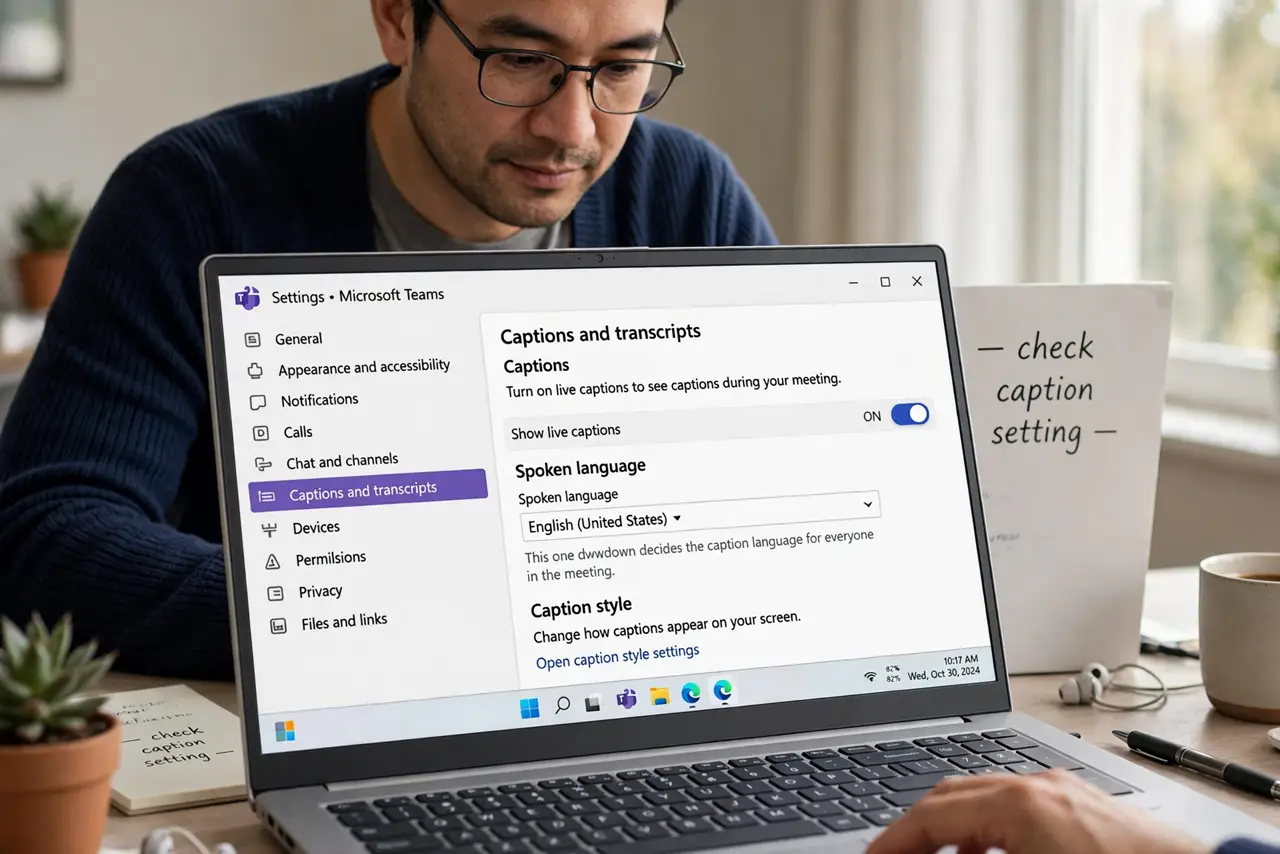
- Find the caption language setting. Open captions settings in the meeting app and look for spoken language. This one dropdown decides the caption language for everyone.
- Set it to the actual spoken language. Choose the language the participants really speak. Meetings default to the organizer's language or English, which is wrong surprisingly often.
- Toggle captions off and on. After changing the language, disable captions and re-enable them. Many apps only apply the new language on a fresh caption start.
- Check your own language preference too. Some apps translate captions into your profile language on top of transcription — check your own language preference too. If captions look translated rather than mis-transcribed, that setting is the cause.
- Ask the organizer to set it for all. In some apps only the host's language setting counts. If yours is right and captions are still wrong, the host needs to change theirs.
- Rejoin if the language sticks wrong. Leave and rejoin the meeting after the fix. A fresh join forces the caption engine to restart with the correct language.
What NOT to do
- Do not assume the caption engine is broken. A wrong-language caption is a wrong setting in nearly every case, not a failed feature.
- Do not change your whole system language for this. The meeting's spoken-language setting is the one that matters, not your device language.
- Do not rely on captions for critical quotes. Live captions mistranscribe even in the right language, so confirm important wording another way.
- Do not turn captions off forever over one bad meeting. Fix the language once, and they become useful again for every meeting after.
Frequently asked questions
Why are captions in the wrong language?
The meeting's spoken-language setting does not match what people speak, so the engine transcribes into the wrong language.
Can captions translate between languages?
Some apps offer translation on top of transcription. Check whether yours is transcribing wrong or translating on purpose.
Why did it work last week?
A different organizer, a different template, or an app update can reset the spoken language to its default.