VPN Blocks Your Local Printer? Fix It
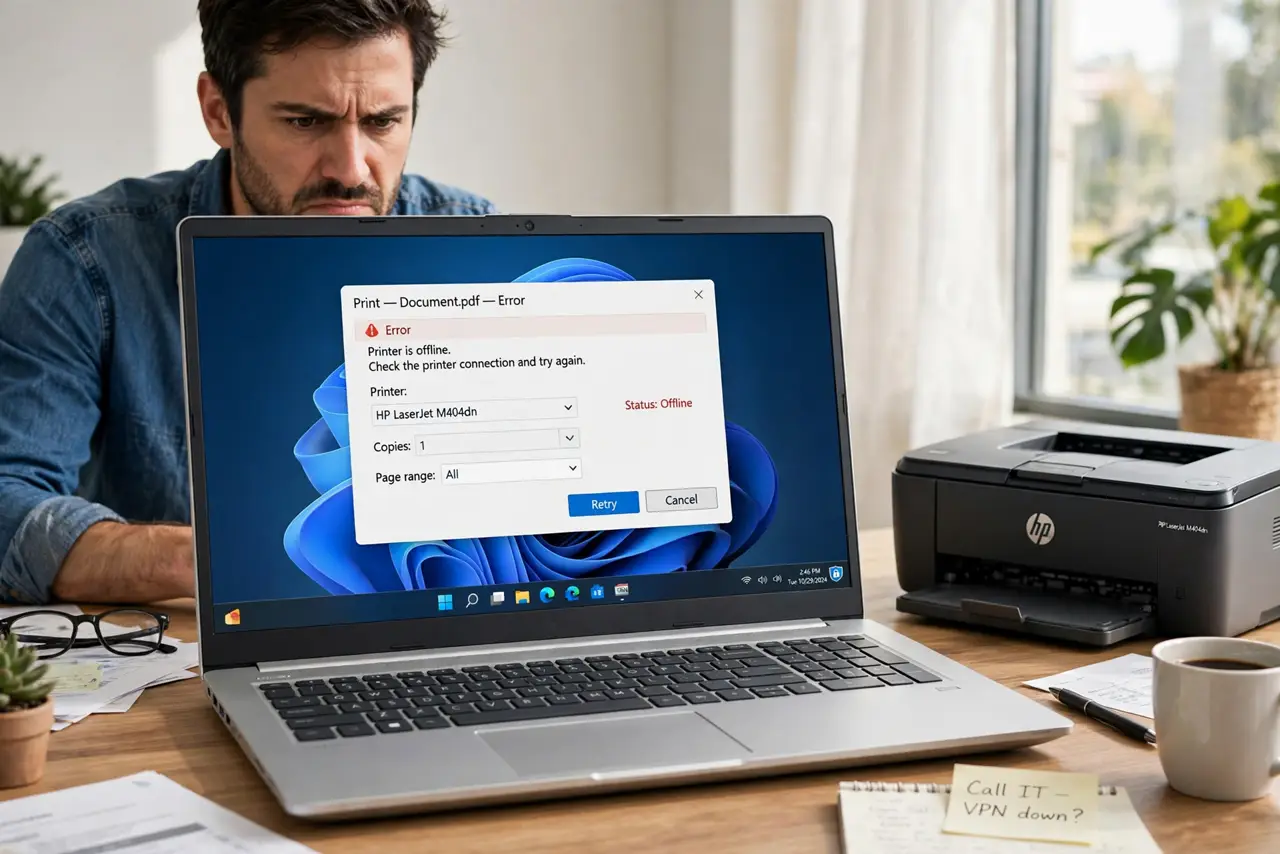
VPN on, printer gone. The document spools, the printer sits silent, and the moment you disconnect the VPN it roars to life. The VPN reroutes all traffic through its tunnel — including the local chatter your printer needs. Two settings fix it without dropping protection.
TL;DR / Quick Fix
Quick fix: enable split tunneling in your VPN app and exclude the local network, or allow LAN traffic in the VPN settings. This lets printer chatter stay local while internet traffic stays protected. If your VPN lacks these options, disconnecting to print is the fallback. Never disable the firewall instead.
Follow these steps
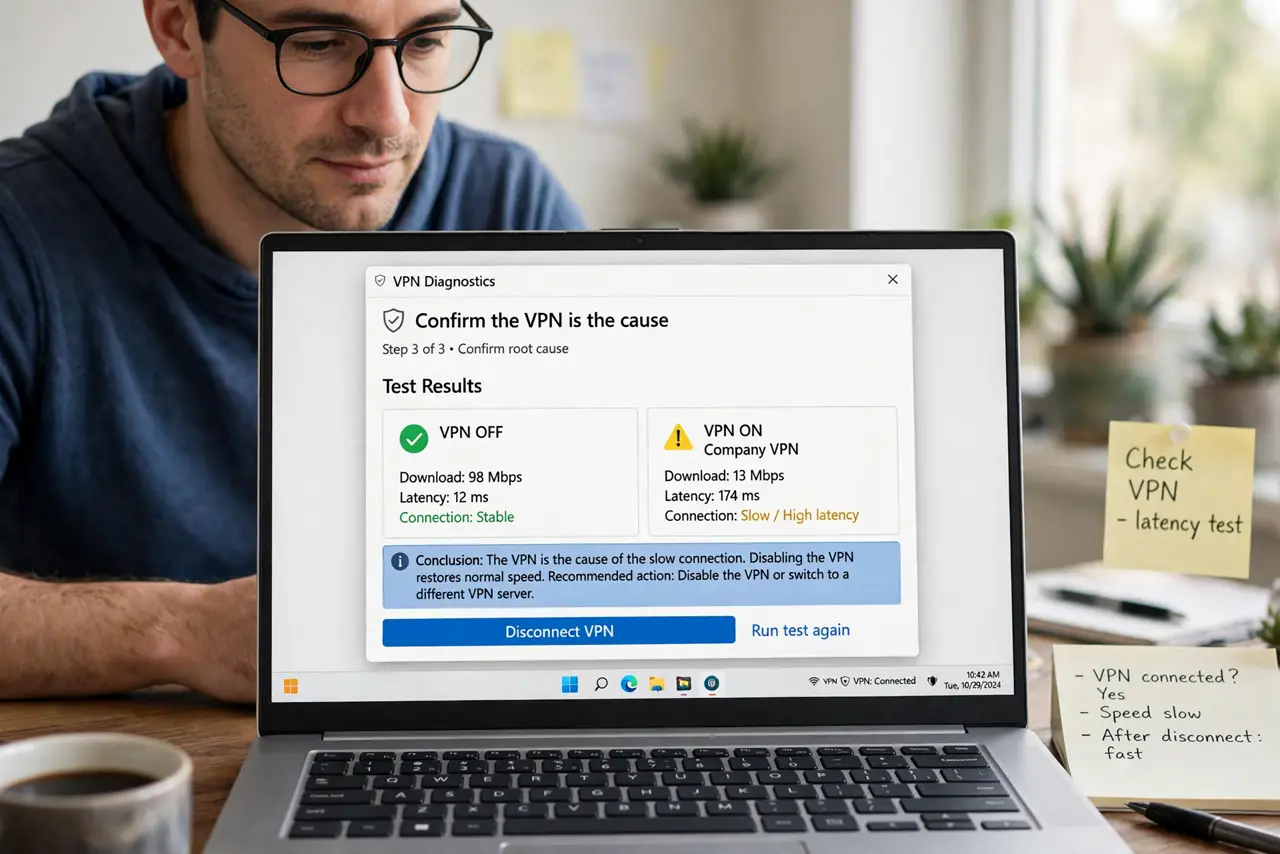
- Confirm the VPN is the cause. Disconnect the VPN and print. If it works, the tunnel is blocking local traffic — diagnosis done in ten seconds.
- Enable split tunneling. In the VPN app's settings, find split tunneling and set local network addresses to bypass the VPN. Printer traffic stays home.
- Or allow LAN traffic. Some apps have a simpler allow-local-network toggle. Same effect, less configuration.
- Reconnect the printer if needed. After changing the setting, remove and re-add the printer so it rediscovers over the now-visible local network.
- Test a print with VPN on. Print a test page with the tunnel active. If it works, the fix holds.
- Use disconnect-to-print as fallback. If the app offers neither option, disconnect, print, reconnect. Clunky but safe — consider a better VPN long-term.
What NOT to do
- Do not disable the firewall to fix printing. The firewall is not the blocker — the VPN tunnel is.
- Do not route the printer through the VPN. Sending local print jobs around the world is slow and pointless.
- Do not leave split tunneling on all-apps-bypass. Exclude only the local network — keep internet traffic protected.
- Do not reinstall the printer repeatedly. The printer is fine; it is the network path that the VPN hides.
Frequently asked questions
Why does the printer vanish only when the VPN is on?
The VPN tunnels all traffic, including the local discovery chatter printers rely on. Your computer literally cannot see the local network anymore.
Is split tunneling safe?
For local network traffic, yes — your printer is not the internet. Keep actual browsing inside the tunnel.
My VPN has no split tunneling — now what?
Disconnect to print, or switch providers. LAN bypass is a basic feature any serious VPN should offer.