Webcam Shows Black on Calls? Fix It
A black webcam on a call is usually a cover, a permission, or another app holding the camera, not a broken camera. Work through the checks in order, and test with the built-in Camera app before your next call.

TL;DR / Quick Fix
Quick fix: check for a physical camera cover or slider and open it, then close other video apps. Open the Windows Camera app: if it shows your face, the camera works and the call app is using the wrong camera or lacks permission.
Follow these steps
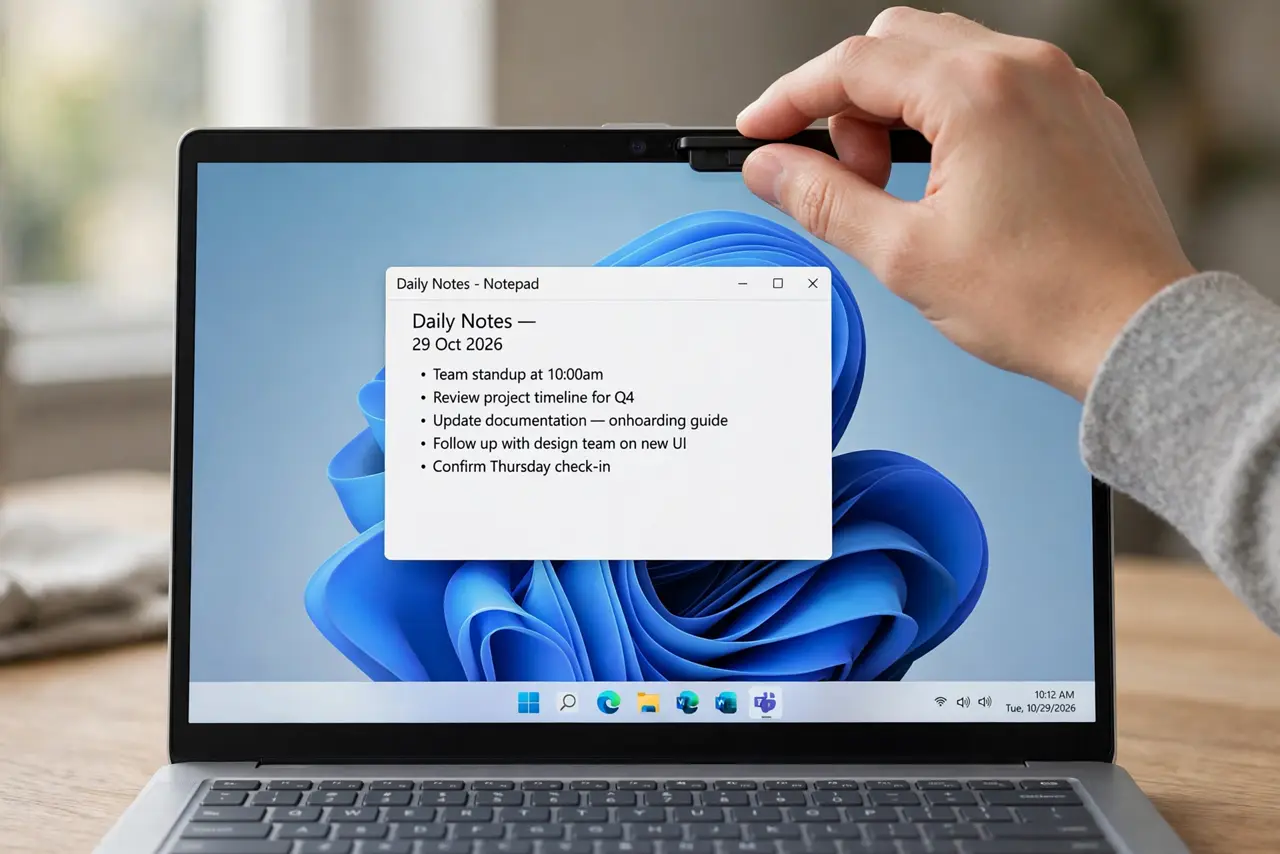
- Check the camera cover and slider. Look for a physical cover, slider, or privacy shutter over the camera and open it. Many laptops have a small slider that is easy to miss.
- Close other apps using the camera. Close other video call apps and the Camera app, then reopen only the app you want to use. One app can hold the camera and leave a black screen for the next app.
- Test with the Camera app. Open the Windows Camera app. If you see yourself, the camera hardware works, and the problem is the call app setting or permission.
- Pick the right camera in the call app. In the call app settings, choose your built-in or external camera by name. Some computers list a virtual camera that shows black, and picking it by mistake causes this exact problem.
- Check camera permissions. Open Settings, then Privacy and security, then Camera, and make sure camera access is on and the call app is allowed. A denied permission gives a black screen with no error.
- Restart the computer if it still shows black. Save your work and restart. A restart releases a camera held by a stuck app and reloads the camera driver cleanly.
What NOT to do
- Do not peel off a camera cover sticker permanently if you value privacy. Slide it open for calls and close it after, instead of removing it.
- Do not allow camera access for every app to fix one call. Allow only the apps you actually use for video, and keep the rest off.
- Do not buy a new webcam before testing the Camera app. If the built-in camera works there, the call app setting is the problem, not the hardware.
- Do not change camera drivers as a first step. Check the cover, the app choice, and permissions first, because those cause most black screens.
Frequently asked questions
The Camera app works but my call app shows black. Why?
The call app is using the wrong camera or lacks permission. Check its camera choice and the Windows camera permission for that app.
Why does the camera work sometimes and not others?
Another app may hold the camera. Close other video apps before the call, and restart if the camera stays locked.
Is a black screen always a hardware failure?
No. A cover, a permission, or a stuck app is far more common. Hardware failure is the last explanation, not the first.