Turn On WhatsApp Two-Step Verification
Someone hijacks a WhatsApp account every few minutes — usually by tricking the victim into sharing the six-digit SMS code. Once they are in, they message your contacts asking for money, as you. WhatsApp's two-step verification adds a PIN that the hijacker cannot guess, and it takes sixty seconds to turn on. If you do one security thing today, make it this.
TL;DR / Quick Fix
Quick fix: WhatsApp two-step verification adds a PIN that stops hijackers — even with your SMS code, they cannot get in without it. Open WhatsApp Settings > Account > Two-step verification > Turn on, pick a PIN, and add a recovery email. Sixty seconds prevents the most common WhatsApp takeover.
Follow these steps
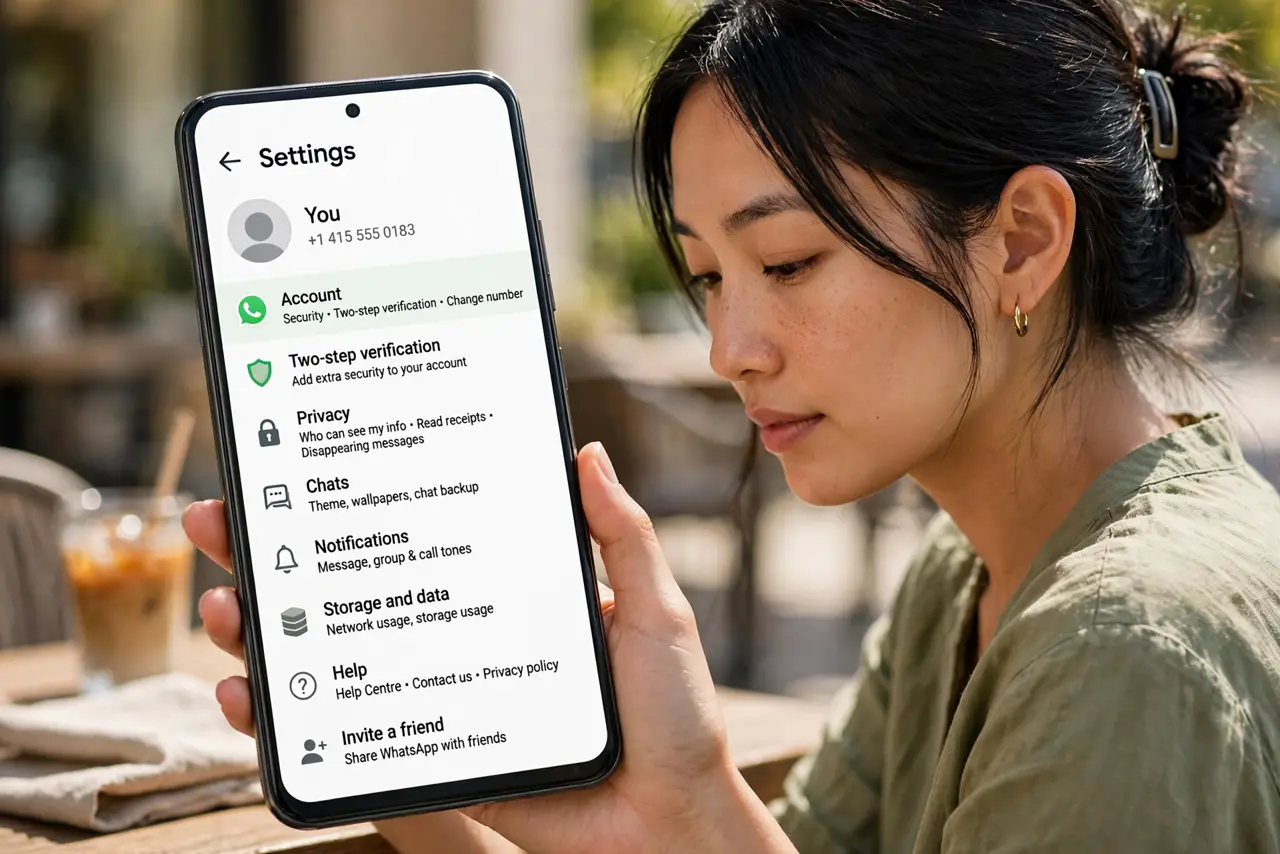
- Open WhatsApp Settings. Tap Settings (iPhone, bottom right) or the three-dot menu > Settings (Android). Two-step verification lives under Account — not under Privacy, where most people look.
- Go to Account > Two-step verification. Tap Turn on or Enable. WhatsApp will ask you to create a six-digit PIN — this is separate from your phone's passcode and from the SMS login code.
- Choose a PIN you will remember. Six digits, not your birthday, not 123456. You will be asked for it occasionally when opening WhatsApp — that is the point, it keeps the PIN fresh in your memory.
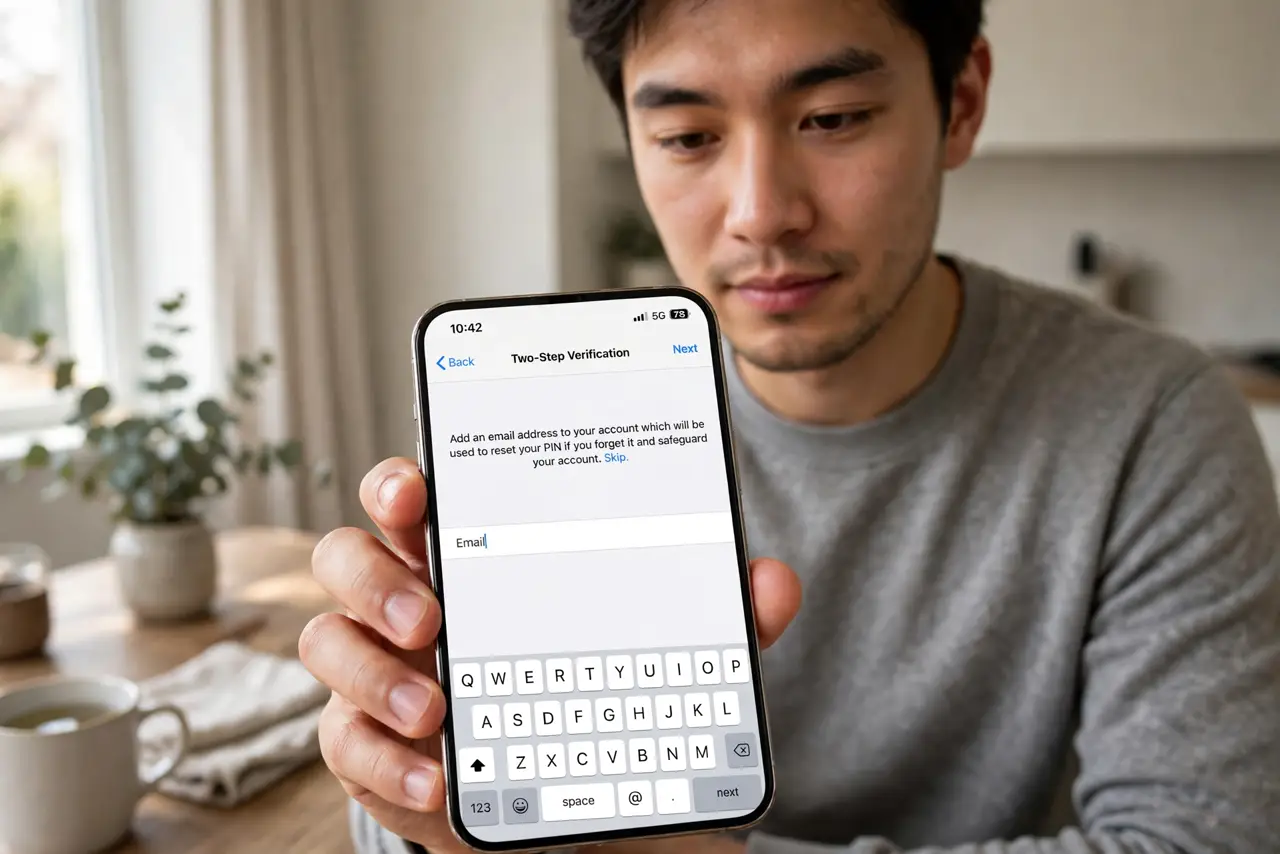
- Add your email address. WhatsApp asks for an email to reset the PIN if you forget it. Do not skip this — without it, a forgotten PIN locks YOU out for days. Confirm the email when the verification message arrives.
- Watch for the PIN prompts. WhatsApp periodically asks for your PIN when you open the app. This is not a glitch — it is a memory jog so the PIN is there when you actually need it.
- Never share codes or your PIN. No legitimate person — not WhatsApp, not a friend — will ever ask for your SMS code or PIN. Anyone who does is running the hijack scam — hang up and block.
What NOT to do
- Do not skip the recovery email. A forgotten PIN with no email means waiting out a multi-day lockout with no shortcut — the email is your only spare key.
- Do not use the same PIN as your phone unlock code. If someone shoulder-surfs your phone PIN, they should not get your WhatsApp too.
- Do not share the six-digit SMS code with anyone, ever. That code plus social engineering is the entire hijack — the PIN only helps if the code stays secret.
- Do not assume two-step verification protects your chats' content. It protects account access; message privacy comes from end-to-end encryption, which is a separate feature.
Frequently asked questions
I forgot my PIN — am I locked out?
If you added a recovery email, use the Forgot PIN link to reset it. Without an email, you must wait out the lockout period (up to 7 days) — there is no support shortcut.
Does two-step verification stop all WhatsApp hacks?
It stops the common account-takeover scam cold. It does not stop malware on your phone or someone reading your unlocked screen — it is one strong layer, not a force field.
Why does WhatsApp keep asking for my PIN?
Deliberate design — periodic prompts keep the PIN in your memory so you do not forget it. Enter it and carry on; it takes two seconds.