Pause Wi-Fi at Bedtime?
Bedtime arrives and the kids are still glowing under the covers — most modern routers can pause Wi-Fi for specific devices on a schedule, no nightly device confiscation required. It is the most effective screen-time tool most parents never set up. This guide shows where the switch lives and how to make it stick.
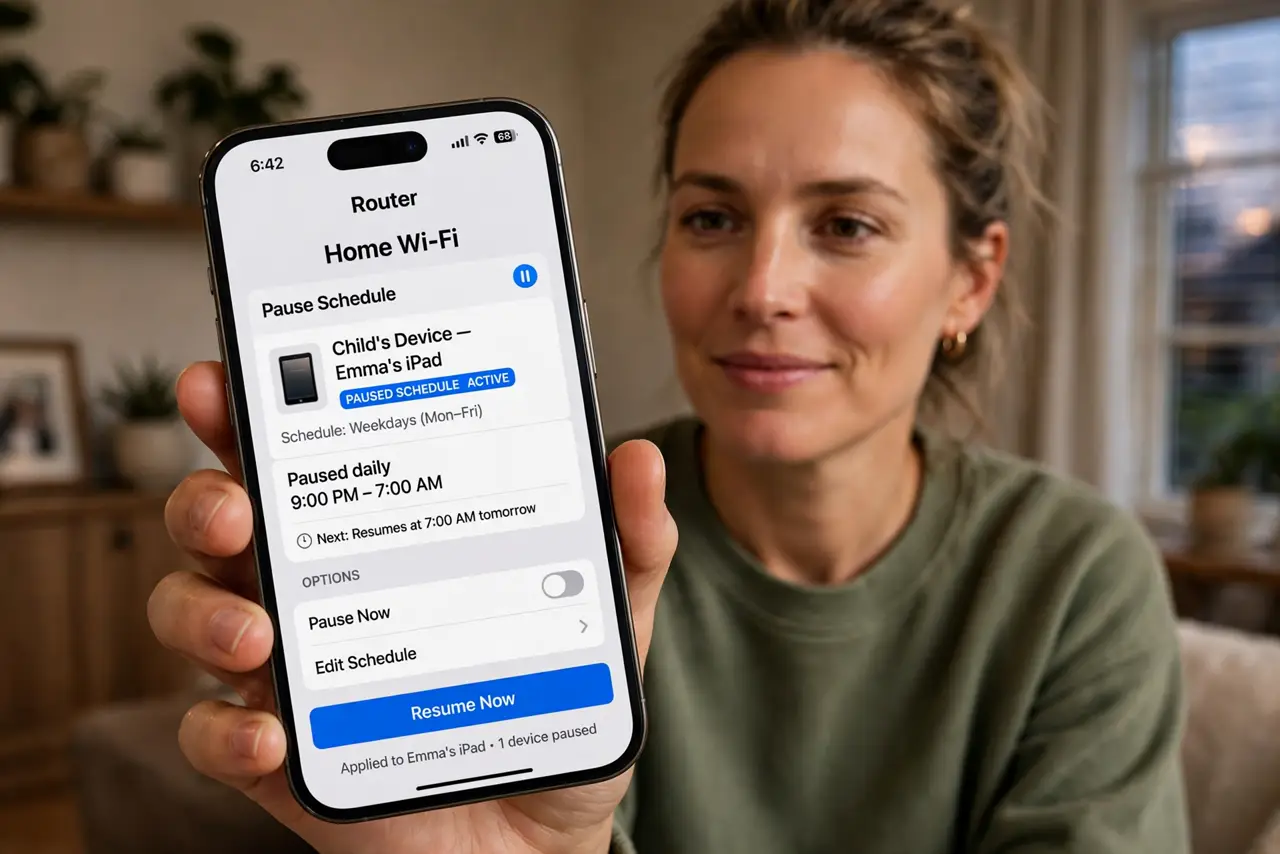
TL;DR / Quick Fix
Quick fix: most modern routers can pause Wi-Fi on a schedule — look for Parental Controls or Bedtime in the router app, pick the kids' devices, and set the hours. It beats nightly device confiscation. Tell the kids it is happening; surprise cutoffs breed workarounds. Your own devices stay untouched.
Follow these steps
- Open your router's app. Most pausing happens in the router maker's app (not a browser page) — the parental controls section is usually front and center on modern systems.
- Find Bedtime or Pause. Look for 'Parental Controls,' 'Bedtime,' 'Pause,' or 'Access Schedule.' Different makers name it differently, but the feature is nearly universal on routers from the last several years.
- Pick the kids' devices. Select devices by name — 'Emma's iPad,' 'PlayStation' — rather than by IP address, which changes. Rename mystery devices first so you pause the right ones.
- Set the schedule. Choose bedtime hours, typically school nights and weekends separately. Start the cutoff 30 minutes before actual bedtime — winding down beats a hard cut mid-game.
- Tell the kids. Announce the schedule before it starts. Surprise cutoffs feel punitive and breed workaround-hunting; an agreed schedule feels like a rule, and rules get followed more often.
- Layer content filtering too. Pausing handles bedtime; router parental controls handle what they can reach while online. The two together cover time and content.
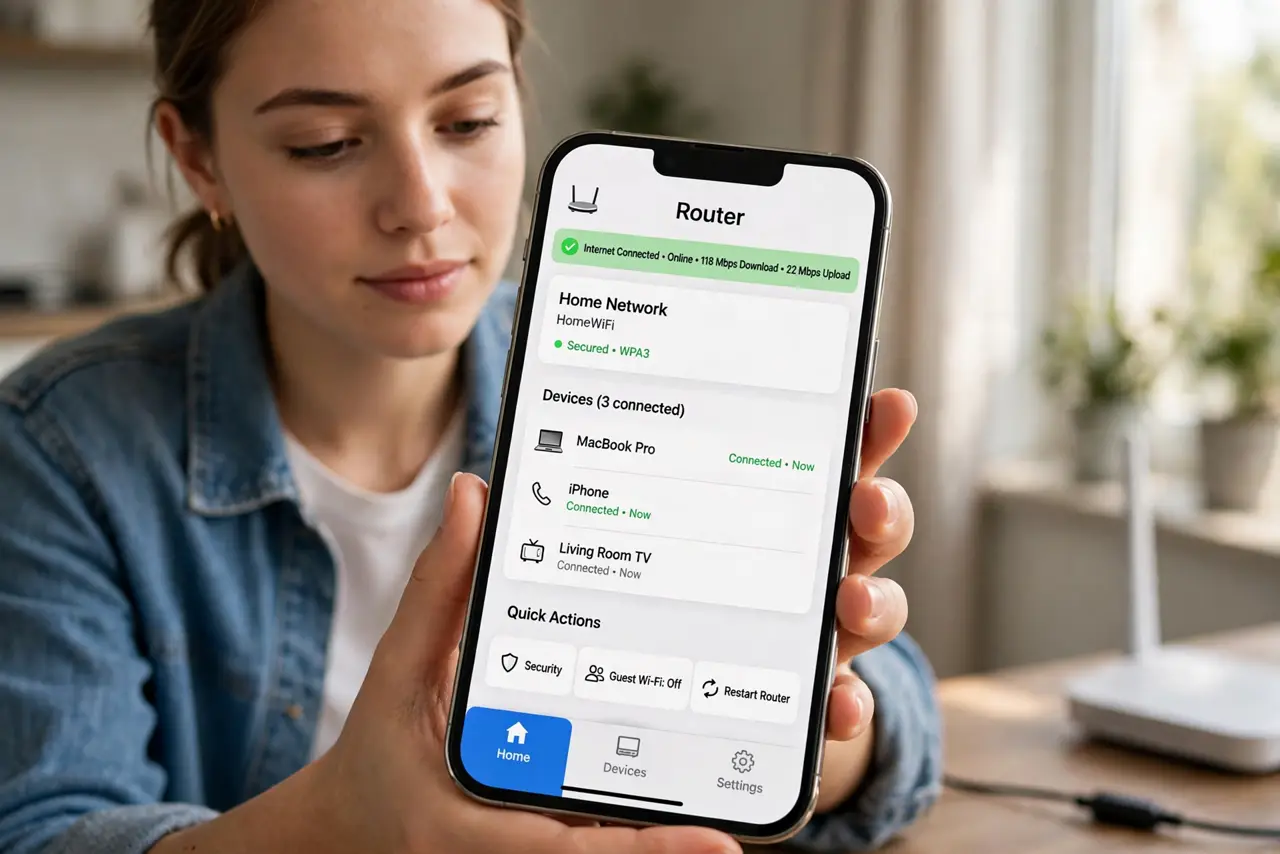
What NOT to do
- Do not pause the whole network. Pausing everything kills your own devices, the doorbell, and the thermostat — pause specific devices, not the Wi-Fi itself.
- Do not rely on it alone for teens. Determined teenagers find mobile data, neighbors' Wi-Fi, and VPNs — pausing is friction plus a clear rule, not a cage.
- Do not set it and forget the exceptions. Homework laptops, alarms, and smart speakers may need to stay online — review the device list after the first week.
- Do not use it as punishment on the fly. Constant manual pausing turns a good tool into a power struggle — keep it to the agreed schedule.
Frequently asked questions
Will pausing Wi-Fi stop mobile data?
No — it only blocks your home Wi-Fi. A phone with its own data plan keeps working, which is why the conversation matters more than the switch.
Can kids bypass the pause?
They can try — mobile data, a friend's hotspot, or changing the device's MAC address on some routers. Naming the rule openly deters most of it.
Does it work for guests' devices?
Yes, if you add them to the paused group — but pausing a guest's phone unannounced is a fast way to end the visit happily. Warn them.