Pick a Less Crowded Channel
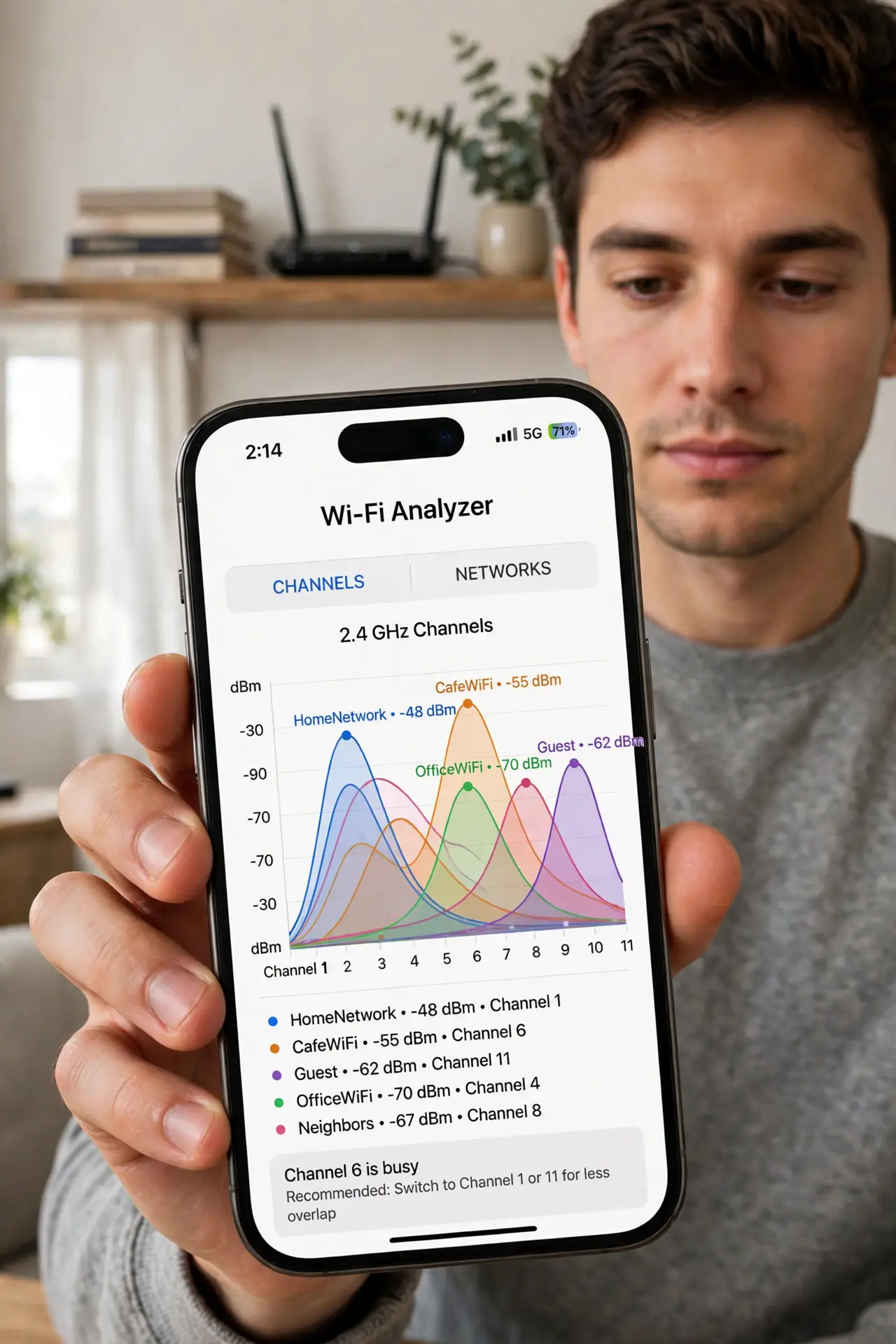
Your Wi-Fi crawls every evening, yet your internet plan is fast and the router is fine. In an apartment building, a dozen neighboring routers all shout on the same radio channels — and on the 2.4GHz band, only channels 1, 6, and 11 avoid stepping on each other. Everyone piled on channel 6 means everyone slows down. Finding the emptiest channel and switching to it is a free, ten-minute fix.
TL;DR / Quick Fix
Quick fix: in apartments, neighboring routers crowd the same Wi-Fi channels and slow everyone down — use a free Wi-Fi analyzer app to find the emptiest channel, then change it in your router's settings. Channels 1, 6, and 11 on 2.4GHz overlap least. On 5GHz, any clear channel works fine.
Follow these steps
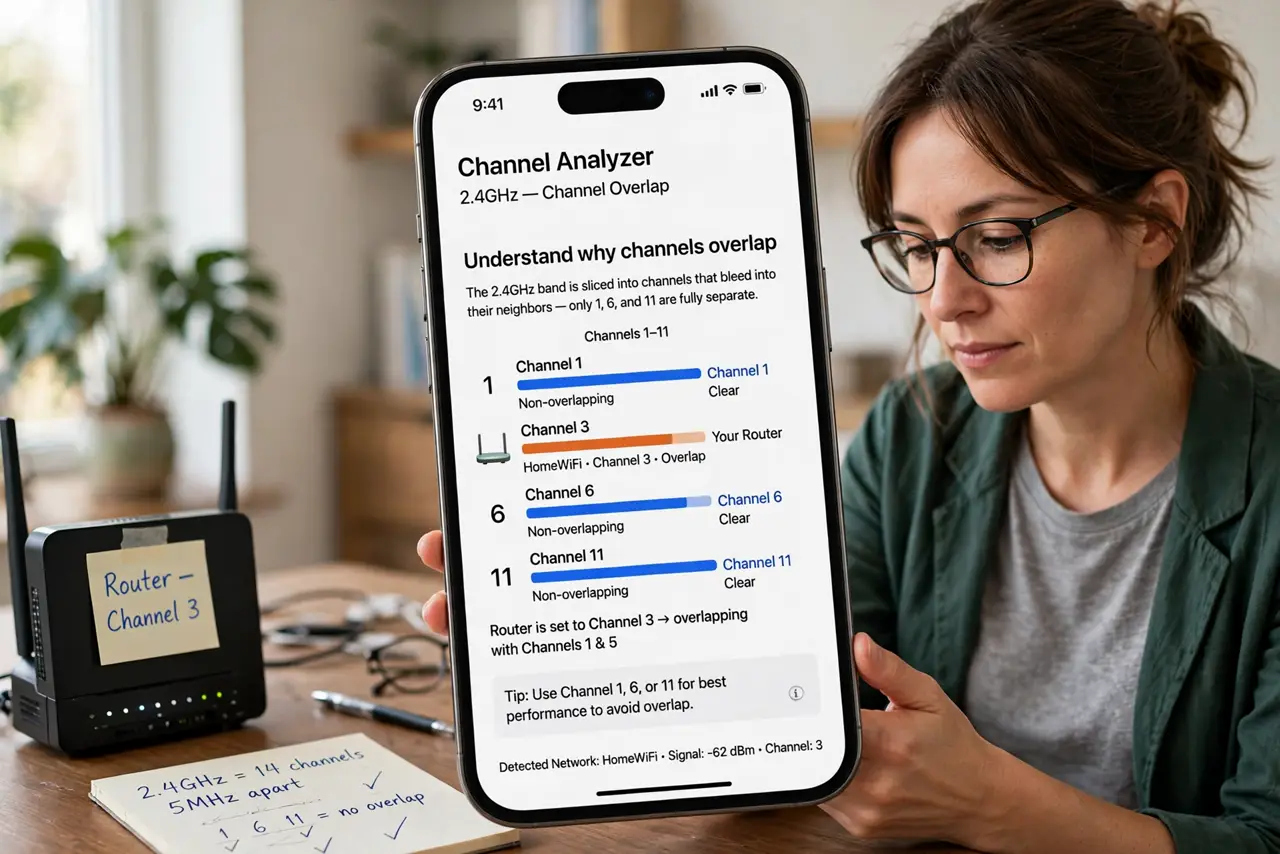
- Understand why channels overlap. The 2.4GHz band is sliced into channels that bleed into their neighbors — only 1, 6, and 11 are fully separate. A router on channel 3 interferes with both 1 and 6, which is why picking in-between channels backfires. This is separate from channel width, which controls speed versus stability.
- Scan your airspace with a free app. Install a Wi-Fi analyzer on your phone or laptop and look at the 2.4GHz graph. You will see every nearby network as a hump — note which of 1, 6, and 11 has the fewest and weakest humps.
- Log into your router. Open your router's admin page (usually an address like 192.168.1.1, printed on the router label) and find the wireless settings. This sounds technical, but it is one login and one dropdown.
- Switch to the emptiest of 1, 6, or 11. Change the 2.4GHz channel to whichever of the three looked quietest in your scan. Save and let the router restart its radio — devices reconnect automatically within a minute.
- Check whether DFS channels are an option. If your router supports them, DFS channels open up extra 5GHz spectrum that neighbors rarely use — worth enabling if you live near an airport-free zone with compatible gear.
- Re-test at the busy hour. Run a speed test in the evening when the building is active. If speeds improved, you are done — rescan every few months, since neighbors change routers and channels drift.
What NOT to do
- Do not pick channel 3, 4, 8, or 9 to dodge the crowd. In-between channels overlap two of the big three and perform worse than just joining the least-busy one.
- Do not leave channel selection on Auto and assume it is smart. Many routers pick at boot and never adapt — a manual pick from a real scan usually wins.
- Do not change channels every day. One good scan and one good choice beats constant fiddling; re-check seasonally, not daily.
- Do not forget the 5GHz band. If your devices support it, 5GHz has far more room — moving capable devices there beats any 2.4GHz channel tweak. See changing the channel step by step if your router's menus confuse you.
Frequently asked questions
How often should I rescan?
Every few months, or when speeds mysteriously drop. Neighbors buy new routers and ISPs swap equipment, so the quietest channel changes over time.
What if all three channels are packed?
Then 2.4GHz is a lost cause in your building — move everything you can to 5GHz, which has many more non-overlapping channels, and consider a wired connection for your desk.
My router has no manual channel setting — now what?
Some ISP-provided routers hide it. Check for a mobile app from your ISP (many expose it there), or put the ISP box in bridge mode behind your own router.