Private DNS on Phones
Every site you visit starts with a DNS lookup — and by default your carrier or ISP sees every single one. Private DNS encrypts those lookups so your provider cannot log your browsing by domain. It is a one-setting upgrade on modern phones, and it is free.
TL;DR / Quick Fix
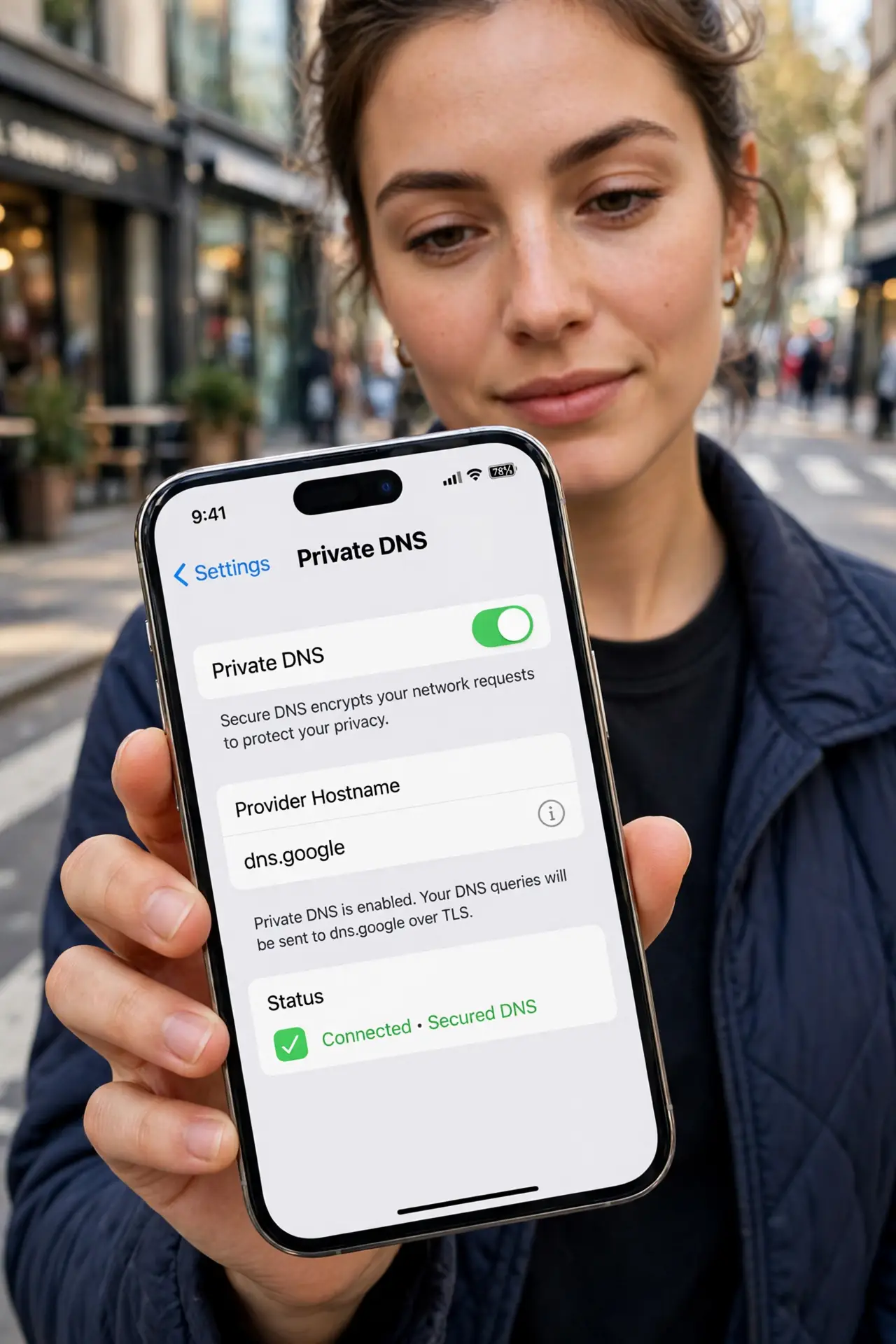
Quick fix: on Android, go to Settings, Network, Private DNS, and enter a privacy-respecting provider hostname. On iPhone, install a DNS profile or use an app that enables encrypted DNS. Your lookups are now encrypted — the ISP sees connections but not the domains. Test that apps still work afterward.
Follow these steps
- Understand what DNS leaks. DNS translates names to addresses, and default DNS is plaintext. Your ISP logs every lookup — the encrypted DNS explainer covers the mechanics.
- Enable Private DNS on Android. Go to Settings, Network and Internet, Private DNS, and choose Private DNS provider hostname. Enter your chosen provider's hostname — the phone DNS guide lists options.
- Enable encrypted DNS on iPhone. iOS needs a configuration profile or a DNS app. Install one from a provider you trust, then verify it is active in Settings.
- Choose DoH or DoT wisely. Android uses DNS-over-TLS; iPhone profiles often use DNS-over-HTTPS. The DoH vs DoT guide compares the two flavors.
- Test your setup. Visit a DNS leak test site. It should show your DNS provider, not your ISP — if the ISP still appears, the setting did not take.
- Watch for captive portals. Encrypted DNS can break hotel and airport login pages. If a portal will not load, pause private DNS, log in, then re-enable — see portal breakage.
What NOT to do
- Do not assume DNS privacy equals full privacy. Your ISP still sees IP connections — pair with a VPN for real coverage.
- Do not pick a random free DNS provider. You are handing your lookups to them instead — choose one with a published privacy policy.
- Do not leave it half-configured. A typo in the hostname silently disables it — verify with a leak test.
- Do not forget work profiles. Employer-managed phones may override DNS — check with IT before assuming privacy.
Frequently asked questions
Will private DNS slow my browsing?
Barely — encrypted DNS adds milliseconds. Some users even see faster lookups from a good provider.
Does it hide browsing from my employer?
On their network or device, no — they have other visibility. Private DNS protects against ISPs, not device owners.
Can I use it with a VPN?
Yes — the VPN usually handles DNS itself. Private DNS matters most when the VPN is off.