Wire Your Mesh Nodes Together
Your mesh system promises whole-home coverage, but the satellite nodes still stutter on video calls — because they talk to the main node over Wi-Fi instead of a wire. A wired backhaul connects the nodes with Ethernet, giving each one a fast, stable lane home. Here is how to wire them up and what to check before you start drilling holes.

TL;DR / Quick Fix
Quick fix: wire each satellite mesh node to the main node with an Ethernet cable — the wired backhaul replaces the shaky wireless hop between nodes. Most systems detect the cable and switch over by themselves. Use Cat5e or better, keep runs under 100 meters, and reposition nodes after wiring.
Follow these steps
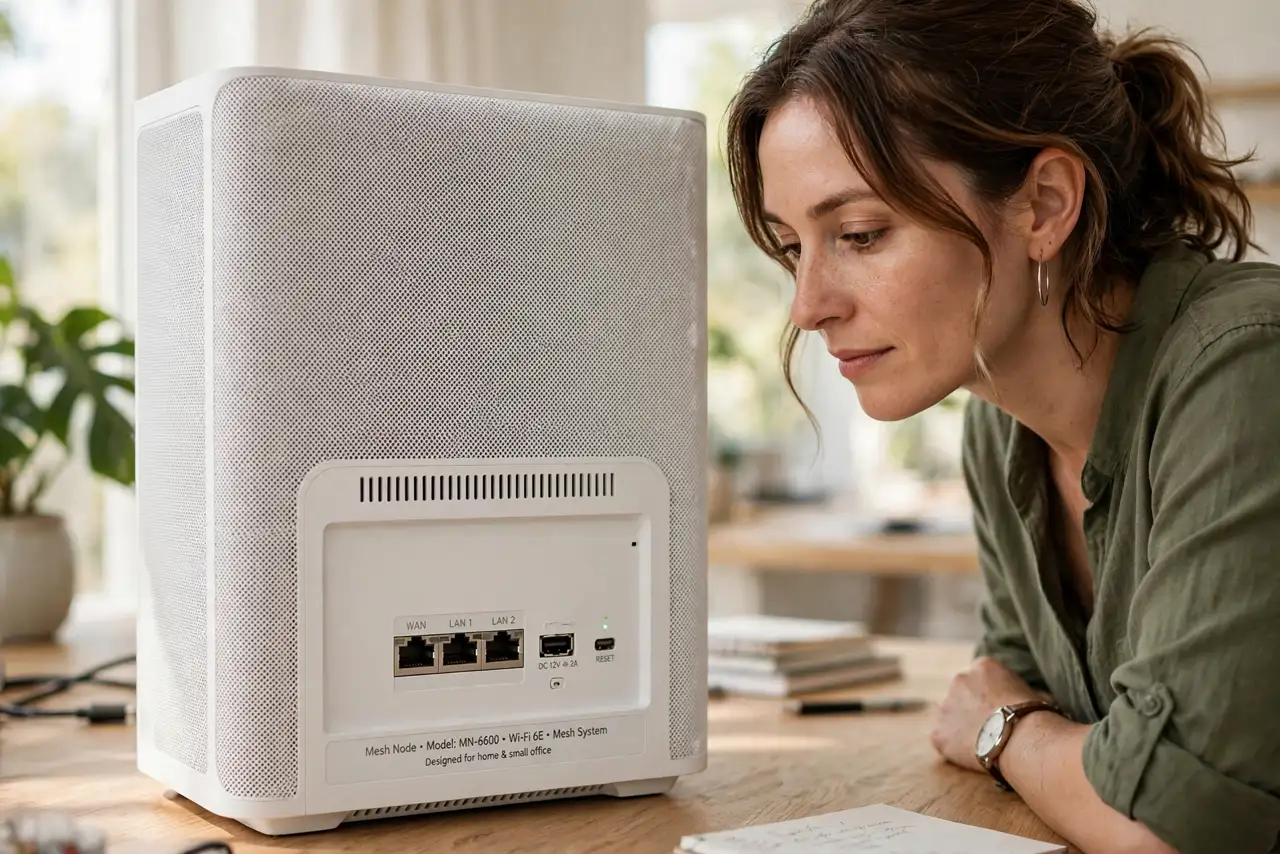
- Confirm your nodes have Ethernet ports. Not every satellite does — some compact nodes are wireless-only. Check the back of each unit for an Ethernet jack; if a satellite has none, it can only use wireless backhaul, and node placement matters even more for it.
- Run cable from the main node outward. The main node (the one plugged into your modem) is the hub. Plan a run from it — or from a switch connected to it — to each satellite's location. Along baseboards and through a cold-air return beats across the floor.
- Wire satellites to the main node or a switch. Plug one end into the satellite's Ethernet port and the other into the main node's LAN port or any switch on your network. A satellite with a shaky wireless link becomes rock-solid the moment its cable clicks in — which also stops mystery offline episodes.
- Let the system detect the cable. Most mesh systems sense the Ethernet connection and silently promote that node to wired backhaul — no setting to flip. Give it a few minutes, then check the app; the node should show as wired or Ethernet-connected.
- Verify the backhaul type in the app. Open your mesh app's network map and confirm each satellite reports a wired connection. A node still showing wireless after wiring usually has a bad cable, a dead switch port, or the cable in the wrong jack.
- Reposition nodes only after wiring. Wired backhaul frees nodes from needing a strong wireless link to the main node, so you can push them farther into dead zones. Move them after the wiring is confirmed, then re-test the far rooms.
What NOT to do
- Do not assume any Ethernet cable will do. A damaged or ancient cable can negotiate at 100 Mbps and bottleneck the node — test with a known-good Cat5e or better.
- Do not plug the satellite into the modem directly. The cable must land on the main mesh node's network side, or the satellite ends up on a different network.
- Do not leave cables where they get pinched by doors. A crushed cable fails intermittently, which is harder to diagnose than a clean break.
- Do not wire only one satellite and declare victory. Mixed backhaul is fine, but the unwired satellites still need good wireless placement.
Frequently asked questions
Will a wired backhaul make my internet plan faster?
No — it cannot exceed your plan's speed. What it fixes is the speed loss between nodes: satellites stop losing half their throughput to a wireless hop and deliver close to full speed.
Can I mix wired and wireless satellites?
Yes. Wire the nodes you can reach with cable and leave the rest wireless. The system handles the mix, and each wired node also becomes a stronger wireless relay for its neighbors.
Why does my node still show wireless after I wired it?
Usually the cable is in the wrong port, the switch port is dead, or the cable itself is bad. Swap the cable and port first — and see the guide on daisy-chaining for the layout mistake to avoid.