Changed Wi-Fi Password? Reconnect Everything
You changed the Wi-Fi password for security, and now half the house is offline — phones, the TV, the printer, the doorbell. Every device needs the new password, and the forgotten ones fail silently. A systematic sweep reconnects everything in one pass.
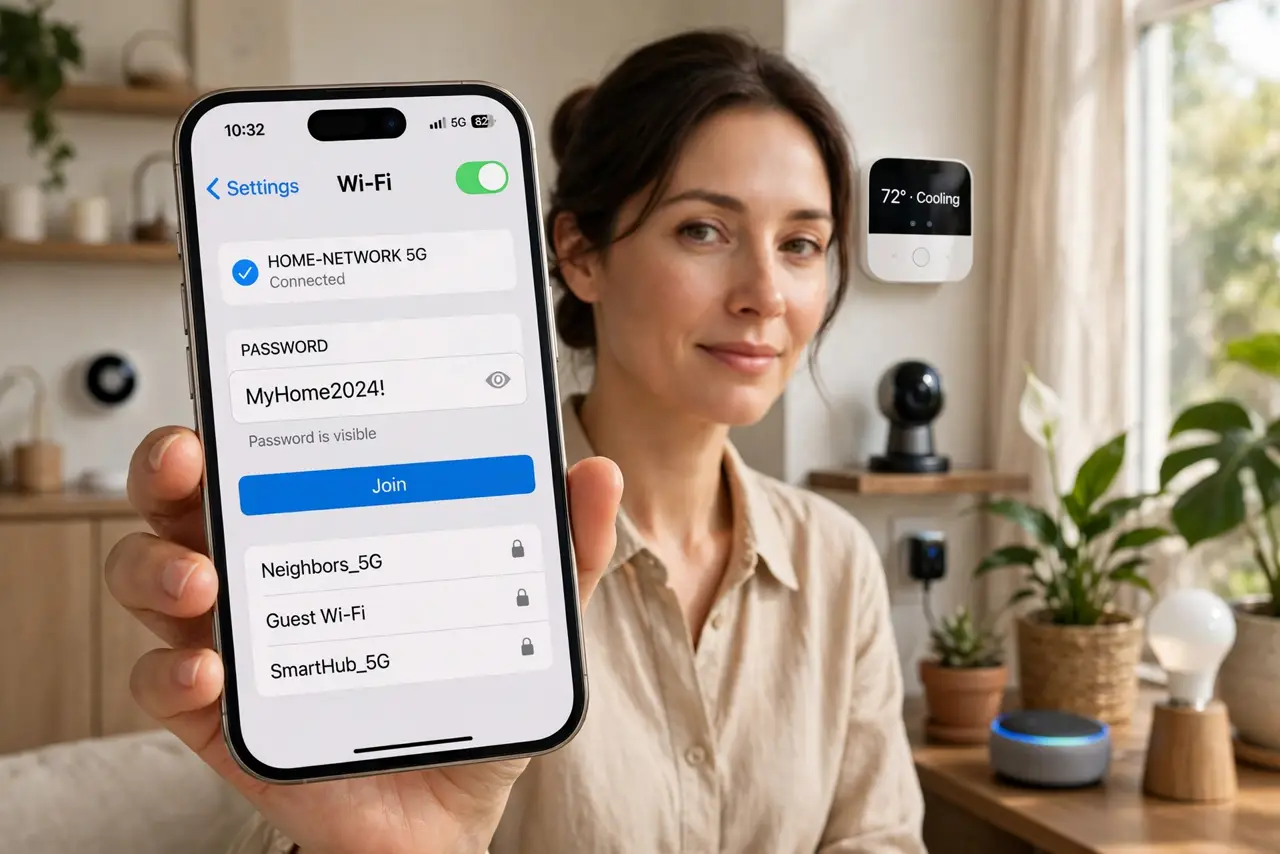
TL;DR / Quick Fix
Quick fix: start with the devices you use most, then sweep the forgotten ones — printer, TV, doorbell, plugs — each needs the new password typed once. Expect the classic [[printer offline|printer-offline-after-wifi-password-change]], check [[saved-password quirks|wifi-password-saved-but-will-not-connect]] on stubborn devices, and update your QR code.
Follow these steps
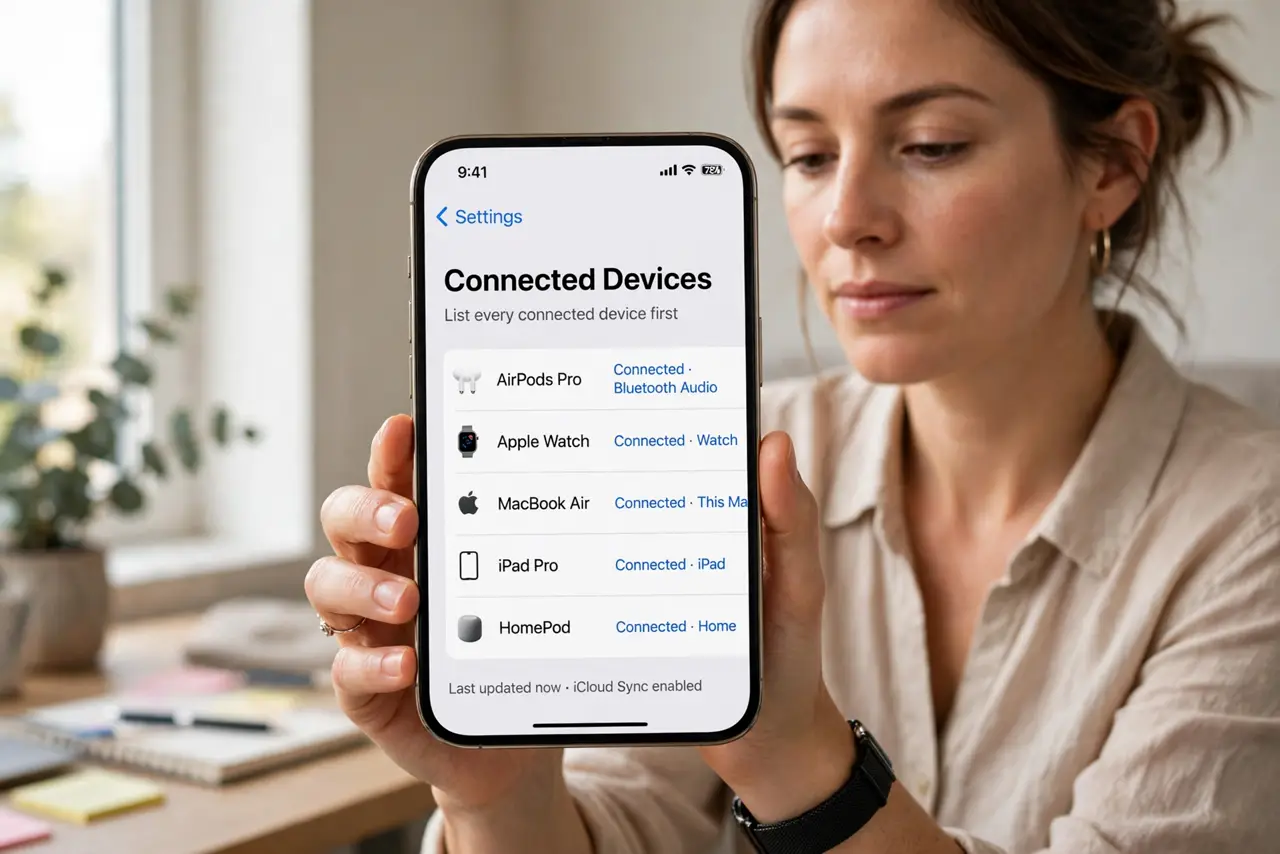
- List every connected device first. Walk the house and note them: phones, laptops, TV, printer, doorbell, plugs, thermostats. The forgotten ones cause the surprises.
- Reconnect phones and laptops first. These are quick and verify the new password works. If your own phone joins, the password is correct — the rest is just repetition.
- Do the smart home gadgets next. Plugs, bulbs, and cameras each need re-pairing with the new password. Budget real time here — this is the tedious part.
- Fix the printer deliberately. Printers are the number-one casualty. Re-run its Wi-Fi setup and re-add it on computers, or see why names matter.
- Check the doorbell and cameras. Security devices offline means no recordings. Confirm each one reconnects and shows a live view before you call it done.
- Update the QR code and the sticker photo. Regenerate any printed Wi-Fi QR code and photograph the new password. Future password changes go faster with the list you made today.
What NOT to do
- Do not change the network name at the same time. Changing name and password together doubles the confusion — change one, stabilize, then the other.
- Do not forget devices you do not use daily. The guest-room TV and the old tablet fail silently and surprise you weeks later.
- Do not reuse the old password 'to make it easy'. That defeats the security reason you changed it — commit to the new one everywhere.
- Do not panic when the printer vanishes. It is the most common casualty and the fix is routine — re-run its wireless setup calmly.
Frequently asked questions
Why do some devices reconnect but others don't?
Phones prompt for the new password; headless gadgets like plugs just fail silently until you re-pair them manually.
Should I change the password regularly?
Only if you have a reason — a guest who overstayed, a device you sold. Random frequent changes create more hassle than security.
Can I see which devices are still on the old password?
Check the router's device list — anything missing from it after the change still needs reconnecting.