Change Your Wi-Fi Name Without Breaking Devices
New year, new Wi-Fi name — and twenty devices that all need reconnecting, from the doorbell to the TV. Renaming without chaos is about order: prepare the list, change once, and walk the house. Here is the method that avoids the reconnect nightmare.
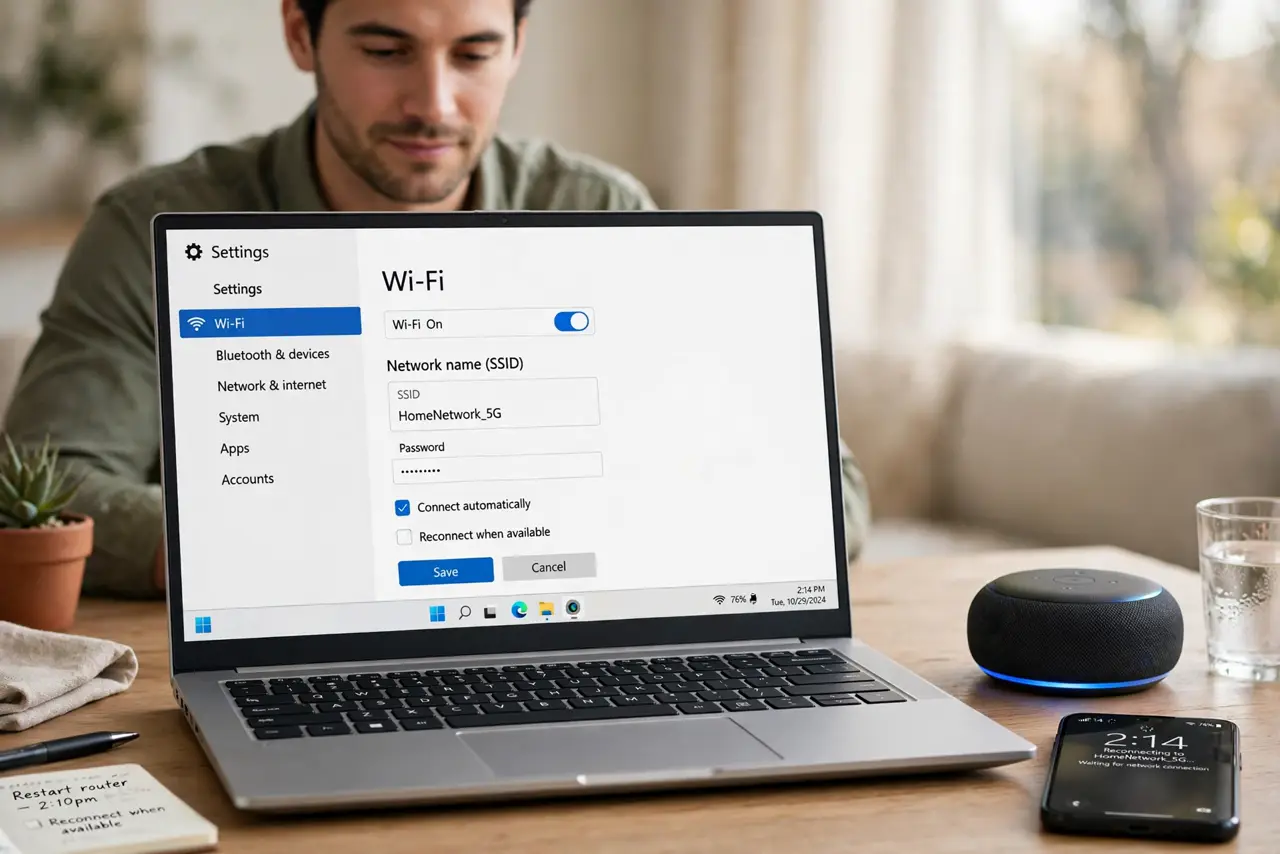
TL;DR / Quick Fix
Quick fix: list every connected device first — phones, TVs, bulbs, printers — then change the name and password together in the router admin page. Reconnect room by room, hubs first. Keep the old network up for a day as a fallback if the router allows it.
Follow these steps
- List every connected device. Walk the house and note phones, laptops, TVs, bulbs, plugs, printers, doorbell. The device list in the router shows what you forgot.
- Open the router admin page. You will need it — see admin page will not open if it fights you.
- Change name and password together. One change, one reconnect round. Changing them separately doubles everyone's work.
- Avoid special characters. Stick to letters, numbers, hyphens. Some smart gadgets choke on apostrophes and emoji in network names.
- Reconnect room by room, hubs first. Mesh nodes, bridges, and hubs before the gadgets that depend on them.
- Keep the old SSID for a day if possible. Some routers broadcast both during transition. A fallback network saves you when the doorbell refuses the new name.
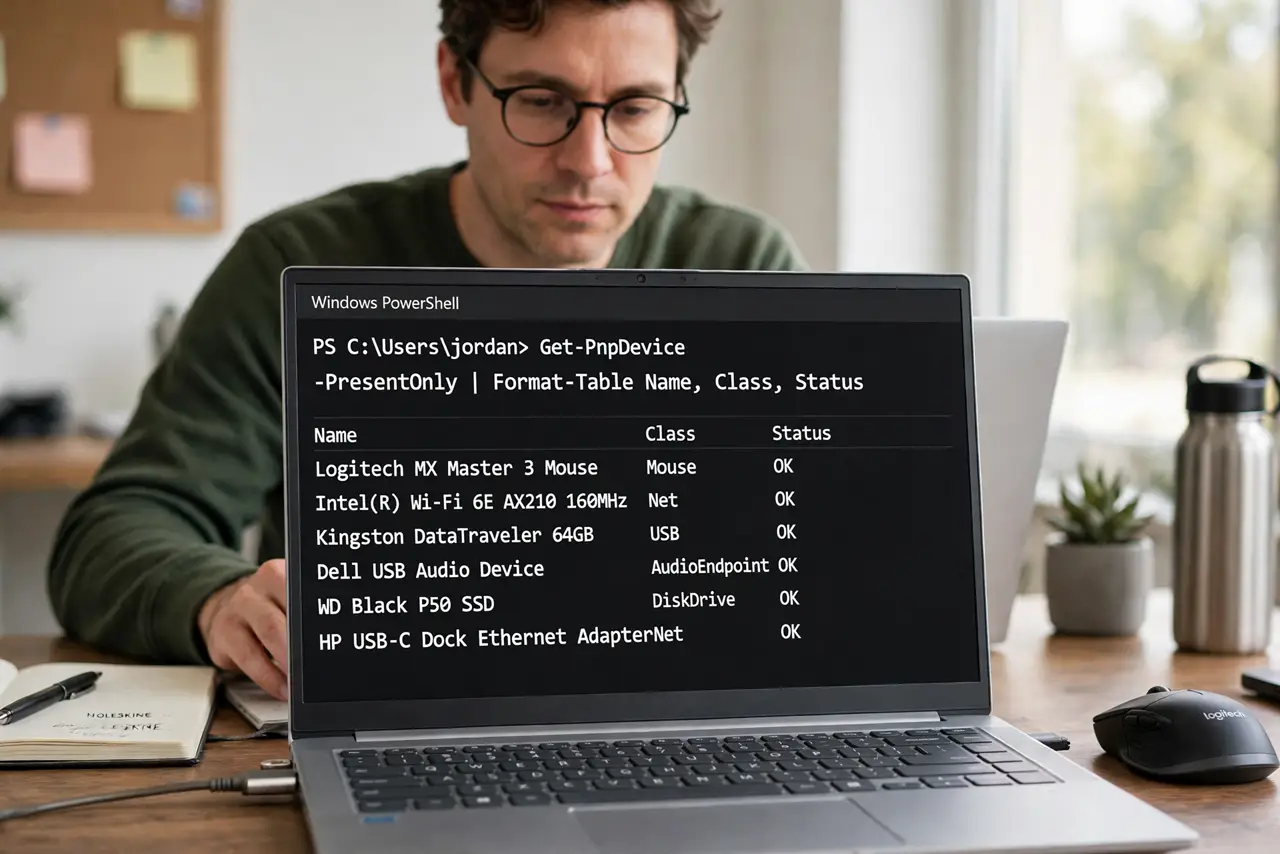
What NOT to do
- Do not rename on a whim without the device list. The forgotten doorbell will remind you at 2 a.m. when it goes offline.
- Do not use emoji or apostrophes in the name. Cheap smart devices parse them badly or not at all.
- Do not change the name but keep a weak password. A rename is the perfect moment to strengthen both.
- Do not forget the printer. Printers are the most commonly stranded device after a rename — see printer offline.
Frequently asked questions
Will I have to reconnect everything?
Yes — a new name looks like a new network to every device. That is the price of the rename; the device list makes it orderly.
Should the 2.4 and 5 GHz names match?
Matching names let devices roam; separate names let you control bands. Decide during the rename.
The smart bulb won't take the new name — help?
Bulbs are picky: use the 2.4 GHz band during setup and avoid special characters, per the smart device guide.