Make a Strong Wi-Fi Password
Your Wi-Fi password is still the one on the router's sticker — or worse, password123. A weak Wi-Fi password lets neighbors freeload your bandwidth and, worse, gives strangers a foothold inside your network where your files and smart devices live. Making a strong one takes five minutes and a router login. Here is the recipe.
TL;DR / Quick Fix
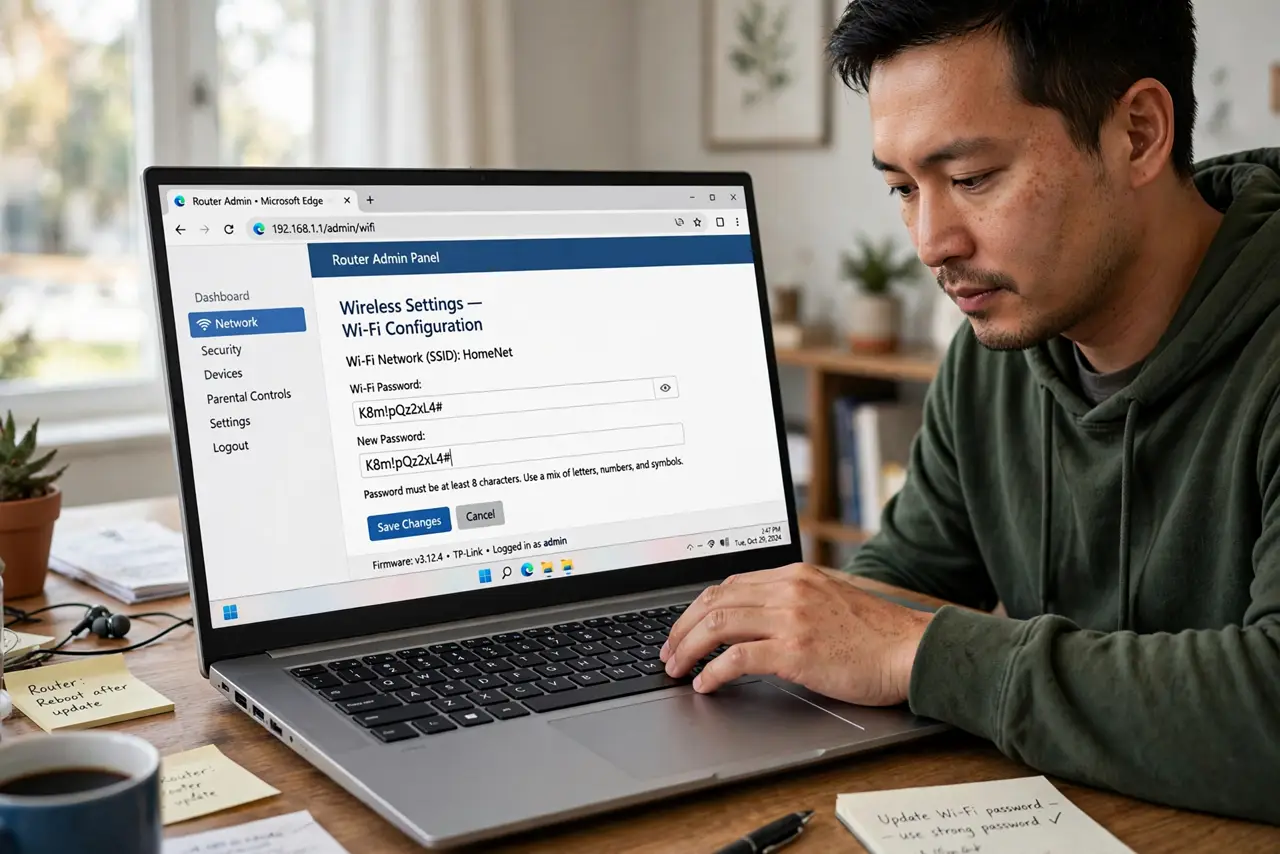
Quick fix: a strong Wi-Fi password is long, random, and unique — 20+ characters you will never reuse elsewhere. Log in to your router, change it under wireless settings, then reconnect your devices. Use WPA3 or WPA2, never the old WEP. Update every device once and you are set.
Follow these steps
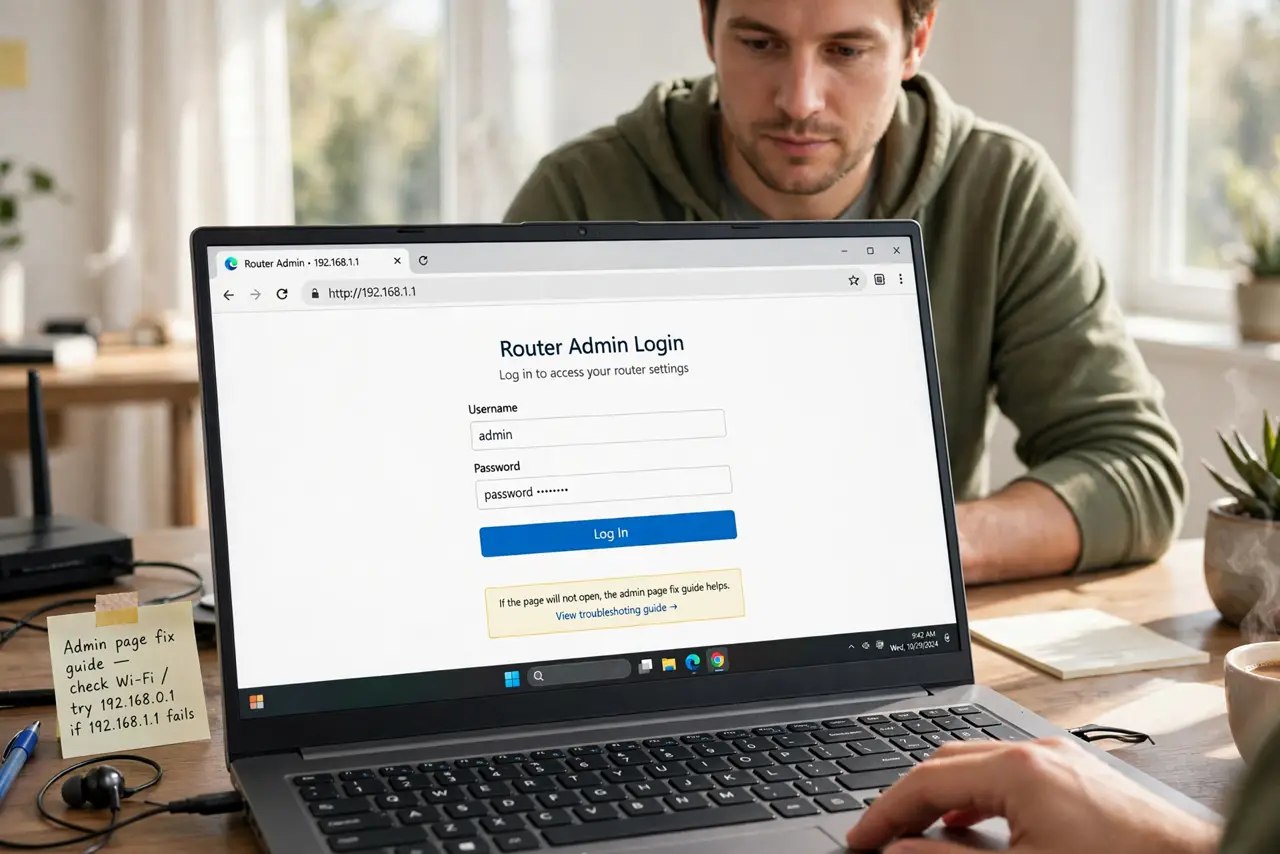
- Log in to your router. Open a browser and go to your router's admin address (often 192.168.1.1 or 192.168.0.1). If the page will not open, the admin page fix guide helps.
- Find the wireless security settings. Look for Wireless, Wi-Fi, or WLAN settings, then the security section. You want the password/passphrase field — usually near the network name (SSID).
- Generate a long, random password. 20+ characters, random — a password manager's generator is ideal. This is one place where length beats cleverness; the forgotten-password recovery guide has your back if you ever lose it.
- Set WPA3 or WPA2. Choose WPA3 if all your devices support it, otherwise WPA2. Never WEP or Open — those are decorations, not security. The password is what matters most.
- Save and reconnect everything. Saving kicks every device off — that is normal. Reconnect phones, laptops, TVs, and smart gadgets one by one with the new password. Budget ten minutes for a gadget-heavy home.
- Store the password somewhere sane. Write it in your password manager, or on paper in a drawer — not on a sticky note on the router. You will need it again for every new device.
What NOT to do
- Do not reuse your Wi-Fi password anywhere else. A password shared with a neighbor or a guest network should not also be your email password.
- Do not use WEP or no password for convenience. An open network lets anyone join — and anything they do traces back to your connection.
- Do not rename the network at the same time unless you must. Changing the SSID and password together doubles the reconnection work — read how to rename safely first.
- Do not share the password as a photo of the router sticker. Screenshots of passwords in your camera roll are a leak waiting to happen — share it via a password manager or a Wi-Fi QR code.
Frequently asked questions
How long should a Wi-Fi password be?
20+ random characters is the practical sweet spot. Beyond that, you are adding typing pain for negligible gain — length up to about 20 matters most.
Should I use WPA3 or WPA2?
WPA3 if every device supports it; WPA2 otherwise. One old device forcing the whole network down to WPA2 is normal — do not leave a device offline over it.
How often should I change my Wi-Fi password?
Only when there is a reason — a device you do not recognize, a former roommate moving out, or a suspected leak. Routine monthly changes add hassle without real security benefit.