Smart Gadgets Need 2.4 GHz
Your new smart plug cannot see your Wi-Fi network at all — while your phone connects fine. The plug is not broken: it only speaks 2.4 GHz, and your router is probably steering everything toward 5 GHz or hiding the 2.4 band behind one merged name. This is the single most common smart-home setup failure. This guide gets 2.4 GHz visible again and your gadgets connected. For the bigger channel picture, tune channels for smart homes.
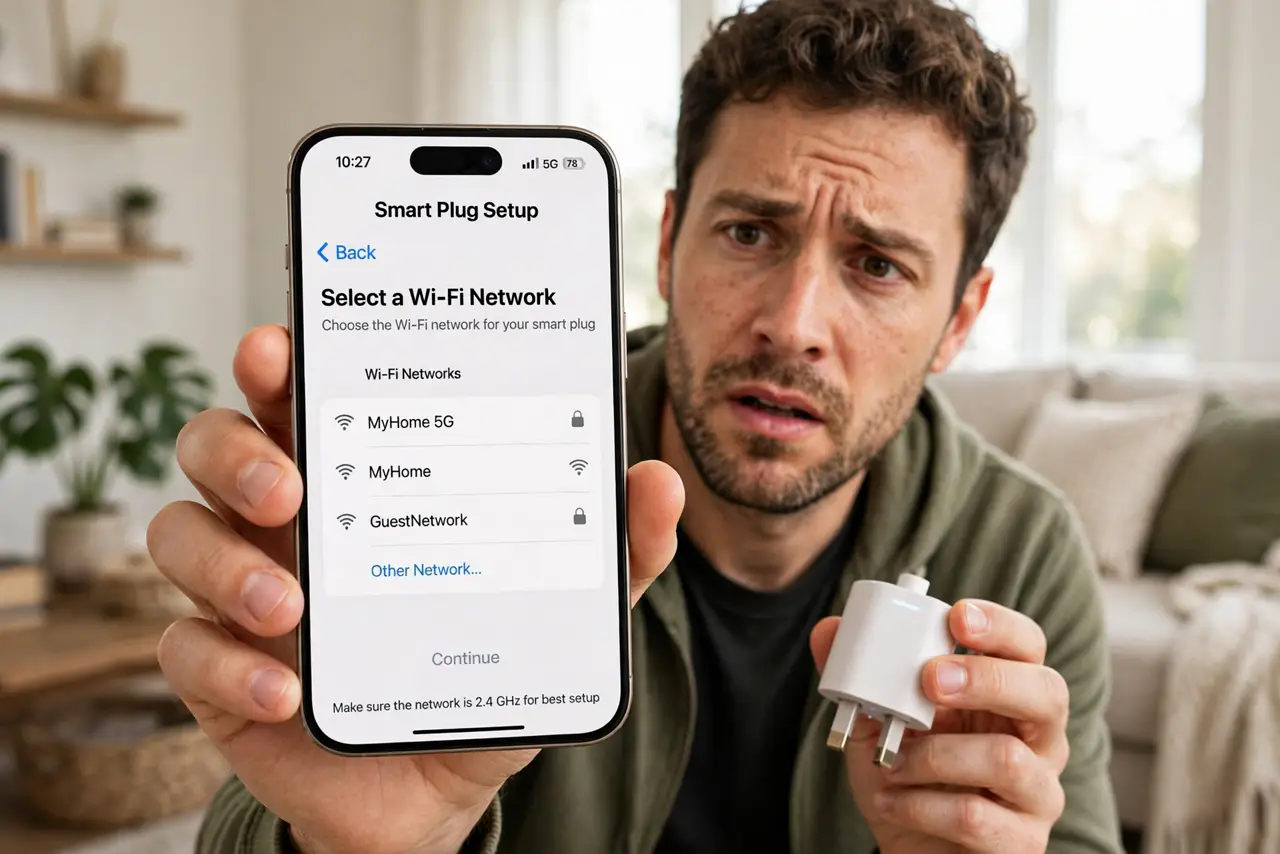
TL;DR / Quick Fix
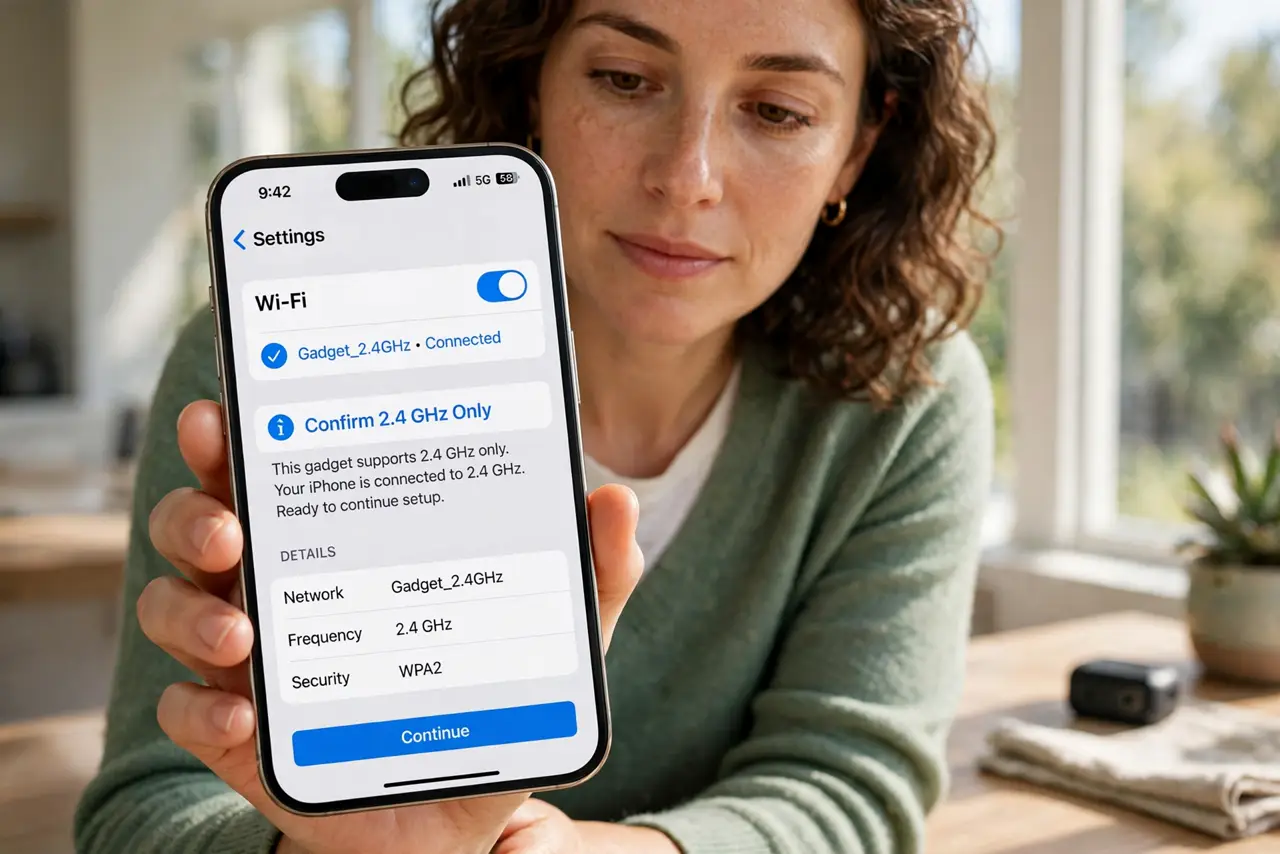
Quick fix: most smart gadgets only use 2.4 GHz, so give that band its own network name in the router settings. During setup, keep your phone on the same 2.4 GHz network. Once configured, gadgets stay connected even if your phone moves back to 5 GHz.
Follow these steps
- Confirm the gadget is 2.4 GHz only. Check the box or manual — the vast majority of plugs, bulbs, and sensors are 2.4 GHz only. This is normal and by design: the band reaches farther through walls.
- Split the bands in your router. In the router settings, give 2.4 GHz and 5 GHz different network names. Merged names with band steering are the number one reason gadgets fail to connect.
- Put your phone on 2.4 GHz for setup. Most gadget apps configure over the local network, so the phone and gadget must share the band during setup. Join the 2.4 GHz name on your phone first.
- Run the gadget's setup. Follow the app's pairing flow now that both devices are on 2.4 GHz. Enter the password carefully — a typo here is the most common failure after band issues.
- Move the phone back after. Once the gadget connects, it stays on 2.4 GHz independently. Your phone can return to 5 GHz; the app will still find the gadget on the home network.
- Keep the 2.4 GHz name stable. Do not rename the 2.4 GHz network later without updating every gadget. A renamed network orphans all of them at once — a painful afternoon.
What NOT to do
- Do not assume the gadget is defective when it cannot see the network. Nine times out of ten it is the merged-band problem, not hardware.
- Do not set up gadgets with the phone on 5 GHz. The app and gadget cannot find each other across bands during pairing.
- Do not hide the 2.4 GHz network after setup. Hidden networks cause reconnect failures — leave it broadcasting.
- Do not rename the 2.4 GHz band on a whim. Every gadget stores the old name; renaming means re-pairing the whole house.
Frequently asked questions
Why do gadgets not just use 5 GHz?
Cost and range. 2.4 GHz chips are cheaper and reach farther through walls — everything a twenty-dollar plug needs.
Will splitting bands slow my phone?
No. Your phone picks the best band either way; separate names just let you choose deliberately instead of trusting the steering.
My router will not let me split bands — now what?
Temporarily disable 5 GHz during gadget setup, then re-enable it. Many ISP routers allow this even without separate names.