Stop TV Buffering
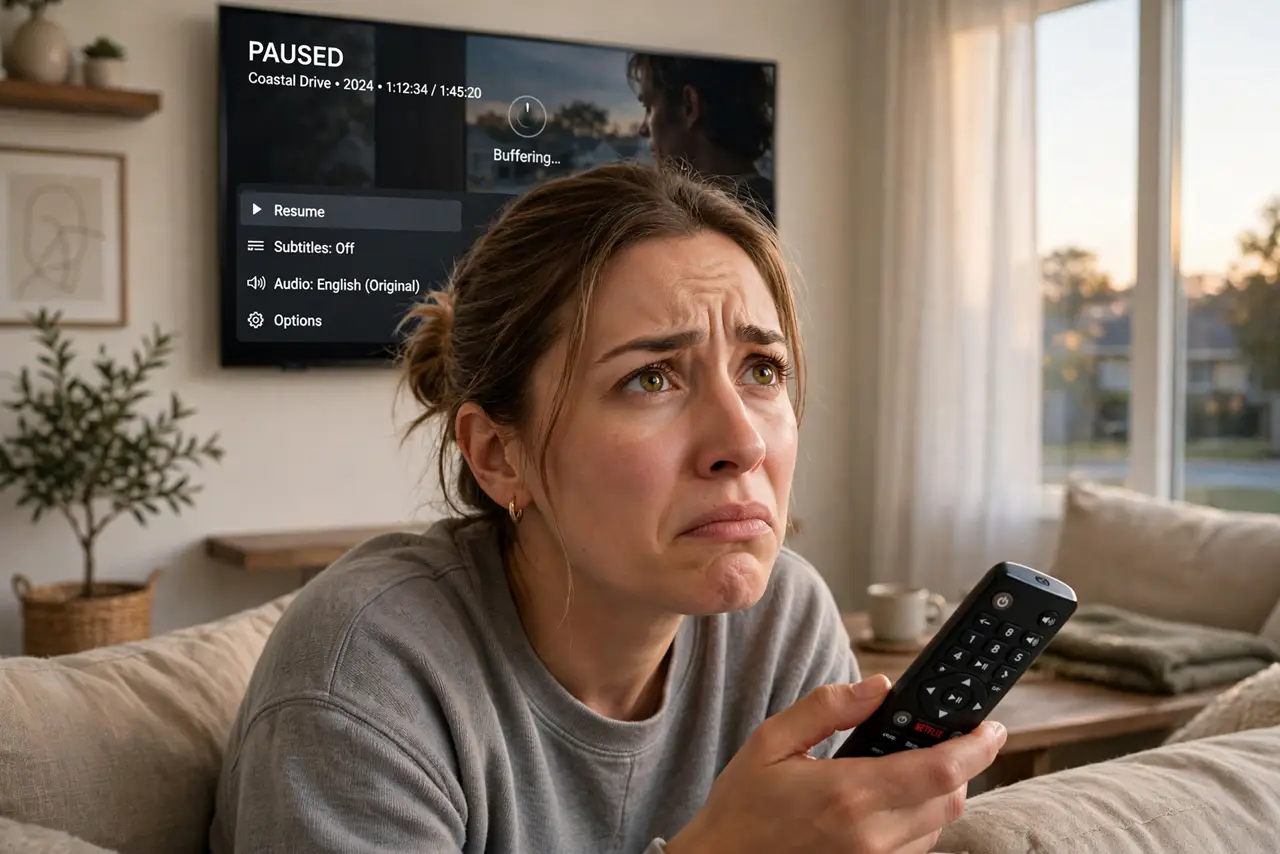
The movie is getting good and the spinning circle appears. Smart TV buffering is almost never the TV's fault — it is usually Wi-Fi placement, a crowded network, or the TV clinging to a weak signal. Before you reset anything or buy new gear, run through these checks in order; most buffering dies at step two.
TL;DR / Quick Fix
Quick fix: restart the TV and the router, then move the TV closer to the router or plug it in with Ethernet — wired beats Wi-Fi for streaming. Lower the stream quality one notch to test. If it plays smoothly, your connection was the bottleneck, not the TV.
Follow these steps
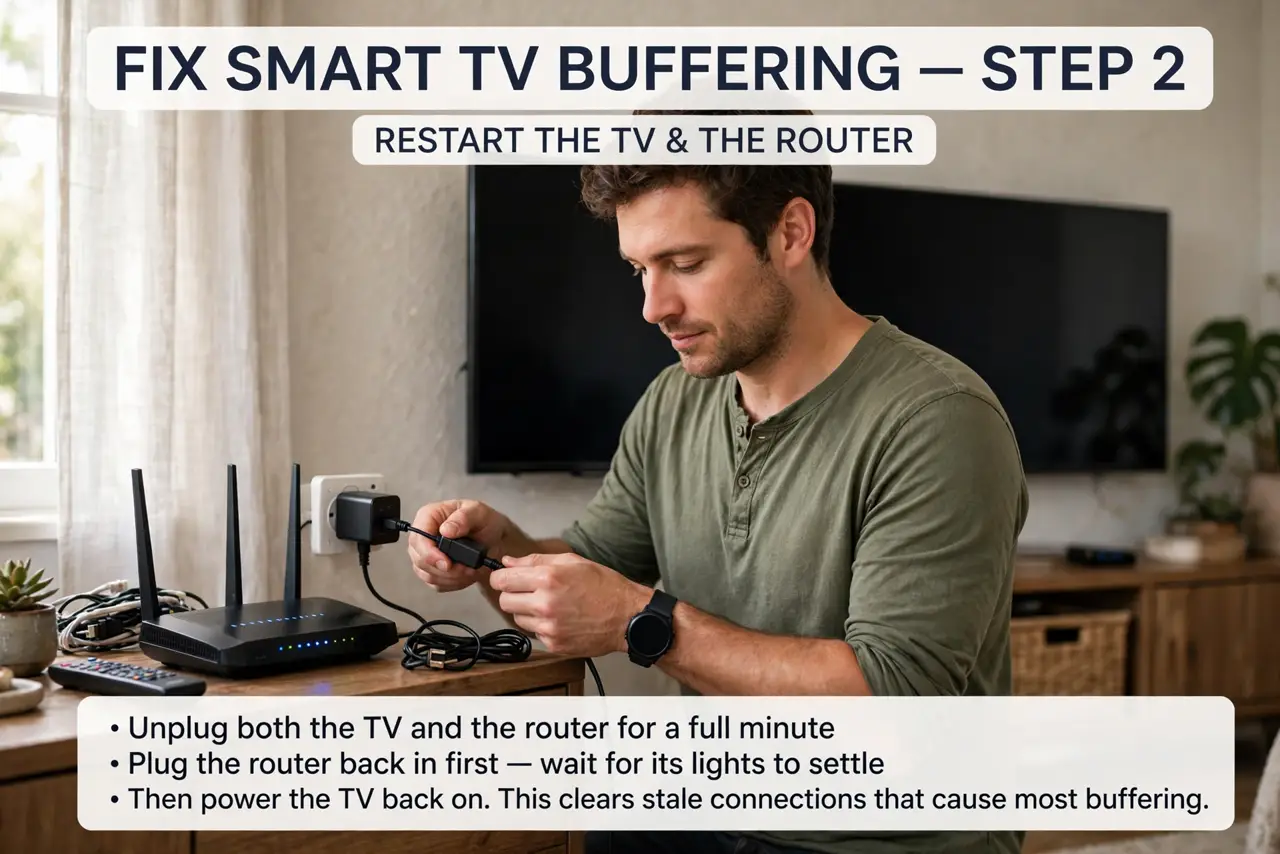
- Restart the TV and the router. Unplug both for a full minute, then plug the router back in first and wait for its lights to settle. This clears stale connections that cause most buffering — see how to fix smart TV buffering step by step if you want the full routine.
- Test with a wired connection. Plug an Ethernet cable from the router to the TV if you can. If buffering vanishes, Wi-Fi was the problem and you can stop troubleshooting the TV entirely.
- Check what else is using the network. A backup, a game download, or four phones on video calls can starve the TV. Pause heavy downloads during movie night and retest.
- Move the router or the TV. TVs tucked behind metal cabinets or two rooms from the router get weak signals. Even moving the router a few feet higher and out in the open can fix it.
- Lower the streaming quality one notch. Drop from 4K to 1080p in the app's settings as a test. If it plays fine, your speed cannot sustain 4K — a plan or provider issue, not a TV issue.
- Update the TV's software. Old TV firmware mishandles network connections. Check for updates in the TV's settings; it is a safe, free step that fixes more than people expect.
What NOT to do
- Do not factory-reset the TV first. Resetting wipes your logins and apps and rarely fixes a network problem — it is the last resort, not the first step.
- Do not buy a new TV to fix buffering. Nine times out of ten the TV is fine; the network or the placement is the problem.
- Do not ignore night-only buffering patterns. If it only happens at night, your provider may be throttling or congested — a router cannot fix that.
- Do not place the router inside a cabinet. Wood and metal block Wi-Fi; the router belongs out in the open, ideally high up.
Frequently asked questions
Why does only the TV buffer when my phone is fine?
Phones move closer to the router and use smaller screens. The TV sits far away streaming 4K — it needs far more bandwidth than a phone does.
Is 25 Mbps enough for 4K streaming?
Usually yes for one stream, if the TV actually receives that speed. Run a speed test on the TV itself — the number at your phone is not the number at the TV.
Does a streaming stick buffer less than the TV apps?
Sometimes — sticks often have better Wi-Fi chips than built-in TV apps. If the TV's apps struggle but a stick works, the TV's Wi-Fi is the weak link.