Smart Thermostat Wi-Fi
Your new smart thermostat refuses to join the Wi-Fi, failing at the last setup step every time. Nine times out of ten the culprit is the 5 GHz band: most thermostats only speak 2.4 GHz, and your phone tries to set them up over 5. Here is the reliable fix sequence before you reset anything.
TL;DR / Quick Fix
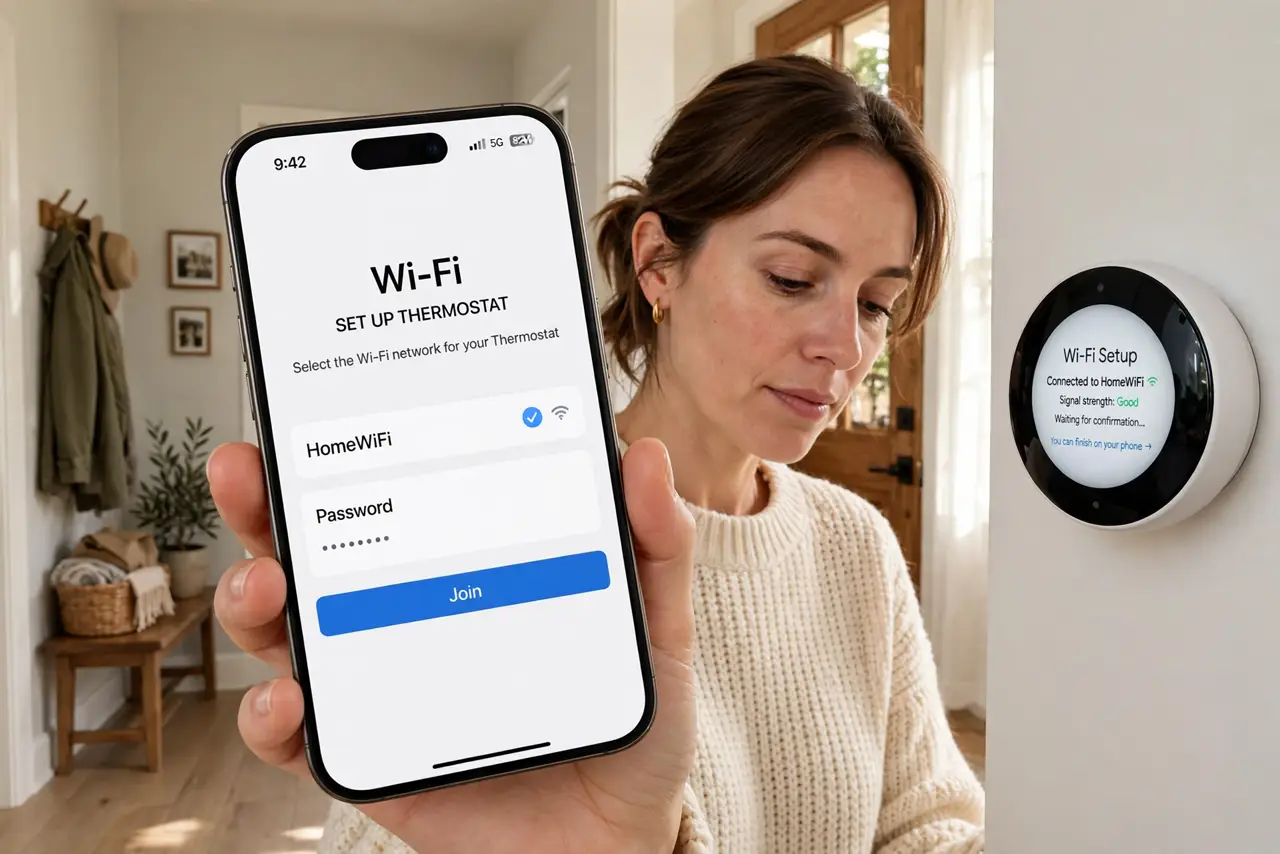
Quick fix: most smart thermostats only pair on the 2.4 GHz band — temporarily switch your phone to the 2.4 GHz network during setup, then switch back. Keep the thermostat within good router range and enter the Wi-Fi password carefully. If pairing fails twice, restart the thermostat and try again.
Follow these steps
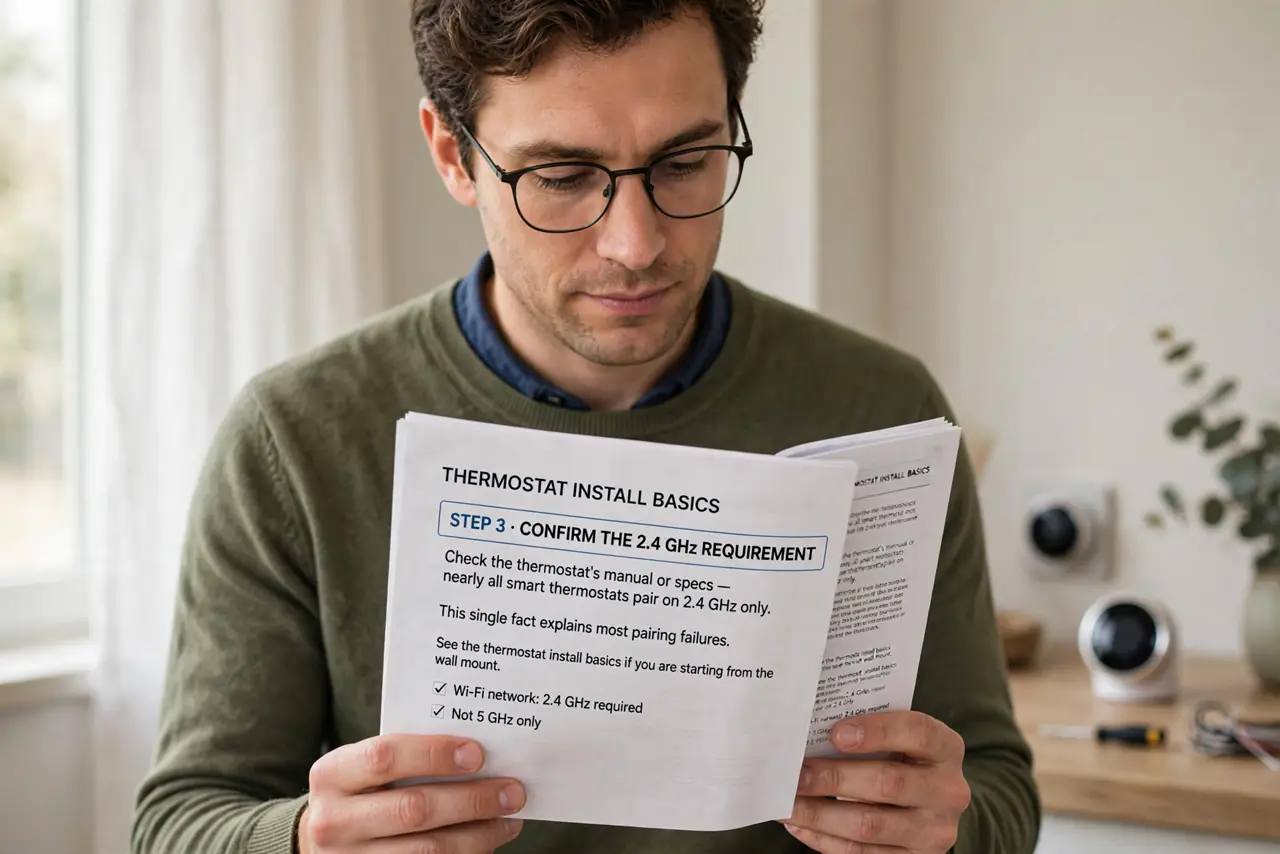
- Confirm the 2.4 GHz requirement. Check the thermostat's manual or specs — nearly all smart thermostats pair on 2.4 GHz only. This single fact explains most pairing failures. See the thermostat install basics if you are starting from the wall mount.
- Put your phone on 2.4 GHz. During setup, connect your phone to the 2.4 GHz version of your Wi-Fi (often the network name without 5G). Many apps pass the phone's current network to the thermostat — wrong band, failed pairing.
- Enter the password carefully. Thermostat screens are tiny and passwords are long. Type slowly, watch for autocorrect on the phone app, and confirm the exact network name.
- Check the router distance. Thermostats often sit in hallways far from the router. Weak signal fails pairing silently — move the router closer or add coverage on that side of the house.
- Restart the thermostat. If pairing fails twice, restart the thermostat and try once more. Stale setup states cause mysterious failures that a restart clears.
- Update firmware after connecting. Once online, check for firmware updates immediately. Early firmware is buggy; updates fix pairing, scheduling, and sensor issues.
What NOT to do
- Do not factory-reset after one failure. Resetting wipes your wiring configuration — fix the Wi-Fi band first, reset last.
- Do not pair from the 5 GHz network and wonder why it fails. The phone's network during setup is the network the thermostat gets.
- Do not hide the 2.4 GHz network permanently. Some routers let you disable it — thermostats and many smart devices need it to exist.
- Do not ignore the C-wire question. Wi-Fi thermostats need constant power; no C-wire means battery headaches regardless of Wi-Fi success.
Frequently asked questions
Why does setup fail at the last step?
Almost always the Wi-Fi band — the phone was on 5 GHz. Switch to 2.4 GHz and retry before anything else.
Can I move my phone back to 5 GHz after?
Yes. The band only matters during pairing — afterward the thermostat lives on 2.4 GHz happily while your phone uses 5.
How close should the thermostat be to the router?
Same rules as any device: strong signal at the wall matters. Hallway thermostats far from the router are the classic weak-signal case.