Change Your Account Picture?
Your account picture shows on the Windows login screen, the Start menu, and in apps — and the default silhouette is nobody's best look. Changing it takes seconds in Settings, or online for Microsoft accounts. This guide shows both paths and how to pick a photo that survives tiny sizes.
TL;DR / Quick Fix
Quick fix: change your Windows account picture in Settings, Accounts, Your info — browse for a photo. It shows on the login screen and Start menu. Use a clear, well-lit face; tiny images get blurry. A Microsoft account can set it online, syncing to every Windows device you sign into.
Follow these steps
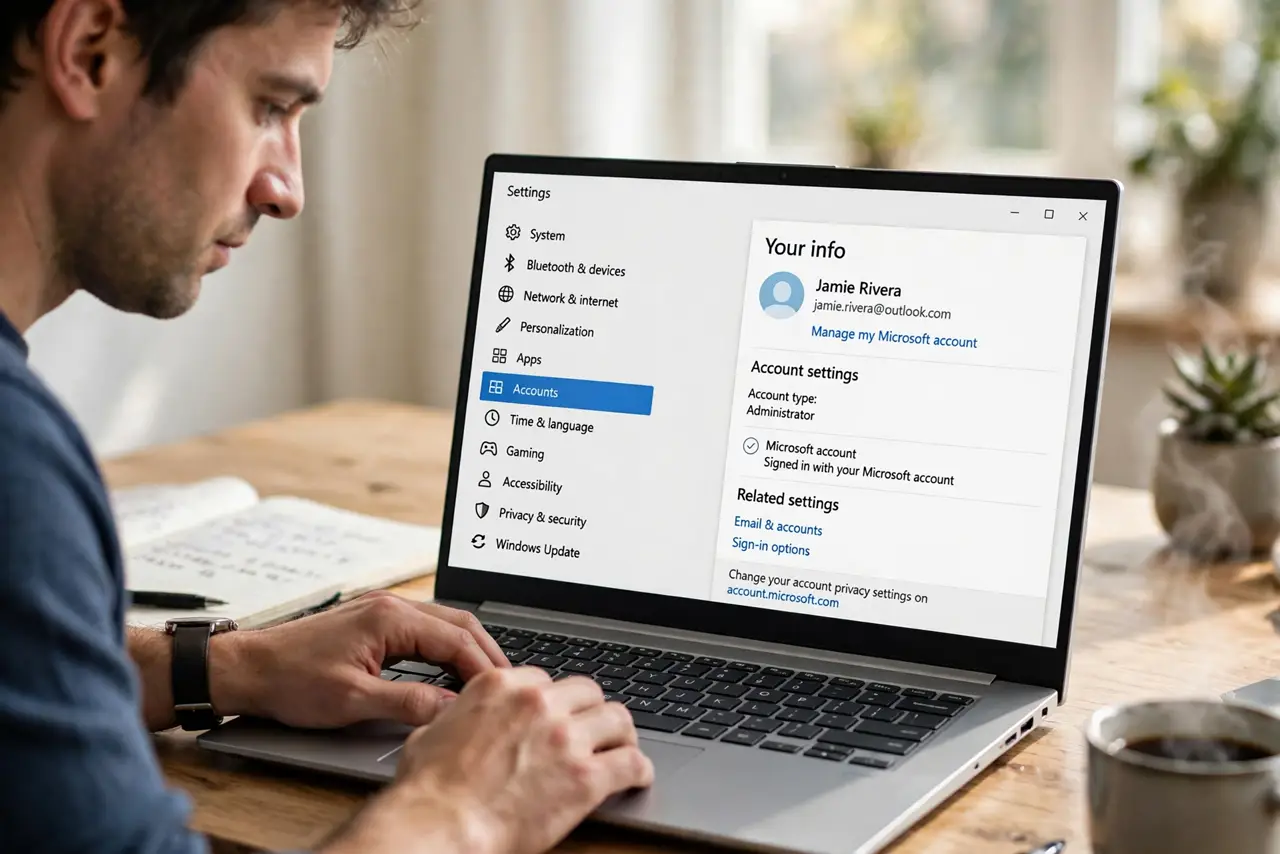
- Open Your info. Go to Settings, Accounts, Your info. Your current picture sits at the top with options to change it right underneath.
- Browse for a photo. Click 'Browse files' and pick a clear, well-lit photo of your face. Square-ish crops work best — Windows shows it as a circle in most places.
- Or take one with the camera. The Camera option snaps a fresh photo on the spot. Face a window for decent light — overhead lighting alone gives harsh shadows.
- Use the Microsoft account page. Signed in with a Microsoft account? You can also change it at account.microsoft.com — it syncs to every Windows device on that account, which beats changing each one.
- Know local accounts differ. Local (offline) accounts keep the picture on that PC only. Switch to a Microsoft account if you want the picture — and settings — to follow you.
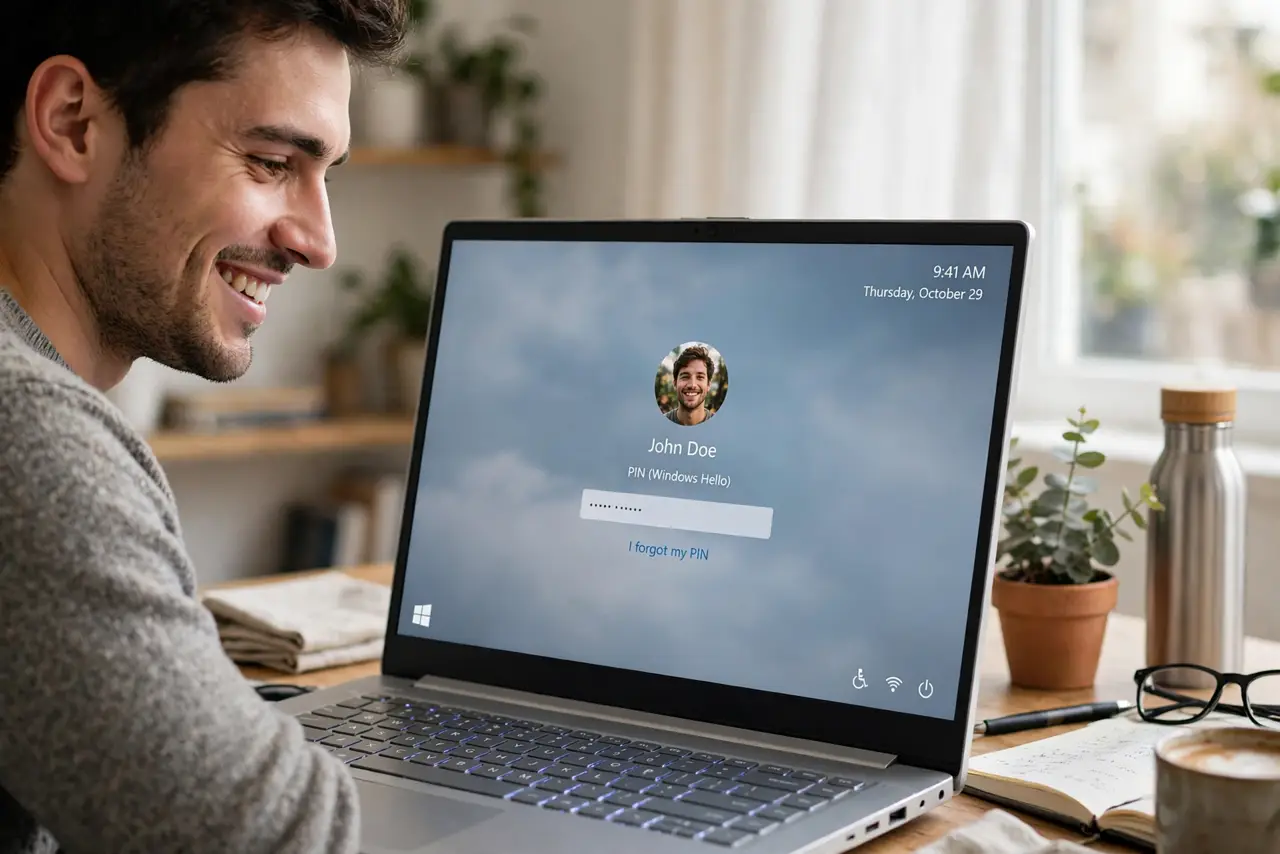
- Check where it appears. Login screen, Start menu, Settings, and some apps. If several people share the PC, distinct pictures per account — like distinct Mac login pictures per user — make picking the right account instant.
What NOT to do
- Do not use a tiny thumbnail. Source images under a few hundred pixels turn to mush on the login screen — start with a decent-size photo.
- Do not use an embarrassing photo on a work PC. It shows on the login screen during meetings and screen shares — keep it professional.
- Do not expect instant sync. Microsoft account picture changes can take a while to propagate to every device — give it time before retrying.
- Do not confuse it with the lock screen wallpaper. The account picture is the small circle; the background photo is a separate setting — changing one does not change the other.
Frequently asked questions
Why is my picture blurry?
The source image was too small. Use a photo at least 500 pixels square so it stays sharp when Windows scales it down.
Can I remove the picture entirely?
Windows always shows something — the default is a generic silhouette. The closest to 'none' is setting a plain neutral image.
Does it change my Microsoft profile photo?
Yes, if you change it through the Microsoft account — the same photo appears across Microsoft services, including Teams and Outlook.