Activity History Shows Old PCs? Clear It
When activity history shows PCs you no longer own, your timeline feels cluttered and you may worry that an old computer still has access. The history is a record, not a live connection, so the fix is to clear it and remove old devices from your account, in the right order.
TL;DR / Quick Fix
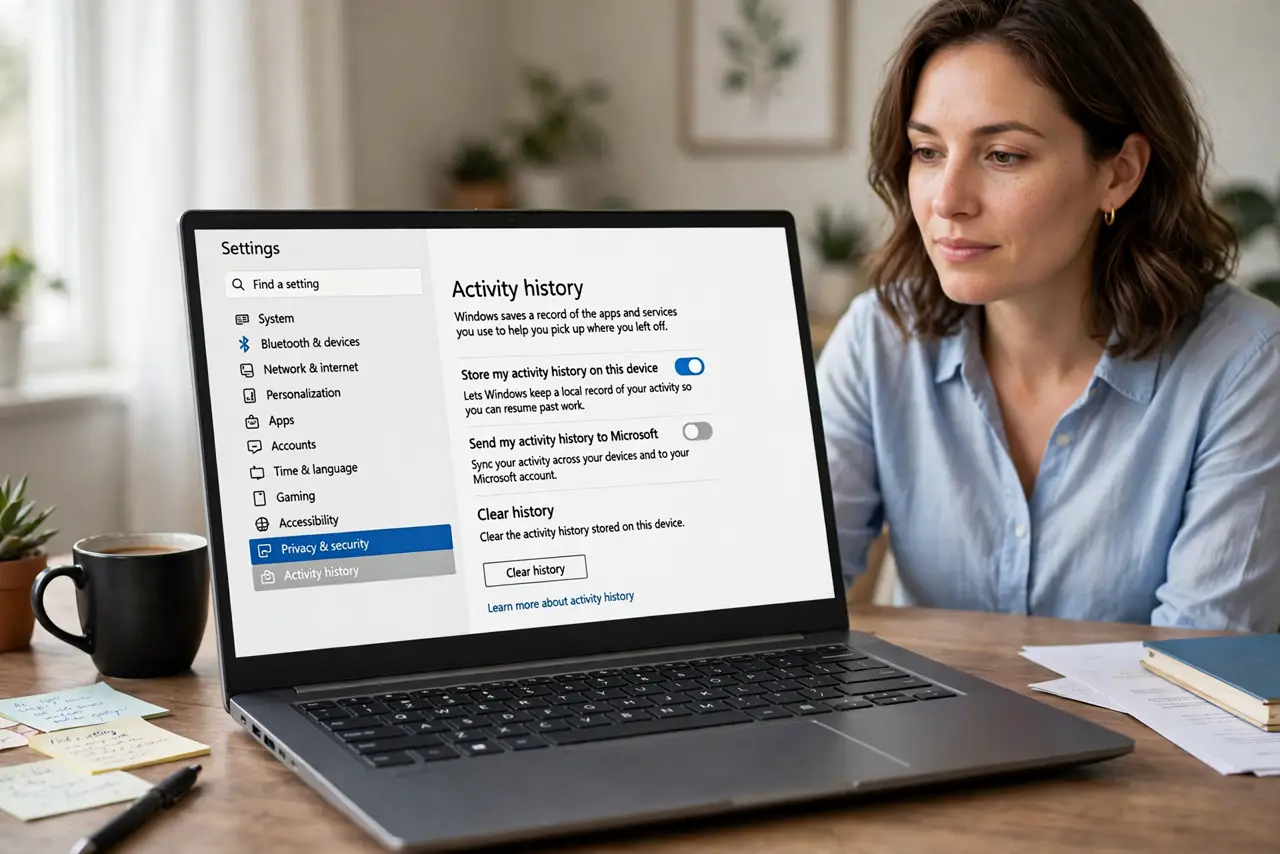
Quick fix: open Settings, then Privacy and security, then Activity history, and clear the history. Then check your Microsoft account devices online and remove any computer you no longer own. Restart, and check that the old PCs no longer appear.
Follow these steps
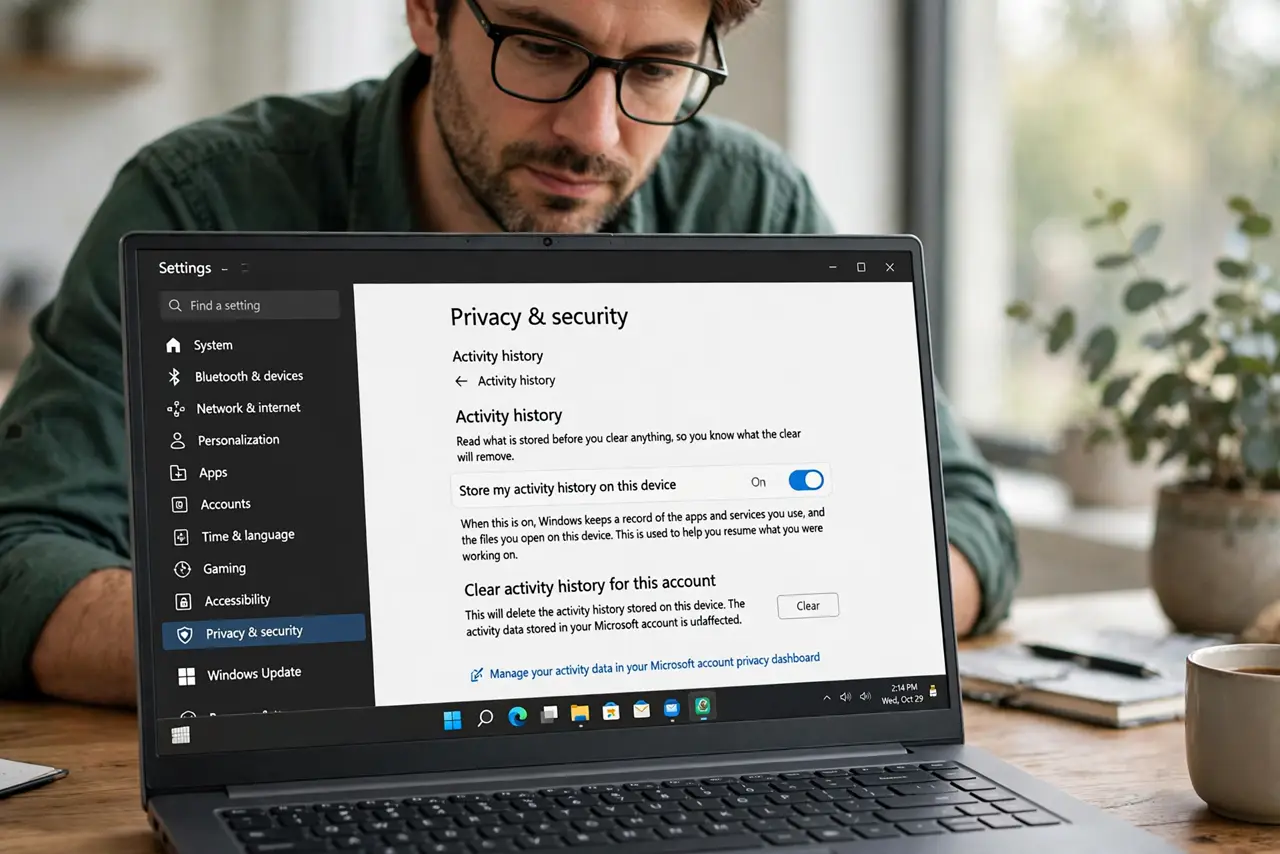
- Open Activity history settings. Open Settings, then Privacy and security, then Activity history. Read what is stored before you clear anything, so you know what the clear will remove.
- Clear the activity history. Choose Clear activity history and confirm. This removes the stored timeline entries, including those tied to old computers, from this device.
- Turn off history storage if you do not want it. If you do not use the timeline, turn off storing activity history on this device. That stops new entries from building up again.
- Review devices on your account. Sign in to your Microsoft account device list in a browser, and review every computer listed. Remove any computer you no longer own or recognize.
- Change your password if a device looks unfamiliar. If a listed device is one you never owned, change your account password and turn on two-factor authentication before you do anything else.
- Restart and check the history again. Restart the computer, then reopen Activity history and confirm the old PCs are gone. If one returns, it is still signed in somewhere, so repeat the device removal.
What NOT to do
- Do not just clear history and ignore an unfamiliar device. Clearing hides the record, but a device still signed in can create new entries, so remove it from the account.
- Do not remove a computer you still use. Removing a current device signs it out, and you will need to sign in again on that computer.
- Do not share your account password to fix a history problem. Password sharing creates more devices on the account, which is the opposite of cleaning it up.
- Do not assume old history means someone is spying on you. History is a record of past activity, and old entries often remain long after a computer is sold or retired.
Frequently asked questions
What is activity history?
It is a record of apps, files, and activities Windows stored to help you pick up where you left off. It is a history, not a live view of another computer.
Will clearing history delete my files?
No. Clearing history removes timeline entries only. Your documents, photos, and apps stay exactly where they are.
Why does an old PC keep reappearing?
Because it is still listed on your account, or still signed in. Removing it from the account device list stops it from returning.