Alt-Tab Shows Every Window, Not Just This Desktop
Alt-Tab is fastest when it shows only the windows on your current virtual desktop. When it lists windows from every desktop, switching becomes a hunt through apps you are not using right now. The fix is one setting in Multitasking, plus a check that you are on the desktop you think you are on. If windows seem to appear from nowhere, first check Task View showing windows you already closed.

TL;DR / Quick Fix
Quick fix: Open the Multitasking settings. Set Alt-Tab to the current desktop only. Then work through the remaining steps in order, checking one change at a time, and stop for a technician if you see damage, swelling, or a burning smell.
Follow these steps
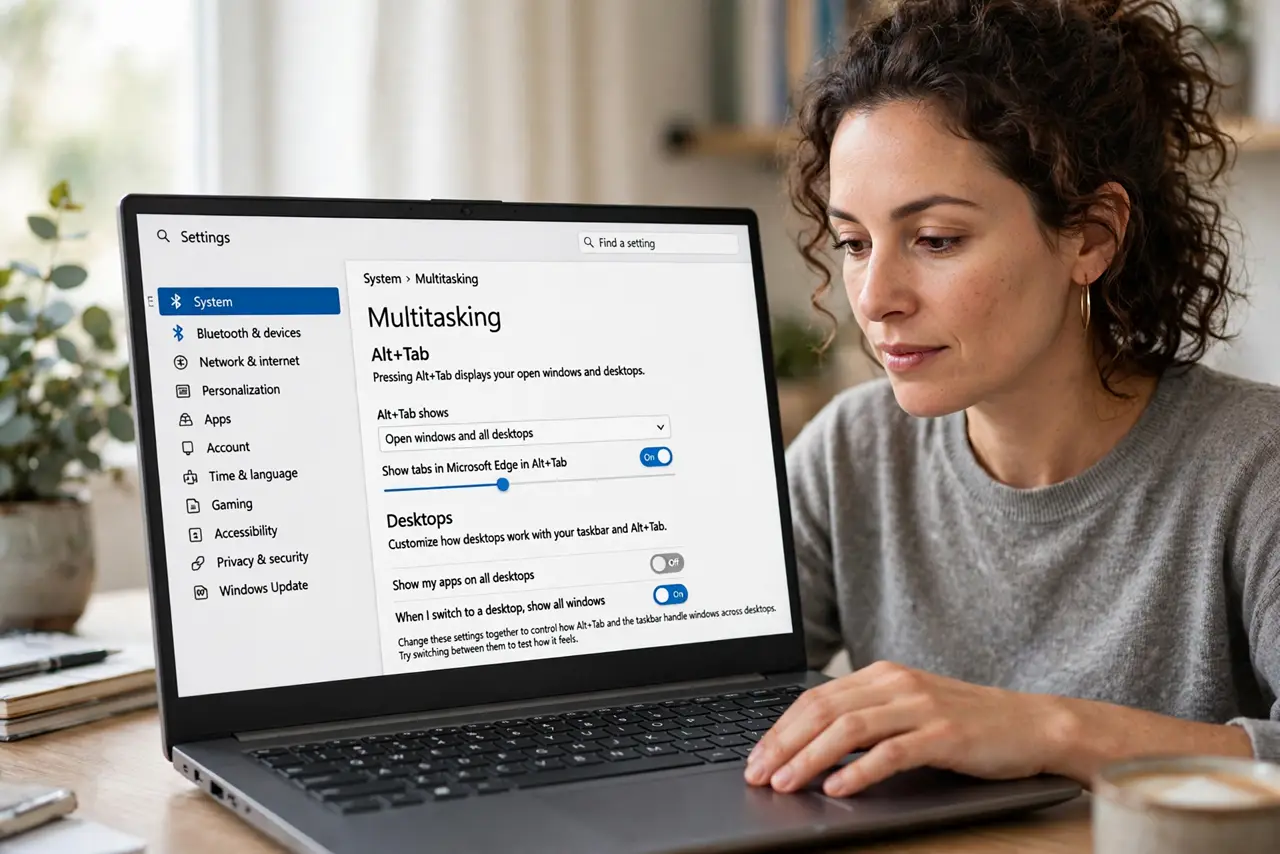
- Open the Multitasking settings. Open Settings, then System, then Multitasking. This page holds both the Alt-Tab setting and the taskbar desktop setting, so change them together and test once.
- Set Alt-Tab to the current desktop only. Find the option about pressing Alt-Tab and choose Only the desktop I am using. Windows immediately narrows Alt-Tab to that desktop, with no restart needed.
- Check the taskbar setting too. On the same page, find the option about showing windows on the taskbar and set it to the desktop you are using if you want the same narrowing there. The two settings are separate, so one does not change the other.
- Confirm which virtual desktop you are on. Press the Windows key plus Tab to open Task View and look at the highlighted desktop at the top. If you are on the wrong desktop, Alt-Tab is correctly showing that desktop windows, not extra ones.
- Test with two desktops and two apps. Put one app on each of two desktops, then Alt-Tab on each desktop in turn. You should see only that desktop app, which proves the setting works before you trust it during real work.
- Check for apps set to all desktops. In Task View, right-click a window that still appears everywhere and confirm it is not set to Show this window on all desktops. An app pinned that way will appear in Alt-Tab on every desktop, by design.
What NOT to do
- Do not install an Alt-Tab replacement to fix this. The built-in setting already does the job, and replacements can break switching entirely.
- Do not close desktops to shrink Alt-Tab. That moves windows around and loses your layout, while the setting keeps your layout intact.
- Do not change the setting on every desktop separately. It is one system setting, so changing it once applies everywhere.
- Do not assume Alt-Tab is broken if one app still appears. Check that app all-desktops setting first, because it overrides the filter.
Frequently asked questions
Where is the Alt-Tab desktop setting?
In Settings, then System, then Multitasking, under the option for pressing Alt-Tab.
Does this setting affect the taskbar?
No, unless you change the separate taskbar option on the same page. Alt-Tab and the taskbar have their own desktop filters.
Can I still see other desktops windows quickly?
Yes. Open Task View with the Windows key plus Tab to see every desktop, then click the desktop you need.